



 Zoom to fit the screen
Driver Report
Submitted by rd on Fri, 12/02/2022 - 10:421. Purpose
- Allows users to manage and evaluate how many trips a driver has made, how many points he has traveled, and how many kilometers he has traveled over a period of time.
2. Implementation conditions
- The user is granted permission for the Driver Report function on the CRM system.
3. Implementation instructions
- Go to the menu Dispatch System»Driver Report.
- The display function screen consists of 2 parts:
1. Fleet Queries section is the part where the user sets up information to create a report (allows searching for reports by each fleet or multiple fleets, searching by the name of each driver or multiple drivers)
2. Driver Report section is the section that displays statistics on the total number of pick-up and delivery points, number of trips, and number of kilometers by each vehicle and corresponding driver.
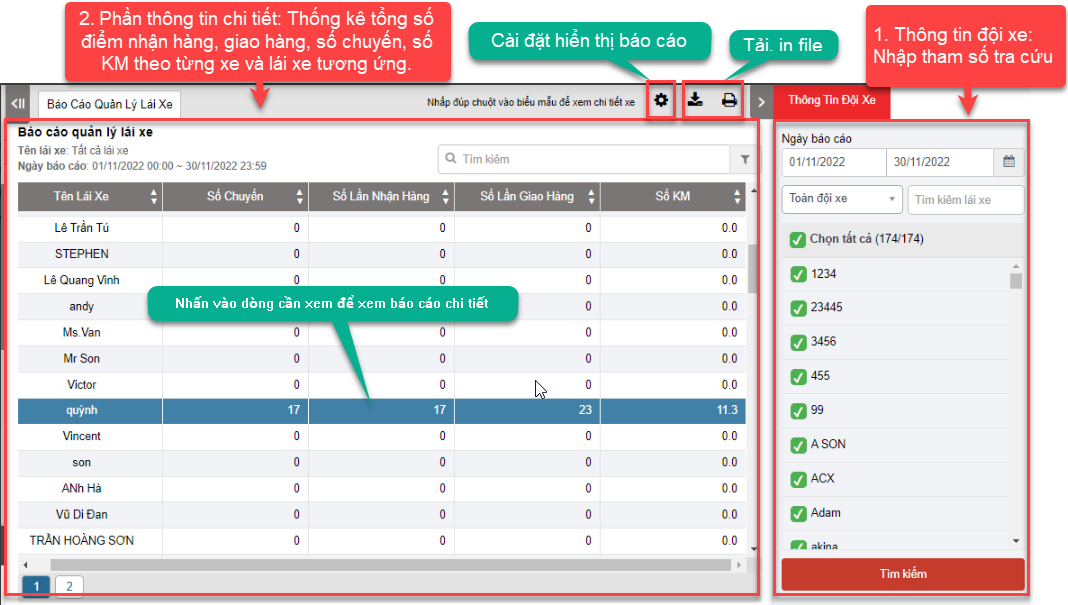
+ Driver Report section: Driver management report is displayed in 3 levels:
-
Level 1: Summary report, statistics of total pick-up and delivery points, number of trips, number of kilometers for each vehicle and driver respectively. From there, the manager can evaluate whether the allocation of trips to drivers is balanced or not and is also the basis for calculating the driver's salary. Detailed functions are as follows:
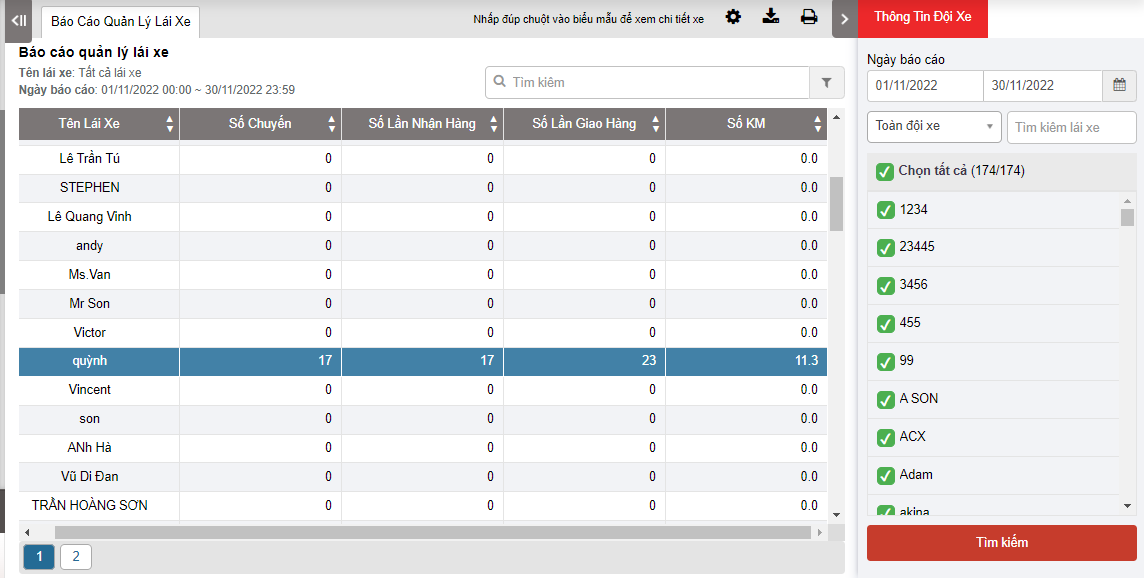
In which:
-
Số chuyến: Is the number of dispatch orders that the driver is assigned during the search period
-
Số lần nhận hàng: Corresponding to the number of pickup points on the dispatch orders that the driver receives during the search period
-
Số lần giao hàng: Corresponding to the number of delivery points (delivery points, agent points) on the dispatch orders that the driver receives during the search period
-
Số Km: Is the number of kilometers calculated from the pickup point until the vehicle reaches the final agent point; Will be taken according to the number of kilometers according to GPS (actual kilometers measured by the device)
-
Level 2: To view the delivery details of the drivers by each day, the user selects the line of the driver to view details and clicks. The detailed report of level 2 is displayed as follows:
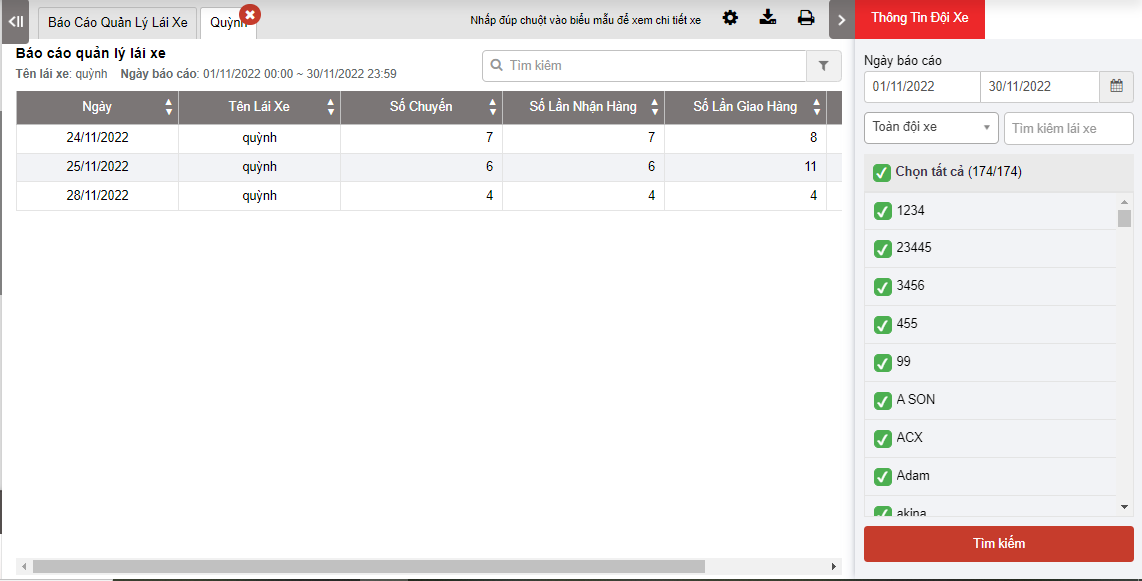
The indicators on the report are similar to the level 1 report but with additional information:
-
Date: Date of vehicle dispatch
-
Driver name: Name of the driver performing the vehicle dispatch
-
Level 3: Allows users to view details of each delivery day, users select the date they want to view details and click, the level 3 detailed report screen displays as follows
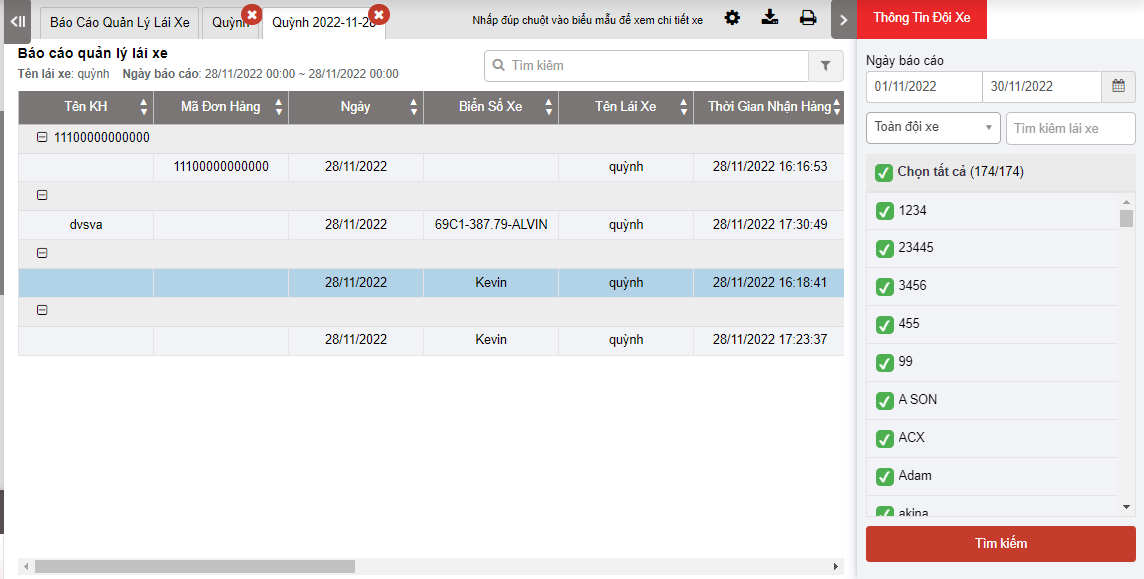
In which:
-
Tên khách hàng: Customer name of the dispatch order
-
Mã đơn hàng:
-
Ngày: Date of dispatch order execution
-
Biển số xe: plate number of the order execution
-
Tên lái xe: Name of the driver executing the order
-
Thời gian nhận hàng: Name of the driver executing the order
-
Điểm nhận hàng: Name of the driver executing the order
-
Thứ tự các điểm giao hàng: Name of the driver executing the order
-
Thời gian giao hàng: Time to deliver to the delivery address
-
Địa chỉ giao: Delivery address
-
Số KM tích lũy: The total actual Km the vehicle has traveled from the start to the end of the trip. Km calculation milestones can be set according to the status in the dispatch setting section:
As shown below, for example, select BD in the departure status and KT in the completed status. The accumulated Km is calculated from when the driver updates the departure status until the driver updates the Complete status

Note: For driver management reports, vehicle dispatch orders will only be reported when the order has a Completed status and the date recorded on the report is the order completion date.