



 Zoom to fit the screen
Abnormal fence
Submitted by rd on Fri, 12/02/2022 - 13:491. Purpose
- Allows the user to check the specific time and location where the vehicle encounters abnormal fence..
2. Implementation conditions
- The user is granted permission for the Abnormal Fence function on the CRM system.
3. Implementation instructions
- Go to the Abnormal Report»Abnormal fence.

 - The display function screen consists of 2 parts:
+ Fleet Queries section allows users to set up time parameters and vehicles to view the report;
+ Report details section displays the daily driving time of each driver
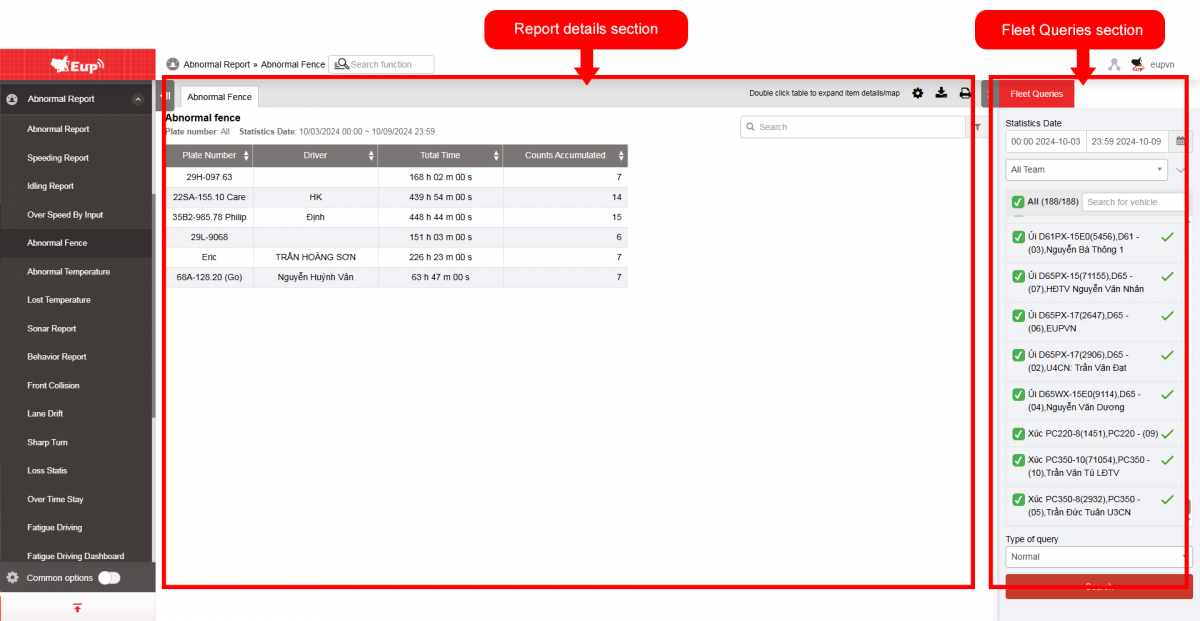
+ Fleet Queries section: the user selects the following information:
-
From: The user enters the first day to create the report;
-
To: The user selects the last day to create the report;
-
Select the icon
 to select the Team;
 -
In the vehicle list: Check the checkbox to select the vehicle to report;
-
Click Search button to display the report in the Report Details section.
+ Report details section: Display detailed report information.
-
Plate number;
-
Driver;
-
Total time: The total time from when the vehicle encounters the obstacle until it clears the fence.
-
Counts accumulated: Statistics on the total number of times the vehicle encounters fence.
-
The user selects the row to view details, double-clicks to display detailed information including: Obstacle Name, Start Time, End Time, and Total Duration from when the obstacle is encountered until it is cleared.

+ Select the icon  to print the report
+ Select the icon  to download the report as excel
+ Select the icon  to Custom Field, Plate number field settings, Print signature settings
