



 Zoom to fit the screen
Oil checkin report
Submitted by rd on Fri, 06/14/2024 - 11:511. Purpose
- Support users in generating a driver fuel check-in report for a specific time period (from date to date) to facilitate the management and monitoring of driver fuel check-in instances for the enterprise.
2. Implementation conditions
- The user is granted permission for the VN88C option
3. Implementation instructions
Step 1: Operations on the Edriver VN app (download from App Store or Google Play)
+ Log in to the driver's account, then go to the Fuel Check-in section.
+ The screen displays 2 sections: Check-in Point and History.
Check-in Point: For performing check-in at the location and taking photos to send to the system.
-
The user selects the vehicle and presses the Check-in Point button. At that time, the Edriver app allows the driver to take photos (can take 1 or multiple photos depending on the driver's needs) and send them to the system.
-
The driver must select a vehicle to be allowed to check in. If the driver has previously selected a vehicle, the driver app retains the previously selected vehicle until the driver performs an action to change to a different vehicle.
-
Data on photos, time, and check-in location will be sent to the FMS system and aggregated into the Oil checkin report by the date the driver checked in.
History: Displays the number of check-ins along with images by date.
Step 2: Go to the menu Driver Statistics»Oil checkin report. The function screen consists of 2 sections:
+ Fleet Queries section allows users to set up time parameters and vehicles to view the report;
+ Report details section driver fuel Check-in Report section;

+ Fleet Queries section: the user selects the following information:
-
From: The user enters the first day to create the report;
-
To: The user selects the last day to create the report;
-
Select the icon
 to select the Team;
 -
Click Search button to display the report in the Report Details section.
+ Report details section: Display detailed report information.
-
Plate number;
-
Driver;
-
Start Time: The time the driver starts operating the vehicle.
-
End Time: The time the driver finishes operating the vehicle.
-
Start Location: The location where the driver begins the trip.
-
End Location: The location where the driver ends the trip.
-
Action: Allows the user to delete the driver's attendance record.
-
Start Photo;
-
End Photo;
-
Total Kilometers;
-
Total Check-ins;
-
Check-in Photos;
-
Details: Click on Details to display a detailed information table
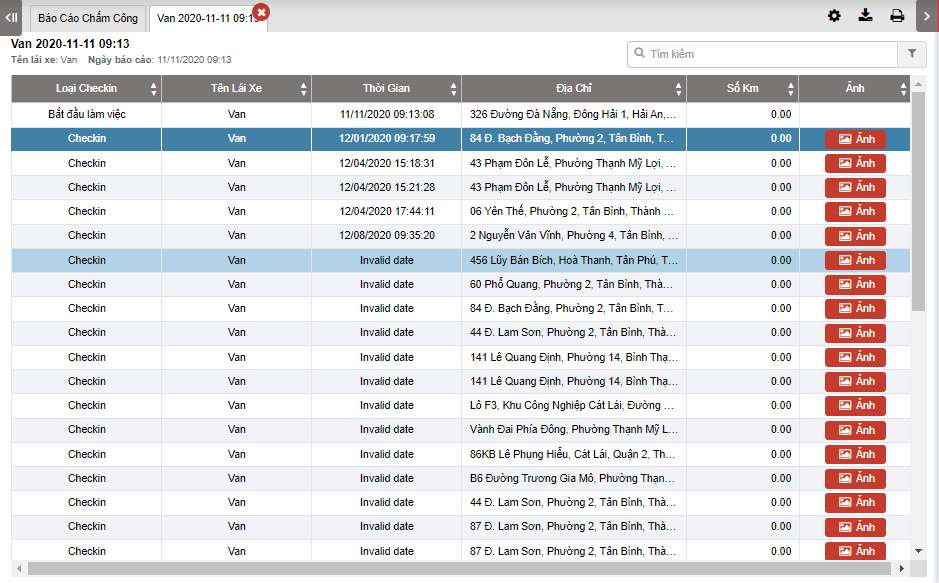
+ Select the icon  to print the report
+ Select the icon  to download the report as excel
+ Select the icon  to Custom Field, Plate number field settings, Print signature settings
+ Select the icon  to filter search results