



 Zoom to fit the screen
Fuel Management
Submitted by rd on Fri, 12/02/2022 - 10:301. Purpose
- This feature allows customers, whether or not they have installed a fuel sensor, to check fuel costs based on the actual number of liters filled — either recorded on fuel receipts or detected by the sensor.
- It helps customers manage drivers’ fuel receipts, thereby monitoring whether fuel filling is performed in compliance with company regulations.
- It enables evaluation of discrepancies in fuel quantity and actual cost between fuel receipts and sensor data, providing accurate assessments of sensor quality and the difference between actual fuel filled and recorded fuel consumption.
2. Implementation conditions
- The user is granted permissions for the options MY05 (Fuel Management) and DK (Fuel Cost Control Dashboard).
3. Implementation instructions
- Go to menu Fuel Management/Fuel Management

- The function screen consists of three sections:
-
Fleet Information section;
-
Fuel (Oil) section;
-
Entire Fleet section.
 - Fleet Information section: The user can quickly search using the following information:
- Entire Fleet: Default option. The user can click the icon to select a specific fleet;
- All: Default shows all vehicles in the fleet. The user can click the icon to select specific vehicles;
- From: The start date the user wants to check;
- To: The end date the user wants to check;
- Search: Click Search to display the results;
- Import File: Allows the user to import fuel data from an Excel file;
- Sample File: Allows the user to download a sample Excel file for data import.
- Fuel (Oil) Section: Includes the Fuel Chart and Fuel Information Table:
- Fuel Chart: Displays fuel volume based on sensor data;
- For vehicles equipped with a fuel sensor, the chart will be displayed.

-
For vehicles without a fuel sensor, the following will be displayed:

- Fuel Information: Displays a table of fuel data manually entered by the user, allowing the user to add, edit, or delete information in the table.

- Date: The date when the user refueled.
- Time: The exact time when the user added fuel.
- Liters: The number of liters filled according to the fuel sensor.
- Actual Fuel (Liters): The actual number of liters filled (manually entered by the user).
- Fuel Price: The actual fuel price (manually entered by the user).
- Fuel Cost: The fuel cost calculated based on system settings (Liters × Fuel Price).
- Actual Fuel Cost: The actual fuel cost calculated based on user input (Actual Fuel × Fuel Price).
- Fuel Difference: The difference in fuel quantity between the sensor reading and the actual filled amount (Liters – Actual Fuel).
- % Difference: The percentage difference between Fuel Cost and Actual Fuel Cost.
- Cost Difference: The cost difference between system-calculated fuel cost and actual fuel cost (Fuel Cost – Actual Fuel Cost).
- Total Distance (km): The total distance traveled by the vehicle within the selected time range.
- Address: The location where the user refueled.
- Invoice: The invoice file uploaded by the user from their device.
-
Click the icon
 to add or update fuel information:
-
Receipt No.: Enter the corresponding receipt number.
-
License Plate: Fixed and cannot be changed; displayed according to the previously selected vehicle.
-
Date, Hour, Minute: The time when the vehicle was refueled (cannot be modified after successfully saving).
-
Actual Fuel: The actual amount of fuel filled.
-
Fuel Price: The actual unit price of fuel (VND/liter).
-
Odometer (Km): Enter the actual mileage.
-
Address: Enter the refueling location.
-
If a fuel sensor is used, the address will be automatically retrieved from the sensor, and the user will not be allowed to edit it.
-
- Use the MY05A option to display Receipt No. and Address.
-
Invoice: The user selects the invoice file from their device.
-
Confirm: Click Confirm to save the entered information.
-
Cancel: Click Cancel to discard the entered information.

-
Click the icon
 to edit the fuel information
-
Click the icon
 to delete the fuel information.
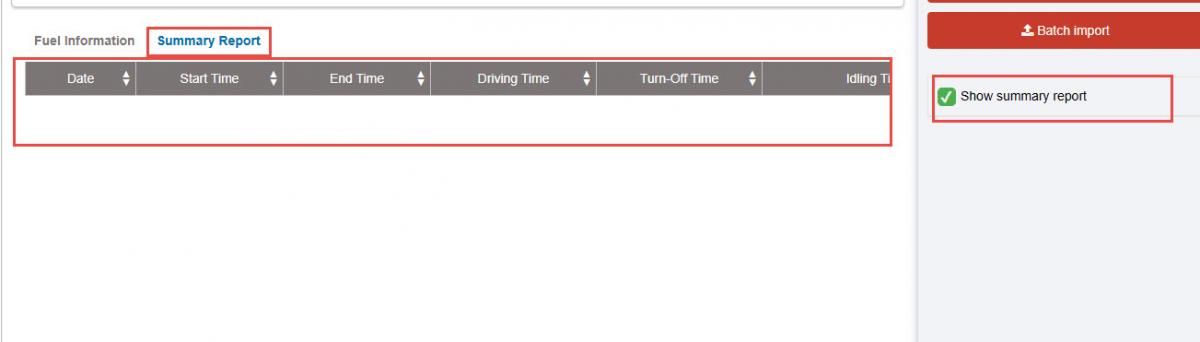
- Summary Table: Checked Show summary report Fleet Information section to display the Summary Table:
-
Date: The dates within the selected query period.
-
Start Time: The time when the vehicle was first started during the day.
-
End Time: The time when the vehicle was last turned off during the day.
-
Operating Time: The total time the vehicle was running — including Running time (green status), Active time (purple status), and Overspeed time.
-
Idle Time (Engine Off): The duration when the vehicle was stopped with the engine off (gray status).
-
Idle Time (Engine On): The duration when the vehicle was stopped but the engine was still running (blue status).
-
Active: Vehicle status in purple.
-
Working Time: Operating Time + Idle Time (Engine On).
-
Usage Time: The total period from when the vehicle was first started to when it was finally turned off during the day (End Time – Start Time).
-
Non-operating Time: 24 hours – Usage Time.
-
Total Distance (Km): Total distance traveled by the vehicle in a day.
-
Number of Overspeed Events: The number of times the vehicle exceeded the maximum speed limit (Level 3) as configured in abnormal conditions (calculated by route overspeed occurrences).
-
Fuel Consumption: Total daily distance × Fuel rate set in Basic Information / Vehicle Information.
-
Note: The Active status (purple color) feature is rarely used.
-
Entire Fleet Section: Displays the list of all vehicles in the fleet along with summarized information:
-
License Plate: Vehicle license number;
-
Period: Driver’s name;
-
Cost: Total actual fuel cost (manually entered by the user) within the selected time range;
-
Liters: Total actual fuel volume (manually entered by the user) within the selected time range;
-
Total Km: Total distance traveled within the selected time range;
-
Km/L: Fuel efficiency calculated based on total distance and actual fuel volume within the selected time range;
-
Fuel Drains: Total number of fuel drain events recorded by the fuel sensor.
-
Click the icon setting in the Entire Fleet section to customize which data fields to display, such as Cost, Liters, Total Km, L/100Km, and Fuel Drains.

+ Select icon  to print report
+ Select the icon  to download the report in excel format
+ Select icons  to customize display columns, customize license plates on reports and set up printing signatures