



 Zoom to fit the screen
Dispatch Shipping
Submitted by rd on Fri, 12/02/2022 - 10:401. Purpose
- Allows users to create a delivery order according to a predetermined route, the order can be from point A to point B, C, D... according to customer's request. At the same time, assign a driver to receive the delivery order.
2. Implementation conditions
- The user is granted permission for the Dispatch Shipping function on the CRM system.
3. Implementation instructions
- Go to the menu Dispatch System»Dispatch Shipping.

- The function screen displays 3 parts including:
1. Search section allows searching for delivery orders;
2. Add multiple orders, sample files, download data, add, product types section allows users to create orders, add multiple orders at the same time and import orders from excel files;
3. List of searched delivery orders
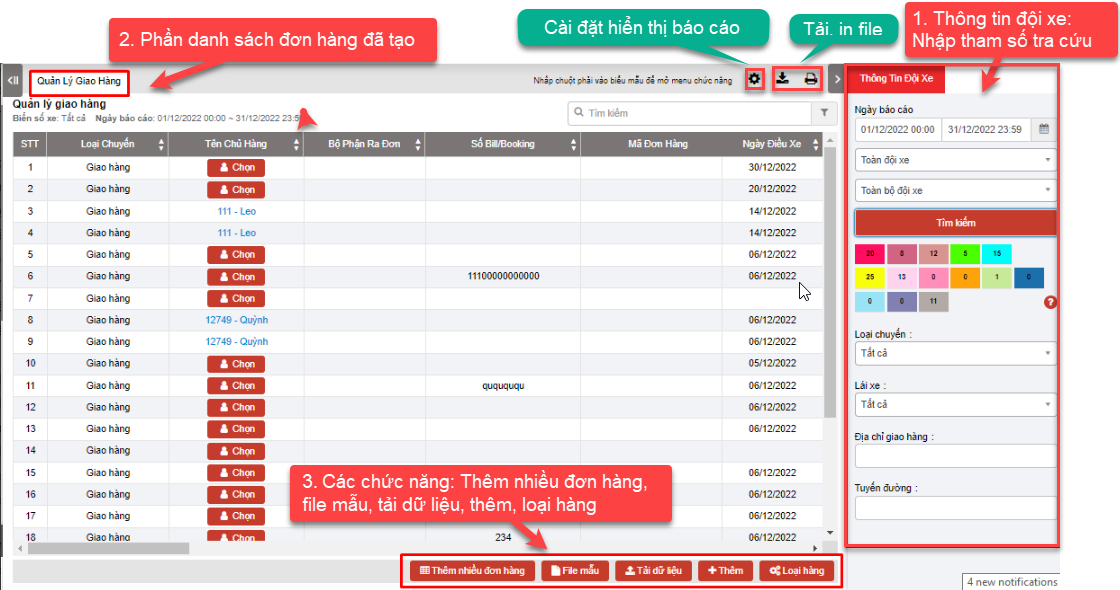
+ Search section: Allows users to search for delivery orders according to criteria such as time, license plate, delivery status...
-
From - To: Users enter the time period to search for delivery orders
-
Select Team
-
Plate number: plate number of the vehicle performing the dispatch
-
Click Search button to search for delivery orders
-
Filter by Status: The status of the delivery trip by color, users can choose to set up the types of delivery trip statuses on the dispatch_setting page. Statuses that users can choose to view the report:
-
-
Departure
-
Arrived at the starting point
-
Arrived at the ending point
-
Completed
-
Abnormal
-
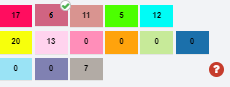
- Filter by Trip Type, Driver, Delivery Address, Route

+ Add multiple orders, sample files, download data, add, product types: Allows users to set up delivery orders according to the company's form and dispatch vehicles to make deliveries.
-
Add multiple orders: Allows users to add multiple orders at the same time
-
Import Example: Allows users to download a sample excel file to enter order information into the file and import multiple orders at the same time using an excel file.
-
Download data: Allows users to import orders from an excel file. In the case of customers already on the system, if there is a delivery and receiving address, just enter the customer name and the address will automatically be retrieved according to the customer. For orders with multiple delivery points, when importing an excel file, the system will understand that the same order code and delivery number are the same delivery order.
Note: Information about vehicle, driver, customer can be entered by the user or when entering, the user must enter the correct information previously saved in the system.

-
Add order: User selects Add to add a new delivery order. The delivery order detail screen is as follows:

-
In case the order has multiple delivery points, the user selects the symbol
 to enter additional delivery points.
 -
Order information includes:
-
-
Order number: Order number
-
Delivery number: Order number
-
Order detail number: In case the order has multiple points, each point can have a different order detail number
-
Customer name: The user selects the customer in the customer contact list saved in the system
-
Plate number: The user selects from the license plate list, the list is displayed in order of priority for the nearest vehicle and if it is empty, it will be displayed first
-
Driver: The user selects the driver corresponding to the license plate
-
Fee: Vehicle dispatch fee
-
Pickup Address: Address to receive the goods for take-away
-
Expected Pickup Time: Time to receive the goods for take-away
-
Receipt phone number: Contact phone number of the delivery person for take-away
-
Delivery address: Delivery address after receiving the goods at the starting point
-
Estimated delivery time: Time to deliver the goods
-
Delivery phone number: Phone number of the recipient row
-
-
Press Add to complete adding a new order
-
Press Cancel to cancel adding the order just entered
-
After completing the order creation, the order will be sent to the Edriver driver app, see the instructions for using the Edriver app at EDRIVER APP USER GUIDE https://eup-wiki.gps247.vn/node/215
Note: Users can set up delivery orders as desired, can go to Dispach_setting.html (https://fms.ctms.vn/#dispatch_setting.html) to set up delivery orders

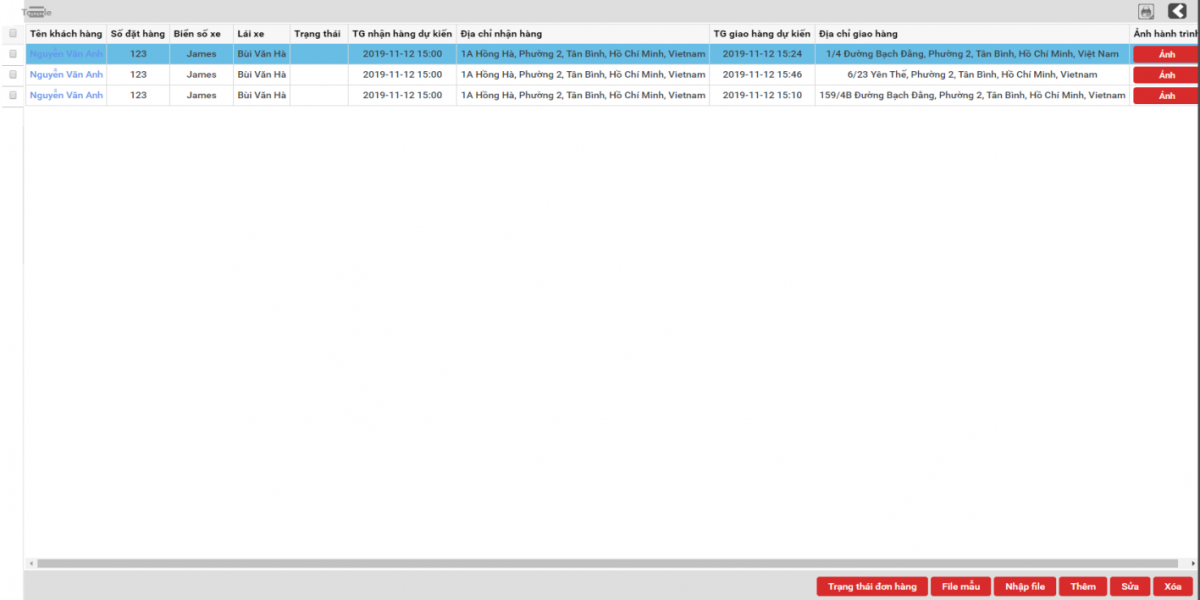
- After the user successfully adds an order, the function screen displays the delivery order that the user has added.
For example: The delivery order is to pick up goods from the agent's warehouse at 1A Hong Ha, Ward 2, Tan Binh, Ho Chi Minh City and deliver to the agents at the following addresses: 1/4 Bach Dang Street, Tan Binh, HCM; 6/23 Yen The, Ward 2, Tan Binh, HCM and 159/4B Bach Dang Street, Tan Binh, HCM. After successfully adding the order, the system will display 3 lines corresponding to 3 delivery points (refer to the photo)
-
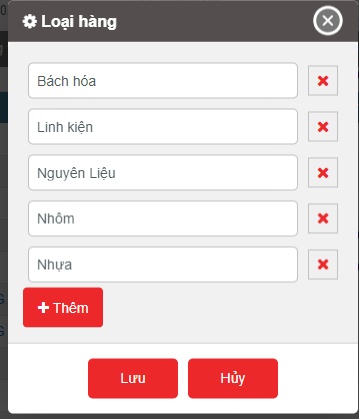
Product Type: Enter a list of product types
+ List Display Section: Displays all the metrics entered in the delivery order form, along with the delivery order status updated by the driver.
- Order Images:
-
If the user wants to download trip photos or invoice photos at a specific delivery point, they can navigate to the Trip Photos or Abnormalities (if any) section to download the photos.
-
Users can download all photos of an order at once: To download all photos for a single delivery order, the user can select the photo download feature to retrieve all photos associated with the delivery order.
-
Monthly Photo Archiving: The system will package the order photos monthly and update a link on the system for users to download and store the photos. (This feature will be updated later.)
-
-
Edit, Cancel, Status manage, Join order to this trip: User right-clicks on the line to be edited

- Edit delivery order: To edit a delivery order, the user selects the line that needs to be edited and then clicks Edit to edit the information in the delivery order
- Cancel: The user selects the line that needs to be deleted and clicks Delete to delete the delivery order
- Status Manage: Allows the user to edit the time corresponding to each status, or update the abnormal status of the order. The order status will be updated in detail for each delivery point: In case the driver completes the delivery at the first point and starts delivering at the second point, the delivery status at the first point will be Completed and at the second point will be Departure
