



 Zoom to fit the screen
Stop report
Submitted by rd on Wed, 12/07/2022 - 10:021. Purpose
- Support users to make parking reports of drivers, thereby detecting unusual parking points that are not on the vehicle's route.
2. Implementation conditions
- Users are authorized to Stop report in the Authorization function of the system..
3. Implementation instructions
- Go to the Regulation Report/Stop report.
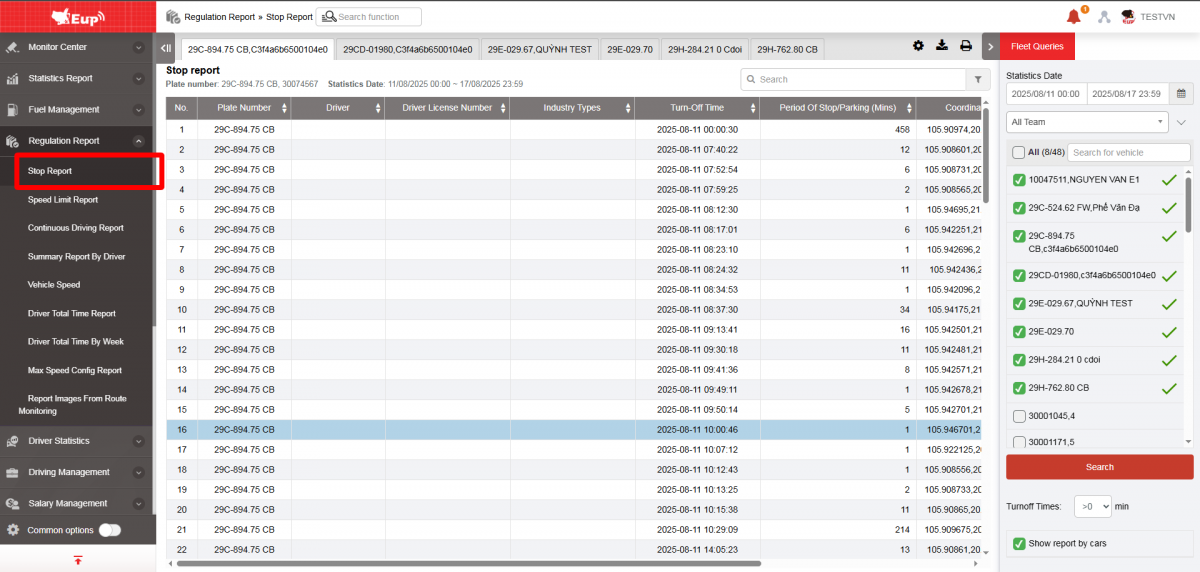
- The display function screen consists of 2 parts:
+ Fleet Queries section allows users to set time parameters and vehicles to view reports;
+ Report Details section displays information about vehicle stops.
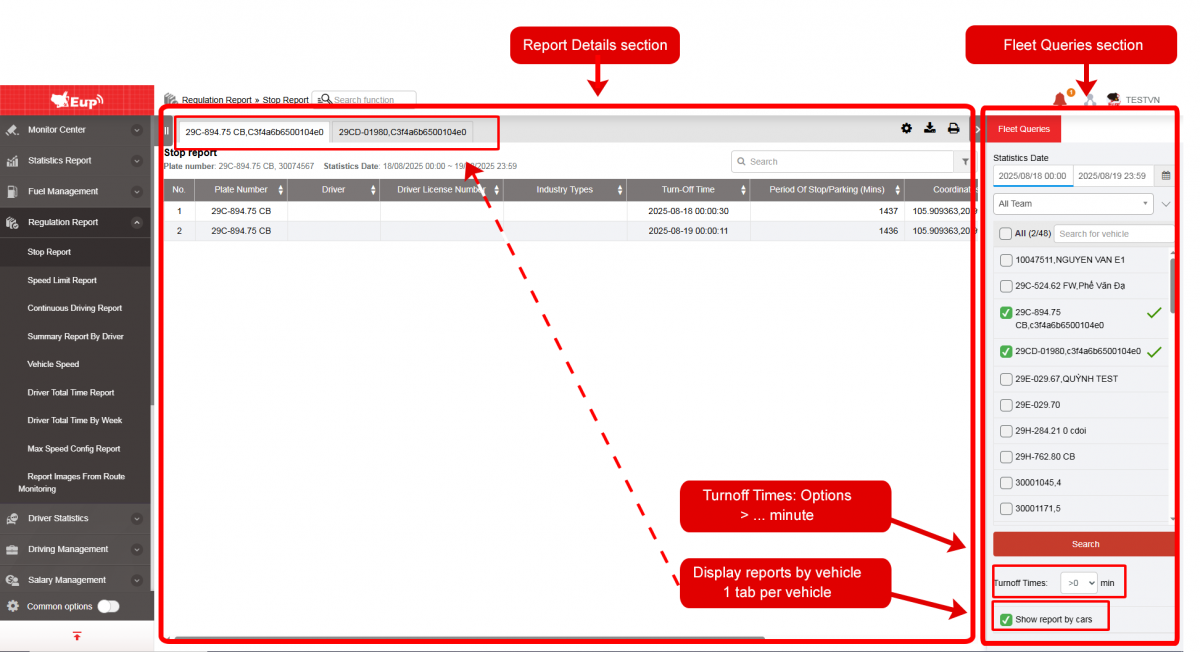
+ Fleet Queries section: the user selects the following information:
-
From: The user enters the first day to create the report;
-
To: The user selects the last day to create the report;
-
Select the icon
 to select the team;
 -
In the vehicle list: Check the checkbox to select the vehicle to report;
-
Turnoff Times: Options > 0, >5, >10, >15, >30, >60
-
Click Search button to display the report in the Report Details section.
-
Show report by cars: Display reports by vehicle, 1 tab per vehicle
+Report Details: Allows users to view all detailed information about the number of times the vehicle has stopped
-
Plate number;
-
Driver;
-
Driver license number;
-
Industry types;
-
Turn-Off time: Time the vehicle started parking (vehicle is parked or has two consecutive GPS signals < 3km/h);
-
Period of Stop/Parking (mins): Calculated in minutes, is the total parking time of the vehicle;
-
Coordinates: Coordinates of where the vehicle stopped;
-
Address: Location where the vehicle stopped;
+ Select the icon  to print the report
+ Select the icon  to download the report as excel
+ Select the icon  to Custom Field, Plate number field settings, Print signature settings