



 Zoom to fit the screen
Record Concrete Business Trip
Submitted by rd on Tue, 07/18/2023 - 12:071. Purpose
- Allows users to check the concrete discharge location and concrete discharge time during a trip. From there, detect unusual concrete discharge trips.
2. Implementation conditions
- The user has an account to access the journey monitoring system, use concrete sensors and is authorized to report concrete mixer trips.
3. Implementation instructions
- Go to menu Statistics report/ Record Concrete Business Trip
- The function display screen consists of 2 parts:
+ The Fleet Queries section allows users to set up report query conditions;
+ Record Concrete Business Trip section
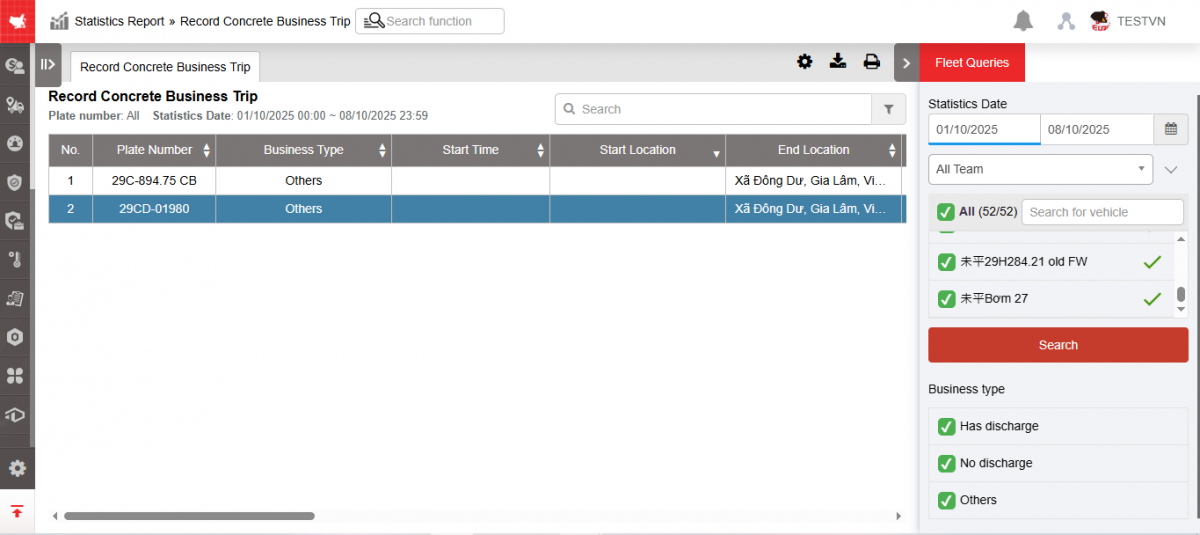
+ Fleet queries section: Includes information
-
From...to: User enters the first date and last date to view the report. Allows user to view the report for a maximum of 1 month.
-
Fleet: Default is entire fleet, allowing users to select other fleets in the system
-
All team: Default is all vehicle fleet groups, allowing users to select other vehicle groups in the system
-
All symbol: Default is all vehicle types, allowing users to select other vehicle types in the system
-
Vehicles: Users can select all or each vehicle in the checkboxes.
-
NSD selects Search to display results
-
Business type: Users can select the type of business trip to display in the checkboxes.
- Has discharge: A trip with start and end locations at the factory and with a discharge signal
- No discharge: A trip with start and end locations at the factory and no discharge signal
- Other: Trips in the following cases
- Stop at the factory or any location all day
- Workshop activities
- Has a starting position at the factory, then ends at any location and stops at that location without returning to the factory
+ Record Concrete Business Trip section: Displays information including
-
STT
-
Plate number
-
Business Type: Name of 3 trip types
-
Start Time: The time the vehicle begins to leave the workshop area
-
Start location: The position where the vehicle starts leaving the workshop area
-
End location: The position where the vehicle starts entering the workshop area
-
Discharge Address: Position with discharge signal according to concrete sensor
-
The first discharge location is the location with the first discharge signal and is recorded as the first discharge point after leaving the workshop area >3 minutes. Discharge points within a radius of 250m from the first discharge point will be counted as one discharge.
-
Subsequent discharge positions are recorded by the concrete sensor.
-
-
Discharge start time: Is the time from the start of discharge to the end of concrete discharge time
-
Since the first flush includes multiple flushes within a 250m radius, the flush start time of the first flush is recorded from the start of the first flush to the end of the last flush.
-
Subsequent discharges are calculated according to the concrete sensor: Discharge start time to discharge end time
-
-
Discharge Mins: Total number of flushing minutes according to concrete sensor
-
Idle Mins: Total number of minutes the vehicle was stopped without turning off the engine (blue state)
-
TurnOff Mins: Total number of minutes the vehicle was in parked state (gray state)
-
End Time: The time the vehicle begins to enter the zone
-
Go km: Distance from Start Location to First Discharge Location
-
Back km: Distance from First Discharge Location to End Location
-
Total km: Total km for outbound and return
-
Diff km: Number of Km difference between outbound and return (Km return - Km outbound )
-
Toll station: Name of the toll station that the vehicle passed through during a trip.
-
Route : Allows users to review the route of a vehicle on a map
-
Fuel Norm: The amount of fuel consumed according to the standard when the vehicle is stopped without turning off the engine and when the vehicle is running is calculated according to the formula:
-
(Number of minutes of stopping without turning off the engine * Liter/hour) + (Total km * Liter/100km)
-
Fuel consumption standards in L/Hour and L/100km are set in the Vehicle Information tab under Settings/Basic Information
-
-
Fuel real: Fuel consumption according to fuel sensor
-
Route
- Select the icon  to print the report
- Select the icon  to download the report in excel or word format.
- Select icons  to customize display columns, customize license plates on reports and set up printing signatures