



 Zoom to fit the screen
Driver report
Submitted by rd on Fri, 12/02/2022 - 14:461. Purpose
- Allows to count the number of kilometers and the time it takes for each driver to do business based on the driver's card swiping time.
2. Implementation conditions
- Customers are authorized to use option VN58
3. Implementation instructions
Step 1: Go to Statistics /Driver Report
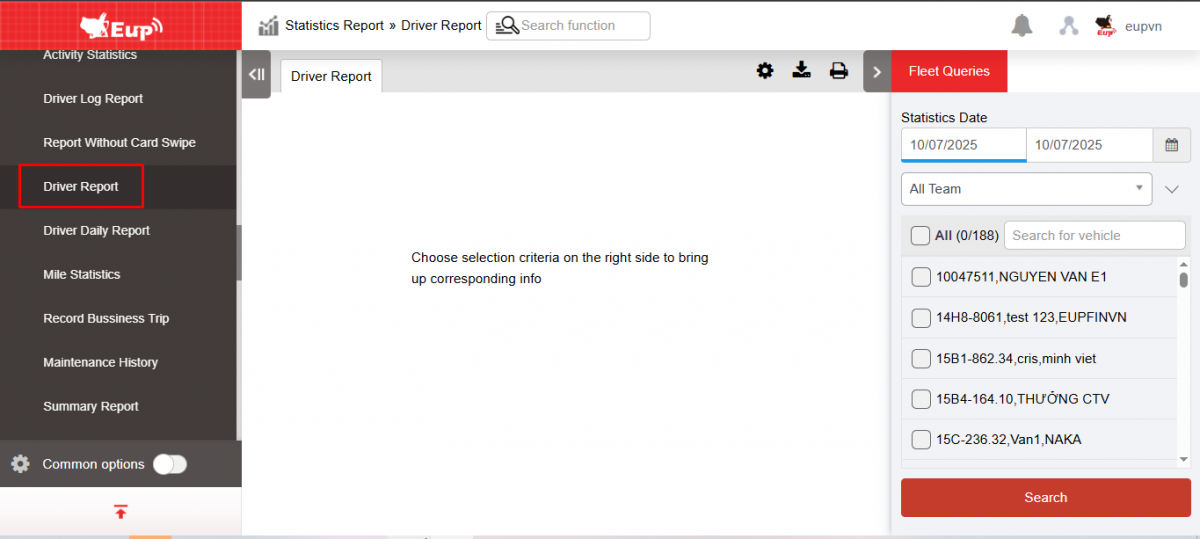
Step 2: The function display screen consists of 2 parts:
+ Fleet queries section : allows users to select search parameters
+ Driver Report section : displays the number of kilometers and the time it takes to complete each vehicle's trip during the search period.
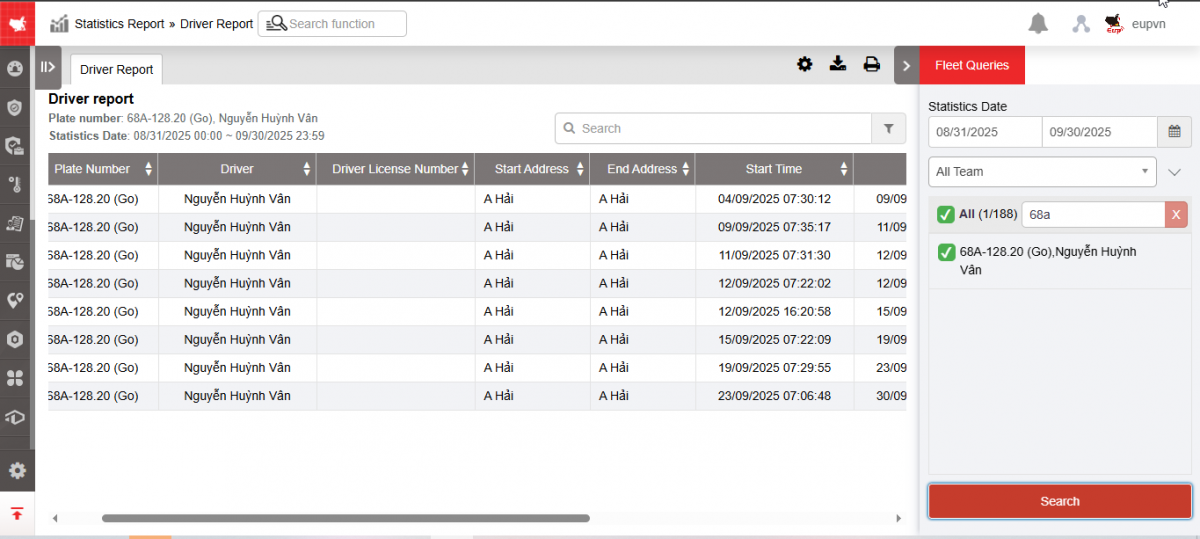
+ Fleet Queries section : Users can choose as follows
-
From : Select the first date you want to look up the report
-
To : Select the last date you want to look up the report
-
Fleet : Default is All fleet. Select the icon
 to select the fleet
 -
Vehicle : User selects checkbox to select vehicle to view
-
Click Search to display search results
+ Driver report section includes the following contents:
-
Plate number
-
Driver
-
Driver license number
-
Start Address : The location where the driver first swipes the card at the start of the business trip
-
Start Time : Time the driver swipes the card at the starting address
-
End Address : The location where the driver swipes the card to end the business trip
-
End Time : Time taken by driver to swipe card at end address
-
Total time : Total time from start to end of business trip
-
Mileage (km): Number of kilometers driven from the starting address to the ending address
-
Route : Press the Route button to simulate the vehicle's route when making a business trip.
+ Select the icon  to print the report
+ Select the icon  to download the report in excel format
+ Select icons  to customize display columns, customize license plates on reports and set up printing signatures