



 Zoom to fit the screen
Fencing Area Report
Submitted by rd on Fri, 12/02/2022 - 14:401. Purpose
- Allows users to count the number of times each vehicle enters and exits the restricted area according to the selected time
2. Implementation conditions
- Users are authorized Fencing Area Report at the system's authorization function.
3. Implementation instructions
- Go to menu Statistics report/Fencing Area Report
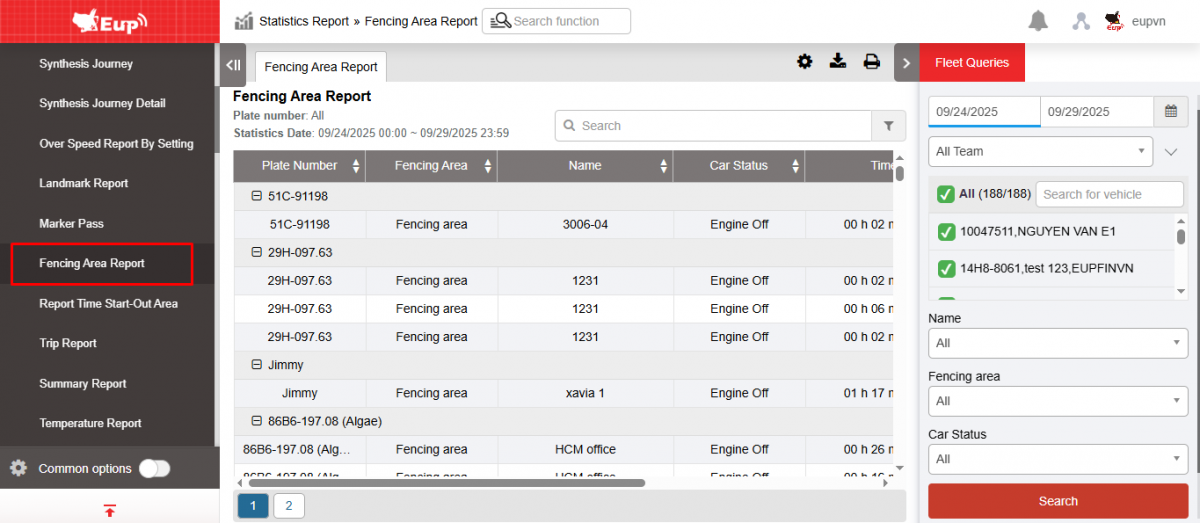
- The function display screen consists of 2 parts:
1. The Fleet Queries section allows users to select conditions for displaying reports.
2. The Fencing Area Report section displays specific information about the vehicle entering and exiting the restricted area.
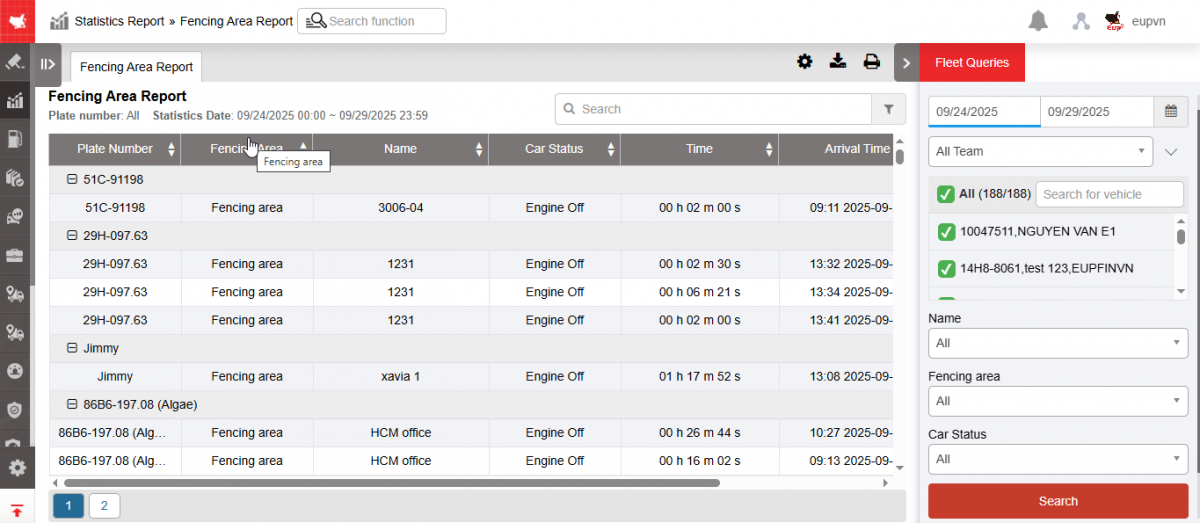
+ Fleet Queries section , user selects the following information
-
From : User enters the first date he wants to view the report
-
To : User enters the last date to view the report
-
Fleet : User selects icon
 to select fleet, default is Whole fleet
 -
Vehicle : User selects icon
to select specific vehicle, default to all vehicles -
Name : User enters the name of the Limit area to check or selects from the list, leave blank if you want to check all Limit areas
-
Fencing area: Default all, users can select each type of restricted area by selecting the icon
(there are two types: Restricted area and Factory) -
Car status : Includes 2 statuses: Parked or Running, users can choose to count by each status or all statuses.
-
Click Search to display report information in the Limited Area Report section
+ The Fencing Area Report section includes the following information:
-
Plate number
-
Fencing Area : Displays the restricted area type as Factory or Restricted Area
-
Date : Date the vehicle is in the restricted area
-
Name: Information taken from page basic_setting_new_construction_site
-
Vehicle status: Vehicle status when reaching the restricted area, including 2 statuses: Stopped or running
-
Time: The time the vehicle is in the restricted area
-
Arrival time: Is the time the vehicle starts to appear in the restricted area
-
Departure time: Is the last time the vehicle is in the restricted area
-
Note : User clicks on the mark
 to display all vehicle entry and exit times in restricted areas.
+ Select the icon  to print the report
+ Select the icon  to download the report in excel format
+ Select icons  to customize display columns, customize license plates on reports and set up printing signatures
- Print signature settings:
