



 Zoom to fit the screen
Summary order management
Submitted by rd on Fri, 12/02/2022 - 14:241. Purpose
- Supports the user in updating information about vehicle trips within the desired time period.
2. Implementation conditions
- The customer is assigned the VN69 option.
3. Implementation instructions
- Go to the menu Summary orde/Summary order management

- The function screen consists of three sections:
-
Fleet Information
-
Trip Management
-
Settings: Add, Edit, Delete

- Fleet Information section:
- Allows the user to select the search period (From date – To date). The system supports searching for dates that are earlier, later, or equal to the current date, with a maximum range of 31 days.
- Trip Management section:
- Displays data within the selected time range.
-
Pickup Time (Start Time): The time when the goods are received.
-
Delivery Time (End Time): The time when the goods are delivered.
-
License Plate: The vehicle’s license plate number.
-
Route: The delivery route.
-
Consignor: The name of the consignor (goods owner).
-
Transport Unit: The name of the transport company.
-
Goods Type: The name of the type of goods being delivered.
-
Quantity: The total quantity of goods by type.
-
Unit: The unit of measurement (e.g., kilograms, pieces, etc.).
-
Container Number: The container identification number.
-
Business Result: Example: Customer has not yet received the goods.
-
Note: Example: Customer requested delivery at 9:00 AM tomorrow.
-
Unit Price: The listed price per unit of goods.
-
Total Amount: Quantity × Unit Price.
-
Vehicle Unit Price (Payment Rate): The unit price paid to the vehicle.
-
Total Amount for Vehicle: Quantity × Vehicle Unit Price.
-
Payment Difference: Total Amount – Total Amount for Vehicle.
-
Coffee Fee: (Additional driver fee, if applicable).
-
Driver Advance: The amount paid in advance by the driver.
-
Expense: Related operational costs.
-
Remaining Amount: Driver Advance – Expense.
-
Delivery Status: Allows the user to define delivery status codes from 0–n (e.g., 0: Not Delivered, 1: Delivered).
+ Select icon  to print report
+ Select the icon  to download the report in excel format
+ Select icons  to customize display columns, customize license plates on reports and set up printing signatures
- Settings, Add, Edit, Delete section:
- The user can double-click on a row to edit its content.
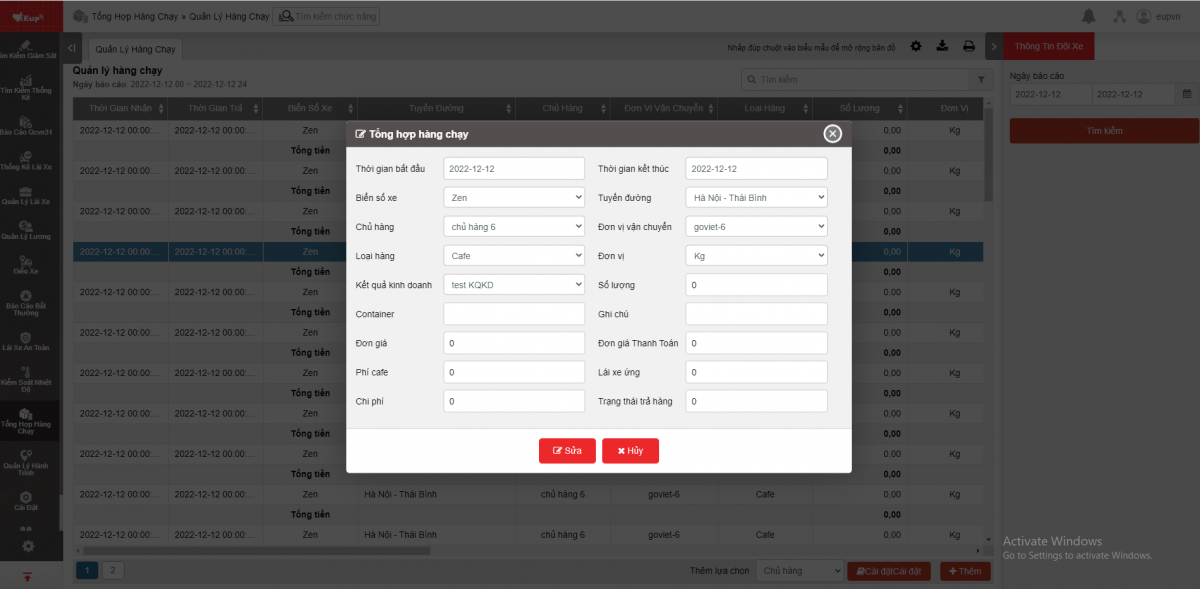
- Edit: Allows the user to modify the information previously entered in the report.
- Settings: The user can configure information such as consignor, route, transport unit, goods type, unit, and business result. When adding a new trip entry, the user can select from the preconfigured information.
- Add: Allows the user to add a new trip entry. The system still permits saving even if some report fields are left incomplete.
- Delete: Allows the user to delete a trip entry from the report.