Fuel Management
- Log in to post comments
- Tiếng Việt
- 繁體中文
Fuel Management
1. Purpose
- Allows users to monitor the fuel refueling and consumption of a vehicle over a specific period of time, while also updating the vehicle’s current fuel level. This helps users evaluate the fuel consumption of each vehicle
2. Implementation conditions
-The user is granted access rights to the Fuel Management on the CRM system
3. Implementation instructions
- Go to menu Fuel Management/ Fuel Management

- The function screen consists of 2 parts:
-
Fleet Information section: allows users to select vehicle information and the reporting period for fuel.
-
Fuel Chart section: displays changes in fuel levels and provides detailed statistics of each refueling and draining event.
- Fleet Information section allows users to set up the search criteria as follows:
- From: Select the starting date and time the user wants to view.
- To: Select the ending date and time the user wants to view.
- All fleet: Default is the entire fleet; users select the icon to choose the specific fleet to view.
- Vehicle: Default is one vehicle in the list; users select the icon to choose the vehicle to query.
- Click Search to display the detailed report information in the Fuel Chart section.
- Display chart checkbox: Enable/disable to show or hide the chart.
- Fuel Chart section:
- Users can select any point on the chart: the chart will display detailed fuel volume at that specific time. This helps users evaluate fuel consumption.
- Users can download the fuel chart.

-
Quick statistics of distance traveled, fuel consumed; fuel consumption rate in l/km, rate in hours/liter and liters/hour, $/km; fuel consumed, parking time, and fuel consumption rate while idling within the selected time period.

-
Statistics of the number of times, liters, time, location, vehicle mileage, mileage difference when refueling, and the liters, time, and location when draining fuel.

-
Users click on the refueling/draining location to display the vehicle’s position on the map

+ Select icon  to print report
+ Select the icon  to download the report in excel format
+ Select icons  to customize display columns, customize license plates on reports and set up printing signatures
- Between reports, a mileage difference is allowed within a limit of no more than 3%.
- Log in to post comments
- Tiếng Việt
- 繁體中文
Gasoline charge and discharge report
1. Purpose
- Allows detailed statistics of the fuel refueled, drained, and updates the vehicle’s current fuel level.
2. Implementation conditions
- Users are authorized for the Refuel/Drain Fuel Report on the CRM system.
3. Implementation instructions
- Go to menu Fuel Management/ Gasoline charge and discharge report

- The function screen consists of 2 parts:
-
Fleet Information section: allows users to select information about time and fleet.
-
Fuel Refuel/Drain Report section: displays the detailed report information for each vehicle

- Fleet Information section: allows users to set up the search criteria as follows:
- From: Select the starting date and time the user wants to view.
- To: Select the ending date and time the user wants to view.
- All fleet: Default is the entire fleet; users select the icon to choose the specific fleet to view.
- Vehicle: Users check the checkbox to select the vehicle to query.
- Event: All, Refuel, Drain.
- Click Search to display the detailed report information in the Fuel Refuel/Drain Report section.
- Show detailed report checkbox: Select the checkbox to view the detailed report.
- Fuel Refuel/Drain Report section: Includes the following report indicators:
- Start time: The time the vehicle started refueling/draining fuel.
- End time: The time the vehicle finished refueling/draining fuel.
- Execution time: The duration from the start to the end of refueling/draining fuel.
- Event: Refuel or Drain action.
- Initial fuel: Fuel volume at the time of refueling/draining.
- Final fuel: Fuel volume after refueling/draining.
- Fuel volume: Amount of fuel in the vehicle after refueling/draining.
- Location: The location where the vehicle performed the refueling/draining.
+ Select icon to print report
+ Select the icon to download the report in excel format
+ Select icons to customize display columns, customize license plates on reports and set up printing signatures
- Log in to post comments
- Tiếng Việt
- 繁體中文
Fuel Consumption Daily
1. Purpose
- Allows users to query data on the amount of fuel at engine start, number of refuel/drain events, liters refueled/liters drained, remaining fuel at engine shutdown for each day, daily mileage, and thereby generate a monthly fuel consumption report.
2. Implementation conditions
- Customers are authorized for option VN03.
3. Implementation instructions
- Go to menu Fuel Managemen/ Fuel Consumption Daily

- The function screen consists of 2 parts:
-
Fleet Information section: allows users to select the time and vehicle for report statistics.
-
Fuel Consumption Report section: displays the report based on the user’s selection.

- Fleet Information section allows users to set up the search criteria as follows:
- From: Select the starting date and time the user wants to view.
- To: Select the ending date and time the user wants to view.
- Fleet: Default is the entire fleet; allows selection of other fleets in the system.
- Vehicle: Allows selecting one, multiple, or all vehicles using checkboxes.
- Click Search to display the results.
- Show detailed report checkbox: Enable to view details.
- Show only refueling days checkbox.
- Fuel difference setting: < %.
- Fuel Consumption Report section: Displays detailed reports by vehicle and by day within the queried reporting period. The detailed report includes the following information:
- Date: Displays each day in detail within the queried reporting period.
- License plate: The corresponding license plate being queried.
- Start time: The time the vehicle engine started.
- End time: The time the vehicle engine stopped.
- Number of refuels: Number of refueling events from the time the engine started until it stopped.
- Number of drains: Number of fuel draining events from the time the engine started until it stopped.
- Fuel at start of day: Amount of fuel in the vehicle when the engine started.
- Refueled liters: Number of liters refueled during the period from engine start to engine stop.
- Drained liters: Number of liters drained during the period from engine start to engine stop.
- Remaining fuel: Fuel volume when the engine stopped.
- Remaining fuel = (Fuel at start of day + Refueled liters – Drained liters – Fuel consumed).
- Fuel consumed: Number of liters consumed during the day from engine start to engine stop.
- Fuel consumed = (Fuel at start of day + Refueled liters – Drain liters – Remaining fuel).
- Idling time: Total idling time (engine running while the vehicle is stopped) within the queried period.
- Fuel consumed during idling: Fuel consumption while idling, calculated based on the fuel sensor.
- Idling time * consumption rate (l/h).
- Standard fuel rate: The predefined consumption rate (liters/km) set in the basic vehicle information settings.
- Actual fuel rate: The actual fuel consumption rate during the day.
- Actual fuel rate = (Fuel consumed / Distance traveled).
- Fuel difference (%) = (Actual fuel rate / Standard fuel rate) * 100.
- Total distance (km): Total kilometers traveled from engine start to engine stop.
- Click the Fuel chart button to view the corresponding fuel consumption chart.

-
Click the Route button to view the corresponding route.

+ Select icon to print report
+ Select the icon to download the report in excel format
+ Select icons to customize display columns, customize license plates on reports and set up printing signatures
-
Between reports, a mileage difference is allowed within a limit of no more than 3%.
- Log in to post comments
- Tiếng Việt
- 繁體中文
Gasoline charge and discharge report (CustID 26710 - Bê Tông Việt Hàn)
1. Purpose
-Allows detailed statistics of the fuel refueled or drained from 20 liters or more, and updates the vehicle’s current fuel level.
2. Implementation conditions
- Users are authorized for the Refuel/Drain Fuel Report on the CRM system.
3. Implementation instructions
- Go to menu Fuel Management/ Gasoline charge and discharge report

The function screen consists of 2 parts:
-
Fleet Information section: allows users to select information about time and fleet.
-
Fuel Refuel/Drain Report section: displays the detailed report information for each vehicle

- Fleet Information section: allows users to set up the search criteria as follows:
- From: Select the starting date and time the user wants to view.
- To: Select the ending date and time the user wants to view.
- All fleet: Default is the entire fleet; users select the icon to choose the specific fleet to view.
- Vehicle: Users check the checkbox to select the vehicle to query.
- Event: All, Refuel, Drain.
- Click Search to display the detailed report information in the Fuel Refuel/Drain Report section.
- Show detailed report checkbox: Select the checkbox to view the detailed report.
- Fuel Refuel/Drain Report section: Includes the following report indicators:
- Start time: The time the vehicle started refueling/draining fuel.
- End time: The time the vehicle finished refueling/draining fuel.
- Execution time: The duration from the start to the end of refueling/draining fuel.
- Event: Refuel or Drain action.
- Initial fuel: Fuel volume at the time of refueling/draining.
- Final fuel: Fuel volume after refueling/draining.
- Fuel volume: Amount of fuel in the vehicle after refueling/draining.
- Fuel volume: Amount of fuel in the vehicle after refueling/draining. Statistics are recorded for fuel volumes from 20 liters or more.
+ Select icon to print report
+ Select the icon to download the report in excel format
+ Select icons to customize display columns, customize license plates on reports and set up printing signatures
-
Note: When using the print or export function, the data in the Fuel Volume column will display the full amount of fuel, including values below 20 liters.
Fuel Cost
1. Purpose
- Allow users to track the fuel costs of each vehicle within the selected time period. This provides a basis for users to calculate delivery costs
2. Implementation conditions
- Users are granted permissions for the Fuel Cost function on the CRM system
3. Implementation instructions
- Go to menu Fuel Management/ Fuel Cost

- The function screen consists of three sections:
-
Fleet Information section: allows users to select search parameters.
-
Fuel Cost section: displays detailed fuel consumption costs of vehicles based on the search criteria.
-
Settings section: allows users to configure fuel prices for fuel cost calculation."

+ Fleet Information section: Users can select the following options:
-
Report Date
-
From: Select the starting date to check fuel costs.
-
To: Select the ending date to check fuel costs.
-
-
Fleet: Default is All Fleets. Click the icon to select a specific fleet.
-
Vehicle Search
-
Report Type:
-
By Working Hours: The system calculates fuel costs based on time, using the Cost per Hour (Liters/hour) ratio configured in Settings/Basic Information Setup.
-
By Distance (Km): The system calculates fuel costs based on distance traveled, using the Cost per Km (Km/liter) ratio configured in Settings/Basic Information Setup.
-
Summary Report: Includes both By Working Hours and By Distance.
-
-
Vehicle: Users select checkboxes for the vehicles they want to view.
-
Search: Click to display search results.
+ Fuel Cost section: Displays detailed fuel costs based on the selected search criteria, including the following indicators (Report Type: Summary Report):
-
License Plate
-
Date
-
Fuel Consumption (Liters/hour): Ratio configured for cost per time in Settings/Basic Information Setup.
-
Standard Fuel Consumption (Liters/100km): Ratio configured for cost per Km in Settings/Basic Information Setup.
-
Working Time: Total time the vehicle was active (Stopped with engine on or Running).
-
Driving Time: Time the vehicle was in Running status.
-
Total Distance (km)
-
Fuel Consumed while Driving: Amount of fuel consumed during the selected period while the vehicle was running.
-
Idling Time: Total time the vehicle was in Stopped with engine on status during the selected period.
-
Fuel Consumed while Idling: Fuel consumed when speed < 3 km/h while the engine was still running, measured via fuel sensor.
-
Total Calculated Fuel: Fuel consumed while driving + fuel consumed while idling.
-
Total Fuel Consumption: Amount of fuel consumed during the selected period, in Liters/km.
-
Fuel Type: Configured in Settings/Basic Information Setup.
-
Unit Price: Fuel price per liter configured in the Settings of this function.
-
Total Cost: Calculated by multiplying unit price with fuel consumption.
+ Settings section: Allows users to configure the unit price of each fuel type.
-
Name: Fuel type name.
-
Start Date: Date from which the fuel price becomes effective.
-
End Date: Date until which the fuel price remains valid.
-
Unit Price: Fuel price per liter.
-
Add: a new fuel cost setting

-
Select the fuel setting row you want to delete, then click Delete to remove the fuel setting information

+ Select icon to print report
+ Select the icon to download the report in excel format
+ Select icons to customize display columns, customize license plates on reports and set up printing signatures
- Log in to post comments
- Tiếng Việt
- 繁體中文
Fuel Cost (CUSTID 25942 - Ficopan)
1. Purpose
- Allows the user to monitor the fuel costs of each vehicle when loaded and when not loaded during the selected period. This provides the user with a basis for calculating delivery costs
2. Implementation conditions
- Users are granted permissions for the Fuel Cost function on the CRM system
3. Implementation instructions
- Go to menu Fuel Management/ Fuel Cost

- The function screen consists of 4 sections:
-
Fleet Information: Allows the user to select search parameters.
-
Fuel Costs: Displays detailed fuel consumption costs of vehicles based on search criteria.
-
Settings: Allows configuration of fuel prices for fuel cost calculation.
-
Empty Route Settings: Allows configuration of routes without load.
- Fleet Information: The user can select as follows:
+ Report Date
-
From: Select the first date to check fuel costs.
-
To: Select the last date to check fuel costs.
-
Fleet: Default is "All fleets." Click the icon to select a specific fleet.
-
Vehicle Type: Default is "All vehicle types." Click the icon to select a specific type.
-
Vehicle: The user selects the checkbox to choose the vehicle(s) to view.
-
Click Search to display the search results.
-
Fuel Costs: Displays detailed fuel cost information based on the selected search criteria, including:
-
License Plate
-
Date
+ When Loaded:
-
Kilometers
-
Standard Fuel Consumption: The cost ratio per km set in Settings / Basic Information under "Fuel Consumption (Liters/100Km)"
-
Fuel Consumed: The amount of fuel consumed during the selected period, in L/km
+ When Not Loaded:
-
Kilometers
-
Standard Fuel Consumption: The cost ratio per km set in Settings / Basic Information under "Fuel Consumption without Load (Liters/100Km)"
-
Fuel Consumed: The amount of fuel consumed during the selected period, in L/km
+ Totals and Calculations:
-
Total Fuel Consumed (Liters): Fuel consumed in one day, including both loaded and unloaded conditions
-
Fuel Type: Defined in Settings / Basic Information
-
Unit Price: Price per liter, configured in the Settings section of this function
-
Amount: Automatically calculated by the system based on unit price × fuel consumed
-
Settings: Allows the user to configure the unit price for each type of fuel.
-
Name: Fuel name
-
Start Date: Effective date when the fuel price begins
-
End Date: Expiration date when the fuel price ends
-
Unit Price: Fuel price per liter
- Click Add to create a new fuel cost setting.

-
Select the fuel setting row you want to edit, then click Edit to update the fuel setting information

-
Select the fuel setting row you want to delete, then click Delete to remove the fuel setting information

+ Select icon to print report
+ Select the icon to download the report in excel format
+ Select icons to customize display columns, customize license plates on reports and set up printing signatures
Fuel Management
1. Purpose
- This feature allows customers, whether or not they have installed a fuel sensor, to check fuel costs based on the actual number of liters filled — either recorded on fuel receipts or detected by the sensor.
- It helps customers manage drivers’ fuel receipts, thereby monitoring whether fuel filling is performed in compliance with company regulations.
- It enables evaluation of discrepancies in fuel quantity and actual cost between fuel receipts and sensor data, providing accurate assessments of sensor quality and the difference between actual fuel filled and recorded fuel consumption.
2. Implementation conditions
- The user is granted permissions for the options MY05 (Fuel Management) and DK (Fuel Cost Control Dashboard).
3. Implementation instructions
- Go to menu Fuel Management/Fuel Management

- The function screen consists of three sections:
-
Fleet Information section;
-
Fuel (Oil) section;
-
Entire Fleet section.
- Fleet Information section: The user can quickly search using the following information:
- Entire Fleet: Default option. The user can click the icon to select a specific fleet;
- All: Default shows all vehicles in the fleet. The user can click the icon to select specific vehicles;
- From: The start date the user wants to check;
- To: The end date the user wants to check;
- Search: Click Search to display the results;
- Import File: Allows the user to import fuel data from an Excel file;
- Sample File: Allows the user to download a sample Excel file for data import.
- Fuel (Oil) Section: Includes the Fuel Chart and Fuel Information Table:
- Fuel Chart: Displays fuel volume based on sensor data;
- For vehicles equipped with a fuel sensor, the chart will be displayed.

-
For vehicles without a fuel sensor, the following will be displayed:

- Fuel Information: Displays a table of fuel data manually entered by the user, allowing the user to add, edit, or delete information in the table.

- Date: The date when the user refueled.
- Time: The exact time when the user added fuel.
- Liters: The number of liters filled according to the fuel sensor.
- Actual Fuel (Liters): The actual number of liters filled (manually entered by the user).
- Fuel Price: The actual fuel price (manually entered by the user).
- Fuel Cost: The fuel cost calculated based on system settings (Liters × Fuel Price).
- Actual Fuel Cost: The actual fuel cost calculated based on user input (Actual Fuel × Fuel Price).
- Fuel Difference: The difference in fuel quantity between the sensor reading and the actual filled amount (Liters – Actual Fuel).
- % Difference: The percentage difference between Fuel Cost and Actual Fuel Cost.
- Cost Difference: The cost difference between system-calculated fuel cost and actual fuel cost (Fuel Cost – Actual Fuel Cost).
- Total Distance (km): The total distance traveled by the vehicle within the selected time range.
- Address: The location where the user refueled.
- Invoice: The invoice file uploaded by the user from their device.
-
Click the icon
 to add or update fuel information:
-
Receipt No.: Enter the corresponding receipt number.
-
License Plate: Fixed and cannot be changed; displayed according to the previously selected vehicle.
-
Date, Hour, Minute: The time when the vehicle was refueled (cannot be modified after successfully saving).
-
Actual Fuel: The actual amount of fuel filled.
-
Fuel Price: The actual unit price of fuel (VND/liter).
-
Odometer (Km): Enter the actual mileage.
-
Address: Enter the refueling location.
-
If a fuel sensor is used, the address will be automatically retrieved from the sensor, and the user will not be allowed to edit it.
-
- Use the MY05A option to display Receipt No. and Address.
-
Invoice: The user selects the invoice file from their device.
-
Confirm: Click Confirm to save the entered information.
-
Cancel: Click Cancel to discard the entered information.

-
Click the icon
 to edit the fuel information
-
Click the icon
 to delete the fuel information.
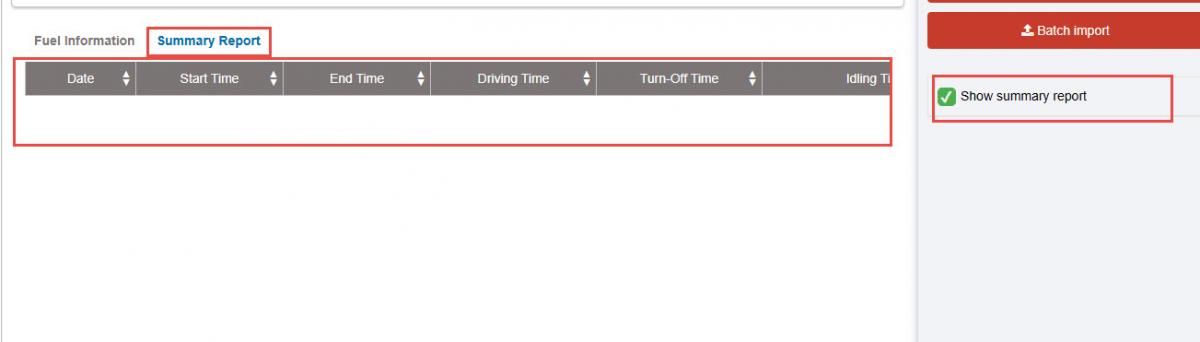
- Summary Table: Checked Show summary report Fleet Information section to display the Summary Table:
-
Date: The dates within the selected query period.
-
Start Time: The time when the vehicle was first started during the day.
-
End Time: The time when the vehicle was last turned off during the day.
-
Operating Time: The total time the vehicle was running — including Running time (green status), Active time (purple status), and Overspeed time.
-
Idle Time (Engine Off): The duration when the vehicle was stopped with the engine off (gray status).
-
Idle Time (Engine On): The duration when the vehicle was stopped but the engine was still running (blue status).
-
Active: Vehicle status in purple.
-
Working Time: Operating Time + Idle Time (Engine On).
-
Usage Time: The total period from when the vehicle was first started to when it was finally turned off during the day (End Time – Start Time).
-
Non-operating Time: 24 hours – Usage Time.
-
Total Distance (Km): Total distance traveled by the vehicle in a day.
-
Number of Overspeed Events: The number of times the vehicle exceeded the maximum speed limit (Level 3) as configured in abnormal conditions (calculated by route overspeed occurrences).
-
Fuel Consumption: Total daily distance × Fuel rate set in Basic Information / Vehicle Information.
-
Note: The Active status (purple color) feature is rarely used.
-
Entire Fleet Section: Displays the list of all vehicles in the fleet along with summarized information:
-
License Plate: Vehicle license number;
-
Period: Driver’s name;
-
Cost: Total actual fuel cost (manually entered by the user) within the selected time range;
-
Liters: Total actual fuel volume (manually entered by the user) within the selected time range;
-
Total Km: Total distance traveled within the selected time range;
-
Km/L: Fuel efficiency calculated based on total distance and actual fuel volume within the selected time range;
-
Fuel Drains: Total number of fuel drain events recorded by the fuel sensor.
-
Click the icon setting in the Entire Fleet section to customize which data fields to display, such as Cost, Liters, Total Km, L/100Km, and Fuel Drains.

+ Select icon to print report
+ Select the icon to download the report in excel format
+ Select icons to customize display columns, customize license plates on reports and set up printing signatures
- Log in to post comments
- Tiếng Việt
- 繁體中文
Fuel management report
1. Purpose
- Allows the user to enter data on the amount of fuel supplied, supported, and beginning inventory for each day, thereby generating a monthly fuel import–export–inventory report.
2. Implementation conditions
- The customer is granted permission for the VN59 option.
3. Implementation instructions
- Go to menu Fuel Management/Fuel management report

-The function screen consists of two sections:
-
Fleet Information section: Allows the user to select search parameters.
-
Report section: Displays report details based on the user’s selection.
- Fleet Information section: Includes the following details:
-
From: Select the start date for the report query.
-
To: Select the end date for the report query.
-
Fuel In/Out/Inventory Report: Default option, allows selecting among Fuel Supply Report, Fuel Support Report, and Fuel Inventory Report.
-
Fleet: Default is Entire Fleet. Click the icon to select a specific fleet.
-
Vehicle: The user checks the checkbox to select the vehicles to view.
-
Click Search to display the results.
- Report section: Corresponding to each report type selected in the Fleet Information section, the report details will be displayed accordingly.

- Import existing reports
-
License Plate: Vehicle license number.
-
Starting Km: The odometer reading at the beginning of the month (from the Fuel Data Entry Report).
-
Ending Km: The odometer reading at the end of the month (from the Fuel Data Entry Report).
-
Km: Calculated as Ending Km – Starting Km.
-
Driver’s Name: Name of the driver.
-
Fuel Inventory: Total remaining fuel for the month.
-
Fuel Supplied: Total amount of fuel supplied during the month.
-
Fuel by GPS (Km): Calculated as Km (GPS) × 1 / Fuel Consumption (km/l) or Km (GPS) × Fuel Consumption (l/km).
-
Fuel Difference: Fuel Supplied – Fuel by GPS (Km).
-
Km (GPS): Distance traveled during the month according to the GPS device.
-
Km Difference: Km – Km (GPS).

- Oil supply report : Allows the user to enter the amount of fuel supplied each day and automatically summarizes the total monthly fuel supply for each vehicle by double-clicking the desired date.
-
License Plate: Vehicle license number.
-
Driver’s Name: Name of the driver.
-
Total: Total amount of fuel supplied during the month.
-
Day 1/2/.../31: Amount of fuel supplied each day (double-click the desired date to enter data).

- Support oil report : Allows the user to enter the additional supported fuel amount for each day and automatically summarizes the total supported fuel for the month for each vehicle by double-clicking on the desired date.
-
License Plate: Vehicle license number.
-
Driver’s Name: Name of the driver.
-
Total: Total amount of supported fuel during the month.
-
Day 1/2/.../31: Amount of supported fuel for each day (double-click the desired date to enter data).

- Oil inventory report : Allows the user to enter the daily remaining fuel amount and automatically summarizes the total monthly fuel inventory for each vehicle by double-clicking the desired date.
-
License Plate: Vehicle license number.
-
Driver’s Name: Name of the driver.
-
Total: Total remaining fuel during the month.
-
Day 1/2/.../31: Daily remaining fuel amount (double-click the desired date to enter data).

+ Select icon to print report
+ Select the icon to download the report in excel format
+ Select icons to customize display columns, customize license plates on reports and set up printing signatures
- Log in to post comments
- Tiếng Việt
- 繁體中文
Fuel Dashboard
1. Purpose
- This feature helps users control fuel costs and compile data related to fuel consumption.
- Provides statistics on the vehicles with the highest fuel consumption.
2. Implementation conditions
- The user is granted permission for the DK option..
3. Implementation instructions
- Go to menu Fuel Manage/ Fuel Dashboard

- The function screen consists of two main sections:
-
Search Section
-
Fuel Dashboard Section, which includes three parts:
-
Fuel Efficiency Index
-
Efficiency
- Refueling
-

- Fuel Efficiency Index: Displays the fuel consumption of the previous period and the current query period, evaluating the increase or decrease in fuel costs.

+ Efficiency:
Evaluates the vehicle’s fuel efficiency based on the amount of fuel consumed and the vehicle’s total operating hours.

- Refueling: Displays a chart comparing the fuel refilled according to sensor data and the actual fuel refilled as updated by the user via fuel tickets, along with the refueling trend of the fleet over the selected time period.

Oil provision report
1. Purpose
- Cho phép người sử dụng (NSD) nhập lượng dầu được cấp theo từng ngày và thống kê tổng lượng dầu được cấp trong tháng tương ứng với từng xe.
2. Implementation conditions
- The user is authorized to access the Fuel Supply Report on the CRM system.
3. Implementation instructions
- Go to menu Fuel Management/ Oil provision report

- The function screen consists of two sections:
-
Fleet Information Section: Allows the user (NSD) to select vehicle details and the reporting period for fuel data.
-
Fuel Supply Report Section: Allows the user to enter the amount of fuel supplied each day and summarize the total fuel supplied for each vehicle within the month.

- The Fleet Information section allows the user (NSD) to configure search parameters as follows:
-
From: Select the starting date and time the user wants to view.
-
To: Select the ending date and time the user wants to view.
-
Entire Fleet: The default option is the entire fleet. The user can click the icon to select a specific fleet to view.
-
Vehicle: By default, one vehicle from the list is selected. The user can click the icon to choose the desired vehicle to look up.
-
Click Search to display detailed report information in the Fuel Chart section.
-
Fuel Supply Report section:
-
License Plate: Vehicle license plate number.
-
Driver Name: Name of the driver.
-
Total: Total amount of fuel supplied during the month.
-
Day 1/2/.../31: Amount of fuel supplied each day.
-
+ Select icon to print report
+ Select the icon to download the report in excel format
+ Select icons to customize display columns, customize license plates on reports and set up printing signatures
- Log in to post comments
- Tiếng Việt
- 繁體中文
Record fuel daily
1. Purpose
- Allows the user to monitor each vehicle’s operating time and daily fuel usage.
2. Implementation conditions
- The user is granted permission to access the Record fuel daily on the CRM system
3. Implementation instructions
- Go to menu Fuel Management/ Record fuel daily

- The function screen consists of two sections:
-
Fleet Information: Allows the user to select vehicle details and the reporting period for fuel data.
-
Daily Fuel Report: Displays statistics on vehicle operating time and daily fuel usage.

- Fleet Information section: Allows the user (NSD) to set search parameters as follows:
-
From: Select the starting date and time to view.
-
To: Select the ending date and time to view.
-
Entire Fleet: Default is the entire fleet. Click the icon to select a specific fleet to view.
-
Vehicle: By default, one vehicle from the list is selected. Click the icon to choose the vehicle to query.
-
Click Search to display detailed information in the Daily Fuel Report section.
- Daily Fuel Report section:
-
License Plate: Vehicle license number.
-
Date: The specific date of the report.
-
Engine Time: Time the vehicle was driving and time idling with the engine on.
-
Starting Fuel: Liters of fuel at the beginning of the day.
-
Refilled: Liters of fuel added during the day.
-
Drawn: Liters of fuel withdrawn during the day.
-
Fuel Consumed: Liters of fuel consumed during the day.
-
Ending Fuel: Liters of fuel remaining at the end of the day.
-
Average: Fuel consumption per hour (L/hour).

+ Select icon to print report
+ Select the icon to download the report in excel format
+ Select icons to customize display columns, customize license plates on reports and set up printing signatures
- Log in to post comments
- Tiếng Việt
- 繁體中文
Record Fuel Management
1. Purpose
- This feature allows customers without a fuel sensor to track fuel consumption, remaining fuel, and the estimated remaining distance based on the actual fuel refilled and the starting fuel at the beginning of the day entered by the customer.
2. Implementation conditions
- The user is granted permission for the VN03M Record Fuel Management option.
3. Implementation instructions
- Go to menu Fuel Management/Record Fuel Management

- The function screen consists of two sections:
-
Fleet Information section;
-
Report section.

- Fleet Information section: The user (NSD) can quickly search using the following parameters:
-
From: Select the first date to check.
-
To: Select the last date to check.
-
Entire Fleet: Default option. Click the icon
 to select a fleet (Fleet configured in Settings/Permissions).
 -
All Vehicle Groups: Default option. Click the icon
 to select a vehicle group (Vehicle groups configured in Settings/Vehicle Type List).
 -
All Vehicle Types: Default option. Click the icon
 to select a vehicle type (Vehicle type configured in Settings/Basic Information → Vehicle Info tab → Vehicle icon).
 -
Select All: The user can check Select All or choose individual vehicles.
-
Search: Click Search to display the results.
- Report section: Includes Fuel Information and Add/Edit functions:
-
No. (STT)
-
Date: dd/mm/yyyy (according to the format in Settings/Data Format Configuration)
-
Time: hh:mm:ss (according to the format in Settings/Data Format Configuration)
-
License Plate
-
Starting Fuel (Liters): Fuel remaining in the tank at the beginning of the day, entered by the user (NSD)
-
Fuel Refilled: Actual liters of fuel added
-
Regulated Fuel Consumption (L/100km): Fuel consumption standard in Basic Information / Vehicle Info
-
Distance Traveled (Km): Total distance traveled by the vehicle during the query period
-
If the selected date in the Add form is before today, distance is calculated from 00:00:00 to 23:59:59 of that day (according to the activity report)
-
If the selected date is today, distance is calculated from 00:00:00 to the time of the query
-
-
Fuel Consumption Based on Standard: (Regulated L/100km × Distance Traveled) / 100
-
Ending Fuel (Liters): Fuel Refilled – Fuel Consumption Based on Standard
-
Estimated Km: (Ending Fuel × 100) / Regulated L/100km
-
Actions: Click the
 button to enter the following information:
-
License Plate: The user (NSD) selects the vehicle license plate.
-
Refueling Time: The user selects the date and time (dd/mm/yyyy hh:mm).
-
Starting Fuel (Liters): The user enters the fuel remaining at the beginning of the day.
-
Fuel Refilled (Liters): The user enters the amount of fuel added.
-
Confirm: Click Confirm to save the entered information.
-
Cancel: Click Cancel to discard the entered information.
- Select the icon  to delete fuel information

+ Select icon to print report
+ Select the icon to download the report in excel format
+ Select icons to customize display columns, customize license plates on reports and set up printing signatures
Record compare fuel data
1. Purpose
- Allows the user (NSD) to enter the actual fuel refilled, enabling comparison reports between the actual fuel refilled and the fuel measured by sensors
2. Implementation conditions
-The user is granted permission for the VN03P (Record compare fuel data) option on the CRM system.
3. Implementation instructions
- Go to menu Fuel Management/ Record compare fuel data

- The function screen consists of two sections:
-
Fleet Information: Allows the user (NSD) to select vehicle details, reporting period, and upload files to the system.
-
Report: Displays actual fuel refilled, fuel recorded by sensors, and the comparison of discrepancies.

- Fleet Information section: Allows the user (NSD) to configure search parameters as follows:
-
From: Select the starting date and time to view.
-
To: Select the ending date and time to view.
-
Entire Fleet: Default is the entire fleet. Click the icon to select the fleet to view.
-
Vehicle: By default, one vehicle from the list is selected. Click the icon to choose the vehicle to query.
-
Click Search to display detailed report information.
-
Import example: Download the template file to fill in fuel refilling data before uploading.
-
Batch import: Upload the completed template file containing fuel refilling information to the system.
- Report section:
+ Summary Report:
-
No. (STT)
-
License Plate
-
Fuel Refilled by Sensor (L): Liters recorded by the fuel sensor
-
Actual Fuel Refilled (L): Liters entered by the user (NSD) via uploaded file
-
Difference (L): Actual Fuel Refilled (L) – Fuel Refilled by Sensor (L)
Click on the row of the desired license plate to display the detailed report.

- Detailed Report:
-
No. (STT)
-
License Plate
-
Date: Date of refueling
-
Fuel Refilled by Sensor (L): Liters recorded by the fuel sensor
-
Actual Fuel Refilled (L): Liters entered by the user (NSD) via uploaded file
-
Difference (L): Actual Fuel Refilled (L) – Fuel Refilled by Sensor (L)
-
No. (STT)
-
License Plate
-
Date: Date of refueling
-
Fuel Refilled by Sensor (L): Liters recorded by the fuel sensor
-
Actual Fuel Refilled (L): Liters entered by the user (NSD) via uploaded file
-
Difference (L): Actual Fuel Refilled (L) – Fuel Refilled by Sensor (L)