Map Monitor
1. Purpose
- Allows users to monitor orders and vehicle operating status on the map and detailed information of each vehicle updated at the current time.
2. Implementation conditions
- The user is granted permission for the Map Monitor function on the CRM system.
3. Implementation instructions
- Go to the menu Dispatch System»Map Monitor.

- The display function screen consists of 4 parts:
+ Fleet Queries section displays information about the fleet, nearby vehicles, landmarks and restricted areas and allows users to select the vehicle they want to view
+ Add, Edit, Delete section allows users to create, edit or delete delivery orders
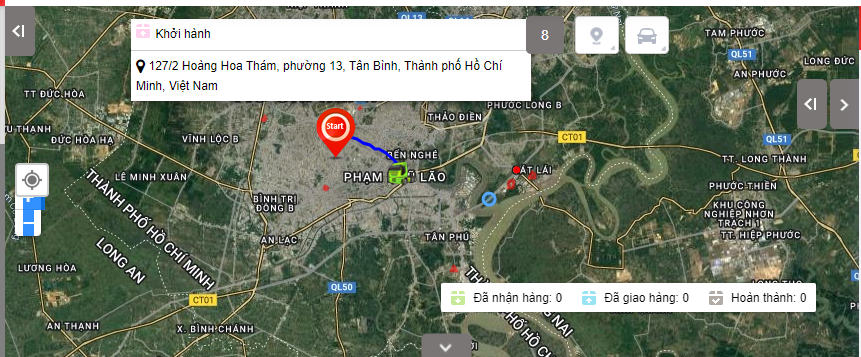
+ Map section displays vehicles on the map including vehicle status, current vehicle location and redrawing the vehicle's route
+ Order section allows users to track orders

+ Fleet Queries section: the user selects the following information
-
Fleet Queries: Cho phép chọn xem thông tin của tất cả các đội xe hoặc từng đội xe. Thông tin đội xe bao gồm các thông tin sau:

-
Report current vehicle status::
-
Status: Display vehicle by color;
-
Speed: Update current vehicle speed;
-
Plate number;
-
Fuel level: Update remaining oil level of each vehicle;
-
Name: Driver name;
-
Address/Landmark: Location where speed is updated;
-
Speed update time;
-
Driver's contact phone number.
-
-
The support toolbar displays the total number of vehicles according to each status:

-
 : Total Cars
 -
 : Carrying Goods
 -
 : Not Carrying Goods
 -
 Green: Normal
 -
 Red: Over Speeding
 -
 Dark Blue: Idling
 -
 Gray: Engine Off
 -
 White: No Signal
 -
 Purple: In operation
 -
 Orange: Abnormal temperature
 -
 Blue: Geofence
 -
 Gray: Remove Container
-
-
Click Print to print the current status report;
-
Click Select the fields to be shown to display to set the fields of the current status report to be hidden;

-
Ấn chuột phải vào xe để xem nhanh Lịch sử hành trình và Chia sẻ xe
-
Right click on the vehicle to quickly view History Journey and Share this car

-
History Journey: Quickly view trip history by Hour/Minute/Day or Optional
-
Share this car: Send a link to others to track the car's online journey within a specified period

+ Add, edit, delete: Allows users to set up delivery orders according to the company's form and dispatch vehicles to make deliveries.

-
Add order: User selects Add to add a new delivery order. The delivery order detail screen is as follows:

-
In case the order has multiple delivery points, the user selects the check mark icon
 to enter additional delivery points.
 -
Order information includes:
-
Số đặt hàng: Order number
-
Số giao hàng: Order number
-
Số chi tiết đặt hàng: In case the order has multiple points, each point can have a different order detail number
-
Tên khách hàng: The user selects the customer in the customer contact list saved in the system
-
Biển số xe: The user selects from the license plate list, the list is displayed in order of priority for the nearest vehicle and if it is empty, it will be displayed first
-
Lái xe: The user selects the driver corresponding to the license plate
-
Phí: Vehicle dispatch fee
-
Địa chỉ nhận hàng: Address to receive the goods for pick-up
-
Thời gian nhận hàng dự kiến: Time to receive the goods for pick-up
-
Số điện thoại nhận hàng: Contact phone number of the delivery person for pick-up
-
Địa chỉ giao hàng: Delivery address after receiving the goods at the starting point
-
Thời gian giao hàng dự kiến: Time to deliver the goods
-
SĐT giao hàng: Phone number of the recipient
-
-
Click Save to complete adding a new order
-
Click Cancel to cancel adding the order you just entered

-
Edit: Edit the created order
-
Delete: Delete the created order
Note: Users can set up delivery orders as desired. They can go to Dispach_setting.html to set up delivery orders: https://fms.ctms.vn/#dispatch_setting.html

-
After the user successfully adds an order, the function screen displays the delivery order that the user has added.
For example: The delivery order is to pick up goods from the agent's warehouse at 1A Hong Ha, Ward 2, Tan Binh, Ho Chi Minh and deliver to the agents at the following addresses: 1/4 Bach Dang Street, Tan Binh, HCM; 6/23 Yen The, Ward 2, Tan Binh, HCM and 159/4B Bach Dang Street, Tan Binh, HCM. After successfully adding the order, the system will display 3 lines corresponding to 3 delivery points (refer to photo)

+ Map section displays the vehicle on the map including the vehicle status, current vehicle location, redrawing the vehicle's journey and statistics on the number of orders according to Received/Delivered/Completed
+ Order section displays all the entered criteria on the delivery order form (Dispatch/Delivery management or Dispatch/Monitor dispatch/Add as above), along with the delivery order status as updated by the driver.

-
Order Images:
-
In case the user wants to download the journey photos or invoice photos at any delivery point, select the Journey or unusual photos (if any) to download the photos
-
The user can download all photos of the order at once: To download all photos of the same order, the user can select the photo download feature to download all photos in the delivery order
-
Every month, the system will package the order photo file and update the link to the system so that the user can download the photos for storage. (The feature will be updated later)
-
+ Làdmark: Display pre-set milestones for fleets to track fixed counting points that the set vehicles must pass through;
 \
\
+ Fencing Area: Displays pre-set restricted zones for each vehicle, to monitor vehicles that are only allowed to run within the restricted zone.

- Log in to post comments
- Tiếng Việt
- 繁體中文