Other functions
Instructions for using the alcohol concentration measuring device
I. General overview
Conditions of implementation
- Customers need to be authorized to use the 4K option and use the alcohol measuring device, Edriver app.
Roles and operations
- The role and operations of management
- Delegation allows drivers to measure alcohol concentration before clocking in, or when departing a trip using the Driver Management/Driver Delegation function on the FMS system.
- Review the driver's alcohol concentration test results in the Driver Statistics/Alcohol Concentration Measurement Report function on the FMS system.
- Driver's role and operations
- Use the alcohol concentration measuring device, Edriver app for drivers, turn on Bluetooth to connect the alcohol concentration measuring device to the Edriver app and perform the alcohol concentration blowing according to management regulations.
- Review your alcohol test results directly on the Edriver app
II. Instructions for performing functions
1. Manage and delegate alcohol concentration measurement authority to drivers using the Driver Management/Driver Delegation function.
Purpose
- Allows decentralized management for drivers to perform alcohol concentration measurements
Conditions of implementation
- The management account must be authorized to the Driver Management/Driver Authorization feature.
Operation:
- To authorize the driver to measure alcohol concentration, go to the function: Driver management/Driver authorization: Check the green option "Measure alcohol concentration"
The interface screen displays:
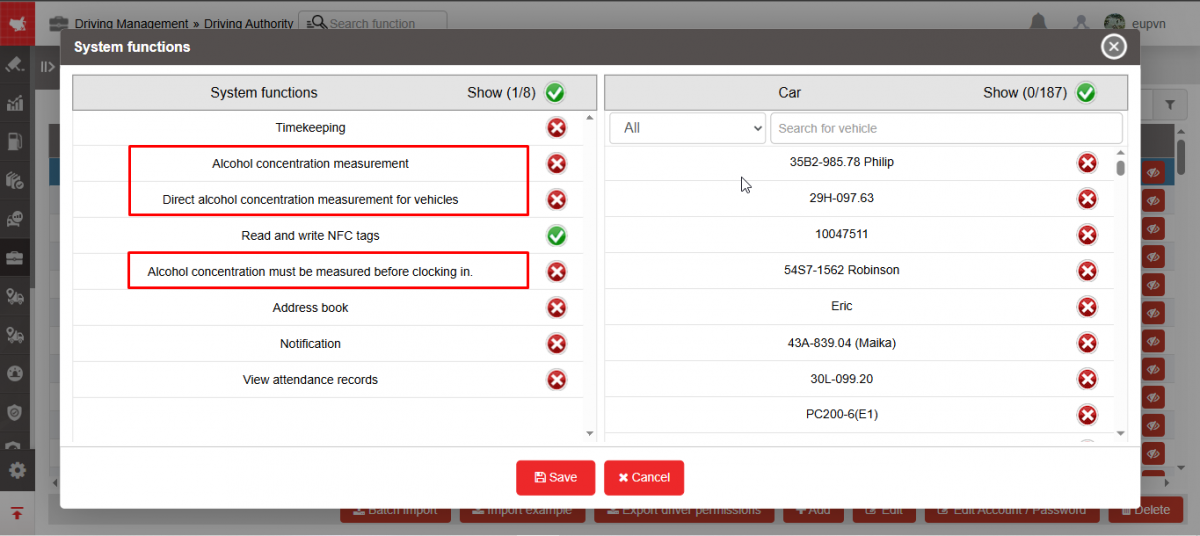
- In case the manager wants the driver to measure alcohol concentration, he must select the information of the vehicle the driver is driving, then check the green box and add the option: "Measure alcohol concentration directly for the vehicle".
- In case the manager wants the driver to have his/her alcohol concentration measured before being allowed to work, check the green box and add the option: "Must measure alcohol concentration directly when working"
2. Driver performs alcohol concentration measurement and alcohol concentration measurement history using the Alcohol Concentration Test function
Purpose
- Allows drivers to perform alcohol tests by connecting to a breathalyzer via Bluetooth, or view breathalyzer history
Conditions of implementation
- Drivers are authorized to "Measure alcohol concentration"
- Driving with a breathalyzer
- Drivers install and use the Edriver app
Operation to perform
- Go to the Alcohol Measurement menu
- The function screen consists of 2 parts: The Test section allows the driver to perform an alcohol test, the History section allows the driver to review his alcohol test history.

- Test Section : Includes the following information
- Driver: The system displays the default name of the driver currently logged in.
- License plate: Allows drivers to select authorized vehicles
- To measure alcohol concentration, the driver presses the power button to turn on the alcohol concentration measuring device, then the device will automatically connect bluetooth to the application. After the device connects to the application, the driver needs to blow into the device to measure alcohol concentration. If the driver blows correctly, the device will automatically transmit alcohol concentration measurement data to the edriver app and at the same time the app will automatically send the driver's alcohol concentration measurement data to the journey monitoring system so that the manager can look up the driver's alcohol concentration.
- If the driver is assigned the additional right to measure alcohol concentration before checking in , the app will require the driver to measure alcohol concentration before checking in.
- If the driver is assigned additional rights to Measure alcohol concentration directly for the vehicle , when the driver performs alcohol concentration measurement, the app will ask the driver to select the correct license plate number that is performing the control to continue measuring alcohol concentration.
3. Manage and review the alcohol concentration measurement results of drivers using the Alcohol Concentration Report function.
Purpose
- Allows management to review whether the driver's alcohol concentration test results meet the standards or not
- Allows managers to check the list of drivers who have not taken alcohol concentration measurements to promptly remind them.
Conditions of implementation
- The management account is authorized to perform the function of Driving Statistics/Alcohol Concentration Report.
Operation to perform
- Go to Driving Statistics/Breathtaking Report .
- The function screen displays:
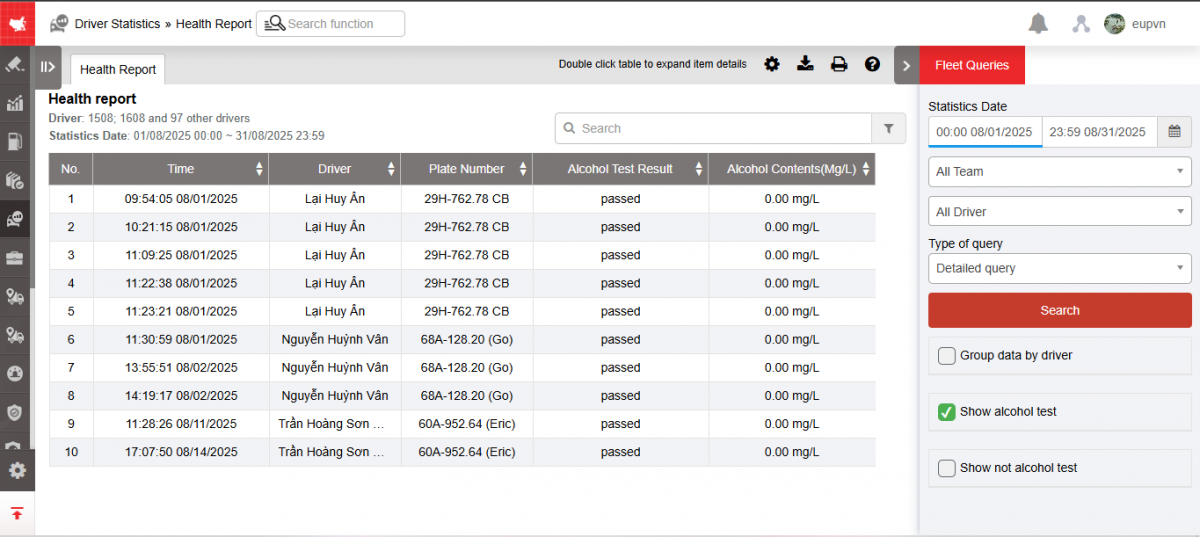
- The function screen consists of 2 parts: The Fleet Information section allows users to select the fleet, driver and time period to report, and the Detailed Report section.
- Fleet Information Section : Includes the following information:
- Whole fleet: User can press button
 to select fleet according to report request;
 - All drivers: Users can press the button to select reports by driver name;
- From: User selects the first day to report;
- To: User selects the last date to report.
- There are check box options for the manager to check the list of drivers who have or have not had a breathalyzer test by checking the boxes “Show breathalyzer test” or “Show breathalyzer test not yet”.
- Whole fleet: User can press button
- Detailed Report section : Displays alcohol concentration measurements along with corresponding driver information. Includes information:
- Time: Date and time the driver measured alcohol concentration;
- Driver name;
- License plate number;
- Alcohol concentration result: Displays the driver's alcohol concentration measurement result;
- Alcohol concentration measurement: Displays the driver's alcohol concentration % when measuring alcohol concentration;
- Select the icon
 to print the report;
 - Select the icon
 to download the report as excel;
 - Select the icon
 to set the display or hide or change the sort order of the report columns.
 - Select the icon
 to view the Standard Table of Indicators
Encrypt account and driver information and require password changes after 60 days
I. Information encoding:
 -  Encode driver and account information into *** format on the following pages:
1. Settings/Basic information/Driver list tab : All driver information is encoded into *** format
2. Search for monitoring/ Online monitoring : Information about driver's name, driving license number, driver's phone number, ID card on the vehicle information board page section_spy when clicking on the vehicle icon, and the information section with the letter i: Encoded as ***
 3. Settings/ Permissions : Information about the account and login password of the child accounts is encoded as ****
4. Driver management/Driver authorization : Information about driver name, account, password must be encoded as ***
 - The information is encoded on the above pages, the user wants to see it, click on any line of information ****, the system will display a popup to re-enter the account's login password. When the user enters the correct password, the system will display full information of the page that the user is viewing data. Entering the password and displaying information only works for the page that the user is viewing. Every 15 minutes from opening the password, the information is re-encoded as before
- After the user enters the password, the system will open the information of the page that the user is viewing
 II. Password change request after 60 days
- In the Settings/Authorization function: The login password for the child account created by the admin must be 8 characters or more, containing all the numbers, special characters and letters.
For example: A@123456.
- Every 60 days, when logging in to the Online Monitoring page, a popup will appear warning the user to change the password. The new password does not match the password the user is currently using.
Telematics_Evaluation and rating of safe driving behavior
I. Purpose of the document
- The document is intended to guide users on how to exploit data on safe driving behaviors (Telematics), thereby providing assessments and directions for effective and safe fleet management.
- All Telematics features fully evaluate safe driving violations including: sudden acceleration (speeding), sudden deceleration (hard braking), sharp turns, speeding, driving continuously for more than 4 hours and driving continuously for more than 10 hours/day. Help transport operators have a detailed, intuitive view in evaluating the quality of drivers and vehicles according to assigned areas and fleets.
- Telematics' feature set also helps carriers check and calculate CO2 emissions, thereby making decisions about assigning vehicles to perform appropriate transportation tasks.
- Telematics is a feature set introduced by Heiniken and Coca to score transport units that participate in transporting goods for Heiniken and Coca.
II. Abbreviations
|
Terms/Abbreviations |
Define |
|
NSD |
User |
|
Instructions |
User manual |
|
CRM |
User authorization support system |
III. Method of calculating safe driving violations and safety points
1. Violations of safe driving
- The system records 6 safe driving violations including:
+ Over speeding: Is the case where the driver participates in driving a vehicle but has a speed exceeding the speed limit on the road.
+ Driving continuously for more than 4 hours: Is the case where the driver participates in driving a vehicle continuously for a period of 4 hours without any rest stop of more than 15 minutes.
+ Driving continuously for more than 10 hours/day: This is the case where the driver participates in driving a vehicle but the total driving time in a day exceeds 10 hours.
+ Sudden acceleration (speeding): This is the case where the driver participates in controlling the vehicle, the speed reaches > 20km/h and continuously increases within 3 seconds (from second T1 to second T4), if T4-T1> 15km/h, the system will record a sudden increase in speed.
+ Sudden deceleration (hard braking): This is the case where the driver participates in controlling a vehicle with a speed of > 20km/h, the speed continuously changes and decreases within 3 seconds (from T1 to T4). If T4-T1> 20km/h, the system will record a sudden deceleration.
+ Sharp turn: When a driver participates in controlling a vehicle, if the direction increases/decreases continuously within 3 seconds (from T1 to T4) and reaches a speed >17km/h and the angle at T4-T1>45 degrees, it is considered a sharp turn.
2. How to calculate safety score
- The safety score corresponding to each behavior will be calculated based on the violation coefficient corresponding to each behavior.
Violation coefficient = number of violations/number of kilometers traveled by vehicle/driver
- From the corresponding violation coefficient, we can get the safety score of each behavior in the Score column.
For example: If the driver speeds up 4 times per 10000Km, then the Violation Coefficient=0.0004. Therefore the Safety Score of the speeding behavior is 100 points.
|
|
Abnormals per kilometer |
||
|
Score |
Harsh |
Harsh braking |
Overspeeding |
|
100 |
0,0004 |
0,0028 |
0,0513 |
|
99 |
0,0011 |
0,0046 |
0,128 |
|
98 |
0,0014 |
0,0065 |
0,2012 |
|
97 |
0,0016 |
0,0078 |
0,2503 |
|
96 |
0,0016 |
0,0083 |
0,2592 |
|
95 |
0,0017 |
0,0097 |
0,2733 |
|
94 |
0,0017 |
0,01 |
0,2763 |
|
93 |
0,0018 |
0,0102 |
0,2839 |
|
92 |
0,002 |
0,0104 |
0,3003 |
|
91 |
0,0021 |
0,0111 |
0,3039 |
|
90 |
0,0021 |
0,0118 |
0,3149 |
|
89 |
0,0021 |
0,0127 |
0,3161 |
|
88 |
0,0022 |
0,0133 |
0,321 |
|
87 |
0,0023 |
0,0146 |
0,3247 |
|
86 |
0,0024 |
0,015 |
0,3252 |
|
85 |
0,0025 |
0,0151 |
0,3289 |
|
84 |
0,0025 |
0,0151 |
0,3359 |
|
83 |
0,0026 |
0,0152 |
0,3379 |
|
82 |
0,0027 |
0,0156 |
0,3398 |
|
81 |
0,0027 |
0,0158 |
0,3435 |
|
80 |
0,0028 |
0,0159 |
0,3467 |
|
79 |
0,0028 |
0,0162 |
0,3492 |
|
78 |
0,0029 |
0,0167 |
0,3516 |
|
77 |
0,0029 |
0,0171 |
0,3542 |
|
76 |
0,003 |
0,0173 |
0,3559 |
|
75 |
0,0031 |
0,0175 |
0,3601 |
|
74 |
0,0032 |
0,0176 |
0,3626 |
|
73 |
0,0032 |
0,018 |
0,3649 |
|
72 |
0,0033 |
0,0185 |
0,3709 |
|
71 |
0,0034 |
0,0188 |
0,3725 |
|
70 |
0,0034 |
0,0189 |
0,3763 |
|
69 |
0,0035 |
0,0193 |
0,3772 |
|
68 |
0,0036 |
0,0198 |
0,3837 |
|
67 |
0,0037 |
0,0202 |
0,3934 |
|
66 |
0,0037 |
0,0205 |
0,3959 |
|
65 |
0,0037 |
0,0208 |
0,4002 |
|
64 |
0,0038 |
0,0212 |
0,4054 |
|
63 |
0,0038 |
0,0215 |
0,409 |
|
62 |
0,0039 |
0,0226 |
0,4112 |
|
61 |
0,0039 |
0,0229 |
0,4119 |
|
60 |
0,004 |
0,0231 |
0,4147 |
|
59 |
0,0041 |
0,0232 |
0,4165 |
|
58 |
0,0043 |
0,0235 |
0,4217 |
|
57 |
0,0043 |
0,0237 |
0,4235 |
|
56 |
0,0043 |
0,0246 |
0,4251 |
|
55 |
0,0044 |
0,0247 |
0,4342 |
|
54 |
0,0045 |
0,025 |
0,4372 |
|
53 |
0,0046 |
0,025 |
0,4425 |
|
52 |
0,0046 |
0,0253 |
0,4455 |
|
51 |
0,0047 |
0,0257 |
0,4466 |
|
50 |
0,0047 |
0,0259 |
0,448 |
|
49 |
0,0047 |
0,0263 |
0,45 |
|
48 |
0,0048 |
0,0268 |
0,4503 |
|
47 |
0,0048 |
0,0273 |
0,4515 |
|
46 |
0,0048 |
0,028 |
0,4526 |
|
45 |
0,0049 |
0,0283 |
0,4542 |
|
44 |
0,0049 |
0,0284 |
0,459 |
|
43 |
0,0049 |
0,0285 |
0,4633 |
|
42 |
0,0049 |
0,0287 |
0,4698 |
|
41 |
0,005 |
0,0293 |
0,4718 |
|
40 |
0,0051 |
0,0295 |
0,4747 |
|
39 |
0,0051 |
0,0301 |
0,482 |
|
38 |
0,0052 |
0,0305 |
0,4853 |
|
37 |
0,0053 |
0,0311 |
0,4913 |
|
36 |
0,0053 |
0,0317 |
0,4931 |
|
35 |
0,0053 |
0,0326 |
0,4972 |
|
34 |
0,0054 |
0,033 |
0,5 |
|
33 |
0,0055 |
0,0345 |
0,5029 |
|
32 |
0,0056 |
0,0348 |
0,5033 |
|
31 |
0,0059 |
0,0351 |
0,5057 |
|
30 |
0,0061 |
0,0366 |
0,5086 |
|
29 |
0,0062 |
0,0372 |
0,5139 |
|
28 |
0,0063 |
0,0378 |
0,5206 |
|
27 |
0,0067 |
0,0382 |
0,5263 |
|
26 |
0,0067 |
0,0385 |
0,5283 |
|
25 |
0,0068 |
0,0391 |
0,5305 |
|
24 |
0,0068 |
0,0398 |
0,5337 |
|
23 |
0,007 |
0,0409 |
0,5455 |
|
22 |
0,0071 |
0,0421 |
0,549 |
|
21 |
0,0071 |
0,0432 |
0,5509 |
|
20 |
0,0072 |
0,0443 |
0,557 |
|
19 |
0,0073 |
0,0461 |
0,5621 |
|
18 |
0,0077 |
0,0466 |
0,5646 |
|
17 |
|
||
Edriver application user guide
Instructions for using the EDriver app for drivers
Depending on the operating system on the mobile, the user selects the appropriate installation version
1. Login/Logout
Purpose:
- Allows drivers to access the application and perform utilities on the Edriver app
Conditions for implementation
- Drivers have created an account on the journey monitoring system and have downloaded the Edriver app to their mobile
Operations
- To create a driver account on the Edriver app, see the user guide at Driver Management/Authorization https://eup-wiki.gps247.vn/node/61
- Drivers open the app, the login screen appears

- Driver enters the following information:
-
 : Driver enters company name
 -
 : Driver enters assigned login name
 -
 : Driver enters assigned password
- Click Login to access the system.
- After successful login, the system menu displays:
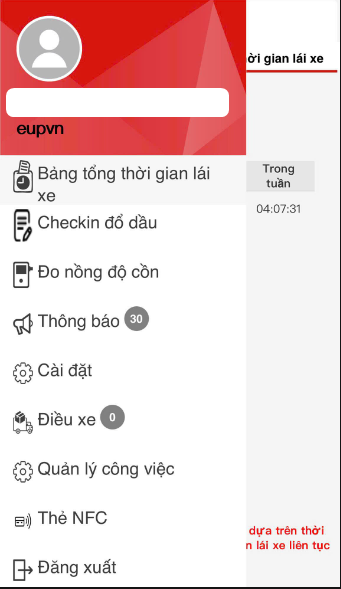
- Select log out if you want to exit the system.

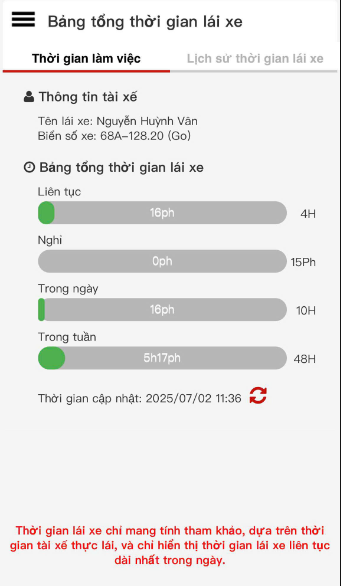
2. Total driving time table
- Working time tab:
+ Driver information: Driver name, license plate number
+ Total driving time table: Continuous, Rest, During the day, During the week
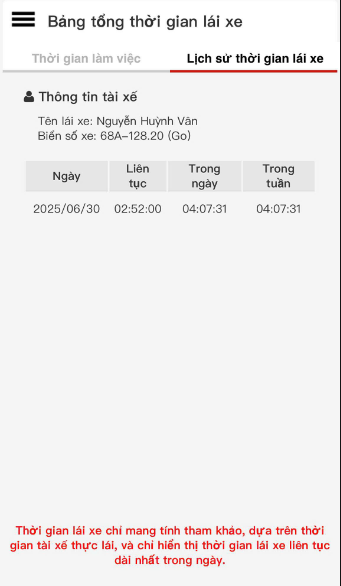
- Driving Time History Tab: Driver Name, License Plate Number, Date, Continuous Driving Time, Driving Time in a Day, Driving Time in a Week
3. Timekeeping Card
Purpose
- Allows drivers to clock in online from the app for each working day, working day with overdue timekeeping or view timekeeping history
Implementation conditions
- Drivers are authorized to clock in on the journey monitoring system
Operations
- Go to the Timekeeping Card menu
- The function screen consists of 3 parts: The Timekeeping section allows drivers to clock in during the day, the Forgot to clock in section allows drivers to clock in again in case of missing timekeeping, the Timekeeping History section allows drivers to review their own timekeeping history

- The Timekeeping section includes the following information
- Select vehicle: The driver selects the vehicle he has driven to perform the timekeeping
- Start working: The driver selects the start time to perform the timekeeping, the system will update according to the current time
- End working: When stopping driving the vehicle or switching to another vehicle, the driver selects the end of work to end the timekeeping, the time is updated according to the current time
- After the timekeeping, the system displays the timekeeping in the driver's Timekeeping History section
- Forgot to timekeeping section: The driver selects to timekeeping again in case of forgetting to timekeeping, including the following information:

- Driver name: The system displays the default name of the driver currently logged in
- Select vehicle: The driver selects the vehicle to be clocked in
- Timekeeping status: If the driver is working on the day of clocking in, select Active, if off work, select Inactive
- Timekeeping date: The driver selects the day he forgot to clock in and re-clocks
- Press Save to save the result just performed
- The clocking result is saved in the driver's Timekeeping History section
- Timekeeping History Section: This section records all the times the driver has clocked in.

4. Alcohol Concentration Test
Purpose
- Allows drivers to perform alcohol concentration tests by connecting to an alcohol concentration measuring device via Bluetooth, or viewing alcohol concentration measurement history
Implementation conditions
- Drivers are authorized to perform Alcohol Concentration Measurement function on the journey monitoring system
Operation
- Go to the Alcohol Concentration Measurement menu
- The function screen consists of 2 parts: The Test section allows drivers to perform alcohol concentration tests, the History section allows drivers to review their alcohol concentration test history
- Test Section: Includes the following information
- Driver: The system displays the default name of the driver currently logged in
- License plate: Allows the driver to select authorized vehicles
- To measure alcohol concentration, the driver presses the power button to open the alcohol concentration measuring device, then the device will automatically connect to the application via Bluetooth. After the device connects to the application, the driver needs to blow into the device to measure alcohol concentration. If the driver blows correctly, the device will automatically transmit alcohol concentration measurement data to the edriver app and at the same time, the app will automatically send the driver's alcohol concentration measurement data to the journey monitoring system so that the manager can look up the driver's alcohol concentration
- Note: If the driver is authorized to measure alcohol concentration before checking in, the app will require the driver to measure alcohol concentration before checking in
5. Contact Book
Purpose
- Allows drivers to see the contact phone numbers of other drivers when they need assistance
Conditions
- Drivers are authorized to access the Information Book on the journey monitoring system
Operation
- Go to the Contact Book menu
- The function screen displays the contact phone number list of all drivers in the team, and also supports drivers to quickly find phone numbers in the area 

6. Notification
Purpose
- Allows drivers to receive and read messages from the manager sent from the journey monitoring system to the driver's app
Implementation conditions
- Drivers are authorized to Notification on the journey monitoring system
Operation
- Go to the Notification menu
- The display function screen consists of 2 parts: The Inbox Warning section is the part that displays the number of new messages that the driver has not read, and the Notification Display section includes the title, notification content, date and time, the driver clicks on the notification he wants to view to open and read the detailed content of the notification

7. Settings
Purpose
- Allows drivers to install utilities to serve the working process such as changing passwords, warnings when abnormalities occur, and reminders for attendance
Conditions for implementation
- Drivers have installed the Edriver app and have successfully logged in on the app
Operations
- Go to the Settings menu
- The function screen displays 3 parts: The Change Password section allows drivers to change their passwords, the Remember attendance section allows drivers to schedule reminders for attendance, the Setting Abnormal Notification section allows warnings when abnormalities occur.

- Password Change Section: Helps drivers change their password as desired to ensure the security of their account, including the following information:

- Old Password: Driver enters the password currently in use
- New Password: Driver enters the password he wants to use immediately after changing
- Confirm Password: Driver re-enters the information entered in the New Password field
- Press Save to complete the password change
- Timekeeping Reminder Section: Allows drivers to set timekeeping reminders to limit drivers from forgetting to clock in. Function detail screen:

- Drivers tick the icon to select the item to be reminded to clock in
- After selecting the item, drivers select the specific time to be reminded to clock in by selecting the icon .
- Press Save to save the clock in reminder
8. Vehicle dispatch
Purpose
- Allows drivers to receive vehicle dispatch orders and update delivery order status
Implementation conditions
- Drivers are granted an account on the CTMS system
Operations
- When a delivery order is assigned to a driver, the driver will receive a notification about the delivery order sent to the phone that the driver has logged into the Edriver VN app
- Go to the Vehicle dispatch menu
- The function screen displays 2 parts: The Incomplete section is the section that lists all orders that the driver is being delivered but has not finished; the Completed section is the section that lists all orders that the driver has completed.
- In case the order has multiple points, the App displays them as small orders with the same Order Code and starting point as below:

- Incomplete Section: Allows drivers to search a list of incomplete orders by time, and sort them by priority.
- The status of the order will be displayed according to the status that the user has set in the dispatch_setting section. The driver departs or arrives at the starting point, arrives at the ending point or reports any abnormalities, the driver just needs to press the buttons corresponding to the actual delivery status of his/her order.
- The driver can change the order of his/her delivery orders by pressing the Edit button at the top of the page and dragging and dropping each delivery order to arrange in the desired order then select Done
- The driver selects the icon
 to quickly view the delivery map
 -
Or you can quickly contact the delivery person or recipient by selecting the icon

- When encountering an abnormality, you can select the Abnormality button to report to the system, send photos and abnormal content
- The system has added the Travel Photo function, allowing drivers to take photos of the journey and send them to the system when needed
- Drivers can select the icon
 to use the navigation support feature on the app

- Completed Section: Allows drivers to search a list of completed orders by time, and sort them by priority.

- Drivers can change the order of their delivery orders by clicking the Edit button at the top of the page and drag and drop each delivery order to arrange in the desired order, then select Done
- Drivers select the icon to quickly view the delivery map
-
Or can quickly contact the delivery person or recipient by selecting the icon
- When the Driver completes the delivery at a point, the completion status will be updated. The App will ask the Driver to take a photo of the invoice, related documents and send it to the system (This feature can be installed in the Dispach_setting section)
- In case the order has multiple delivery points, the Order is considered Completed when the delivery status at all points is updated as Completed.
- Log in to post comments
- Tiếng Việt
- 繁體中文
Instructions for downloading and using video recording applications
A- Software installation
1. Download the file to your computer and install:
https://eup.net.vn/setup-DVRLiveStreaming.msi
2. Run the newly installed DVR LiveStreaming software and log in with your customer account (if the virus scanner or firewall has a warning, select Allow to run the software)
B- User manual
I- Configuration section:
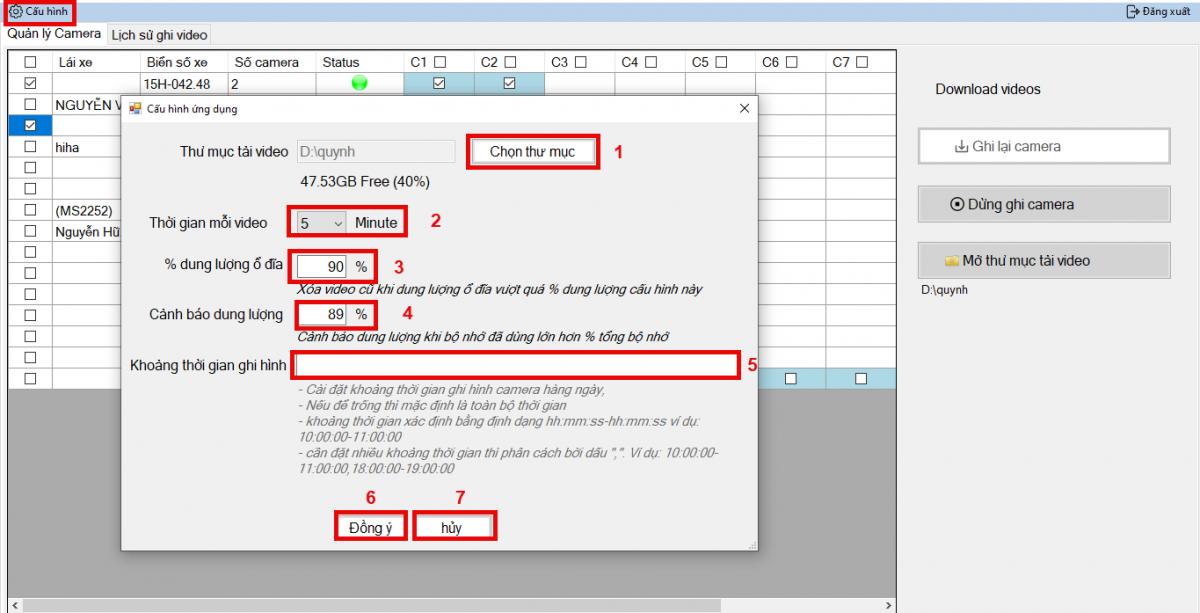
-
Select a folder to save the video on your computer
-
The time of each video is the time to cut the video according to the selected duration
-
% disk capacity: to delete old videos when the disk capacity exceeds the selected configuration
-
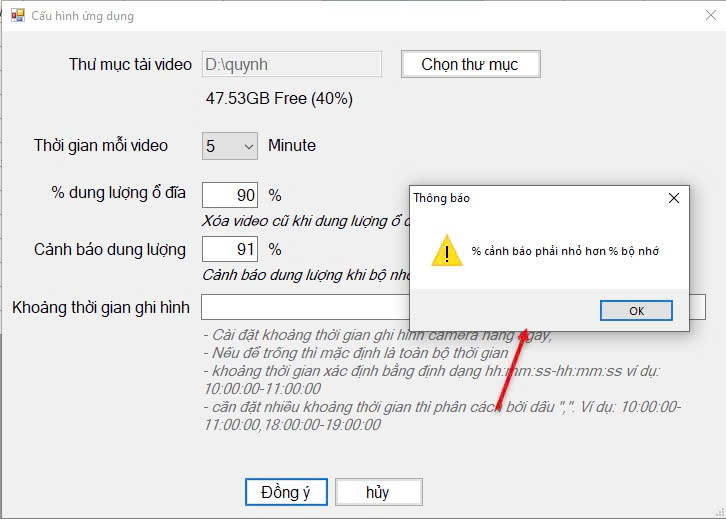
Warning capacity…%: Warns when the used capacity is larger than the % memory of the video storage folder. + + If the capacity exceeds the set %, there will be a warning with the content "Memory is almost full, please delete some memory or old data will be lost". + Warning capacity…% must be less than % disk capacity, if a larger % is entered, there will be a message "Warning % must be less than % memory"
-
5. Auto recording time (leave blank for all time of day)
II. Camera Management Section:

-
Select to view cameras directly by vehicle (only one vehicle can be viewed at a time)
-
Select the cameras you want to monitor directly

1. Select the vehicle to record
2. Select the cameras of the vehicle to record
3. Select Record camera: from the moment you click the Record camera button, the software will record the cameras of the selected vehicle
4. Select Stop recording camera if you do not want to save the video to your computer anymore
5. Open the video download folder to review the videos that have been downloaded to your computer
III. Video recording history:

- Select the vehicle to review the video history
- Select the cameras to review of the selected vehicle
- Select the time period to review the video recording history
- Search videos: search the video history according to the selected parameters
- Press the button to view the video
VI. Merge videos:

- Select Simultaneous View: combine fragmented videos into a single video in the list to watch (merge by camera)
- Click Search Videos: search video history according to selected parameters
- Click the button to view merged videos by camera
- Log in to post comments
- Tiếng Việt
- 繁體中文
Instructions for using Vijaco car control content
1. Purpose of the document
- The document is intended to guide users in performing vehicle dispatch functions, in accordance with the additional contents of Vijaco on 3/2022
2. Terms and abbreviations
- NSD: User
- HDSD: User manual
- CRM: Eupfin's customer management system
3. Instructions for using upgraded functions on the dispatch software
3.1 Notification of new orders created
Purpose
- Allows the user to be a higher-level account to receive notifications of new orders created by subordinate accounts. Specifically: When the booking account creates an order, the transportation department account/operation account and the admin account will receive notifications of new orders
Implementation conditions
- The user is authorized to option VN85M on Eupfin's CRM system
- The user is accessing the Dispatch System/Dispatch Shipping feature
Implementation operations
- Go to the Dispatch System/Dispatch Shipping menu
- When the subordinate account creates a dispatch order, the parent account and the admin account will receive a popup notification of a new order created according to the following screen:

Popup included as follows:

3.2 Manage and create orders for outsourced vehicles
Purpose
- The feature allows users to add a list of outsourced vehicles and make vehicle dispatch orders for orders with outsourced vehicles running
Implementation conditions
- Users are authorized to add the VN85K option on Eupfin's CRM system
Implementation operations
- To manage and add a list of outsourced vehicles, users who are admins go to the function: Setting/Asset & Supplies Management/Asset group: Rental vehicles and follow the 2 steps as shown below

- After adding the rental car to the list, the user can dispatch the car for orders with rented cars by going to the Vehicle Dispatch/Delivery Management function
+ For vehicle type: Select the Rental Car group
+ Rental unit: Select the rental unit according to the list entered in asset management/Rental
+ Outsourced BSX: The user selects the corresponding BSX in the BSD list of the selected rental unit

3.3 Merge order tabs into 1 Delivery Management tab and manage orders according to status: Newly created, paired, completed
Purpose
- Manage and track all types of orders on the same tab, and the order status is divided into 3 states: Newly created, combined and Completed
Conditions for implementation
- Accounts using Vijaco's vehicle dispatch feature
Implementation operations
- Users access the Dispatch System/Dispatch Shipping function, the interface screen displays 1 tab as follows:

- In the order color section, we have:


3.4 Perform order consolidation/split shipments
Purpose
- Allows users to combine trips for vehicles with the same license plate number, including rented vehicles
Conditions
- Users are authorized to option VN85L on Eupfin's CRM system
Implementation
- In the Dispatch System/Dispatch Shipping function to combine trips, users right-click and select Join order to this trip

-
The system will suggest orders that can be combined according to the display screen:

3.5 On orders marked for orders with lead seal
Purpose
- Allows users to select and quickly observe orders with lead seals
Conditions for implementation
- Users are authorized to use Vijaco's vehicle dispatch feature
Implementation operations
- Go to the Dispatch System/Dispatch Shipping function for orders that need to be marked with lead seals, users select the lead seal checkbox as follows:

- For orders marked with lead seal, when looking up, it will display yellow so that users know that it is a lead seal.

3.6 Add executor content to order
Purpose
- Allows users to enter information of the person who performs the order when making an order
Conditions
- Users are authorized to use Vijaco's vehicle dispatch feature
Implementation operations
- In the Dispatch System/Dispatch Shipping function on the add new/edit order screen, users enter the information of the person who performs the order into the order as follows:

- Log in to post comments
- Tiếng Việt
- 繁體中文
FMS user manual available on request from Heineken
1. Purpose of the document
- The document is intended to guide users in performing functions on the FMS system to search and track information in accordance with the standard indicators required by Heniken.
2. Terms and abbreviations
- NSD: User
- HDSD: User manual
- CRM: Eupfin's customer management system
3. Instructions for using functions that meet Heineken standards
-
Set payload and CO2 emission index
Purpose
- Allows users to enter information about the payload and CO2 emission index corresponding to each vehicle, serving the calculation of CO2 emissions during vehicle operation.
Implementation conditions
- Users are assigned to use the Heineken standard features on the CRM system.
Implementation operations
- Go to the Settings menu/Basic information/Vehicle information tab.
The function screen displays as follows:

- User selects the icon  to add/edit the payload and CO2 emission index corresponding to each vehicle, the add/edit screen displays as follows:

- User finds the information line: Maximum load and CO2 emission index to enter information.
- User clicks Save to save the results just performed
-
Check information about Stops, Speeding, CO2 emissions, SOS calls, Sudden accelerations, Hard braking, driving time, fuel consumption up to the present time of the day
Purpose
- Allows users to quickly check Heineken's standard indicators in the current day
Conditions
- Users are assigned to use Heineken's standard features on the CRM system
Implementation
- Go to the menu Search for Monitor Center/Map

-
At the vehicle icon, the user clicks to see the details of the information that Heineken requires for the transport unit for Heineken:
-
Number of stops: The number of times the vehicle has stopped and parked up to the current time of the day
-
Overspeeding: The number of times the vehicle has violated the speed limit up to the current time of the day
-
Number of sudden accelerations: The number of times the driver has suddenly accelerated as recorded by the safety driving device
-
Number of sudden brakings: The number of times the driver has suddenly braked as recorded by the safety driving device
-
Continuous driving time: The total time the driver has continuously driven without stopping and parking
-
Driving time in a day: The total time the driver has continuously driven during the day
-
Fuel consumption (liters): The number of liters of fuel consumed up to the current time of the day. Calculated according to the consumption rate set by the user for each vehicle and the number of kilometers the vehicle has traveled up to the current time of the day
-
CO2 emissions (grCo2): Is the amount of CO2 emitted up to the current time of the day corresponding to each vehicle. Calculated according to the formula: CO2 emissions = Vehicle weight * Number of kilometers traveled * Emission index
-
Number of SOS calls: Is the number of times the driver has pressed the SOS button on the device up to the current time of the day
-
Cài đặt cảnh báo lái xe liên tục và thời gian lái xe trong ngày
Purpose
- Allows users to set up warnings via email, popup, and notification when drivers drive continuously and have a total driving time in a day exceeding the prescribed number of hours. Helps detect and prevent in time when drivers drive continuously and have a number of driving hours in a day exceeding the prescribed driving time according to QCVN31
Implementation conditions
- Users are assigned to use the features that meet Heineken standards on the CRM system.
Implementation operations
- Go to the Settings/ Fleet Alert Configuration menu
The function screen displays as follows:

-
In the abnormal setting screen, set the continuous driving time and the driving time per day, then turn on the window and the warning ringtone. When the driver reaches the set time, the system will warn in 3 forms: Popup, Notify and email.
-
Operation to turn on the warning
-
Users turn on the window and ringtone to receive popup warnings and notifications when the vehicle violates the continuous driving time and the driving time per day set in the above section
-
To receive email warnings, users go to the function: Settings/Warning configuration, the configuration screen displays as follows:

-
NSD enters the email list to receive continuous driving warnings and driving time during the day, emails are separated by ";"
-
Configure SOS alert reception
Purpose
- Allows users to set up information about phone numbers and emails to receive SOS alerts when drivers press the SOS button on the device according to each fleet that users manage
Implementation conditions
- Users are assigned to use the features that meet Heineken standards on the CRM system.
Implementation operations
- Go to the Settings/ Fleet Alert Configuration menu
The function screen displays as follows:

-
Fleet name: List of fleets managed by the login account. When configuring email. Phone number corresponding to each fleet, only the phone number and management email corresponding to each fleet will receive email and SMS when the driver presses the SOS button on the device
-
Email to receive SOS warning: List of emails that receive information when the driver presses the SOS button on the device. Emails are separated by “;”
-
Phone number to receive SOS: List of phone numbers that receive messages when the driver presses the SOS button on the device. Phone numbers are separated by “;”
- Log in to post comments
- Tiếng Việt
- 繁體中文
Instructions for using the application to automatically download videos to your computer
I. Software Installation
- Download the file to your computer and install it: https://drive.google.com/file/d/1fmW9sIkQJvagdl7GYcvP224unU0COHeP/view?u...
- Run the newly installed software DVRHistoryDownload and log in with your FMS account (if the virus scanner or firewall has a warning, select Allow to run the software)
II. Instructions for use
1. Configuration section:
- Select a folder to save videos on your computer
- % disk space: to delete old videos when the disk space exceeds the selected configuration. The maximum percentage to set is 95%, if exceeded, there will be a warning "To ensure safe operation, limit the maximum usage to 95% of memory". If the memory is full, there will be a warning "Memory limit reached, please clear memory"
- Click OK or Cancel to save or cancel the installation
2. Camera Management Section
- Select one or more vehicles to download reports
- Select one or more cameras to download reports
- Select Record camera: From the moment you click the Record camera button, the software will download videos of the selected vehicle's cameras
- Select Stop recording camera if you do not want to continue saving videos to your computer
- Open the video download folder to review the videos that have been downloaded to your computer
* Note:
1. Videos are only automatically downloaded when the camera is on
2. When the app is turned off, the video will stop downloading
3. When the app is updated, the vehicles that are downloading videos will continue to download, and the vehicles that have not been downloaded will download again
4. Only one device can download videos at the same time per account
III. Video recording history:
- Select the vehicle to review the video history
- Select the cameras to review of the selected vehicle
- Select the time period to review the video recording history
- Search videos: search the video history according to the selected parameters
- Press the button to view the video
IV. Merge videos:
- Select Simultaneous View: combine fragmented videos into a single video in the list to watch (merge by camera)
- Click Search Videos: search video history according to selected parameters
- Click the button to view merged videos by camera