Journey Management (XNK)
- Log in to post comments
- Tiếng Việt
- 繁體中文
Xnk Route Listing
1. Purpose
- This function supports users to view/edit/delete/export all existing routes in the system or create a route in advance including details of the points the vehicle will pass through and configure the time allowed to stop at the points.
2. Implementation conditions
- Users are authorized to use option VN55.
3. Implementation instructions
- Go to the menu Journey Management/Xnk Route Listing

-The display function screen consists of 3 parts:
+ Fleet Queries section;
+ Xnk Route Listing section;
+ Add, Edit, Delete route section.

+ Fleet Queries section: Users can search by the following information:
- Route name;
- Start point;
- End point
+ Xnk Route Listing section: Displays a list of all routes according to search criteria:
- Users select the Route line to view to see detailed route information on the right side of the screen;
- Select the icon
 to print the report;
 - Select the icon
 to download the report in excel/word format;
+ The Add, Edit, Delete section allows users to perform the following operations:
- Users select the route line to edit and click Edit if they want to edit the route;

- The user selects the route line they want to delete and presses Delete to delete the route;

- User selects Add if they want to add a new route. The Add a new route screen is as follows:

- Route name: User enters the route name he wants to set (Required information);
- Route Email Receive Report
- Route Email Receive Time Table
- Route Email Receive Alert
- Route Phone Receive SMS: Number format;
- Start point: The first point of the route (Required information);
- End point: The last point of the route (Required information);
- Middle point list: Points the vehicle must pass through in a route;
-
To enter the Start/End/Middle points, the user selects the icon
 , the screen to enter the Start/End/Middle points information is as follows:

- The user can select the mark
 to select an address from the available list;
 - Or the user can create a new point that is not yet in the system by ticking the map, and selecting Create landmark. The screen displays:

- After confirming the creation of points, the user continues to classify the points and set the stopping time at the points;

- After adding points, user selects Save if they want to save the route they just created, user selects Cancel if they do not want to create the route.
- Log in to post comments
- Tiếng Việt
- 繁體中文
Journey Information
1. Purpose
- Allows users to add, edit, delete, export and track vehicle journeys.
2. Implementation conditions
- Users are authorized to use option VN55.
3. Implementation instructions
- Go to the Journey Management/Journey Information menu.

- The display function screen consists of 3 parts:
+ Fleet Queries section: Set up journey search parameters;
+ Journey Information section: Display journey information including route, vehicle information;
+ Import/Import example/Add/Update/Stop journey report section: Support adding new, editing journey or stopping journey report in case you want to end the journey early.

+ The Fleet Queries section includes the following information:
- Trip name: User enters the name of the trip to be searched;
- Report type: Select to search by start or end date;
- From date, to date: User selects the first and last date to search for the trip;
- Click Search to display the results;
- User can select the Hide journey completed checkbox so that the search results do not show information of completed trips.
+ Import/Import example/Add/Update/Stop journey journey section:
- Select Update if you want to save the latest information of the trip;
- Select Stop journey: The user selects if they want to end the trip as desired and stop receiving reports of the trip;
- The user selects Add if they want to add a new trip. The new trip add screen displays as follows:

+ Journey Information section: Displays a list of trips and detailed information of each corresponding trip, including two main information: Journey and Car Information;
Journey

-
Journey Name: The itinerary name is set by the user. If the user imports data from an excel file, the system will automatically generate itinerary names for itineraries with the same name according to the structure: Journey Name - Route ID - Start point - End point. If one of the four information above is different, the system will understand it as a different journey;
- Choose Route: Allows the user to select a route from the created list. When selecting a route, the system will automatically display the Route Code, starting point, and ending point
- Start time: Estimated start time of the itinerary;
- End time: Estimated end time of the itinerary. For itineraries, if the end time is entered less than the current time, the system will understand that the itinerary has ended and will not send a report. In case the end time is greater than the current time, the system will understand that the itinerary has not ended and will send a report according to the reporting rules;
- Report time: The user sets the time to receive the trip report here. Every set number of hours since the last vehicle left the starting point, the system will automatically send the trip report. The minimum reporting time that can be set is 30 minutes;
- Receive Journey Mail: The user enters the email list to receive the trip report;
- Receive Time Table Mail: Allows the user to enter the email list to receive the time table report;
- Receive Warring Mail and Receive Phone SMS: When the user enters information to create a trip, parking warnings related to the vehicles in the trip will be sent to the email and phone number the user has entered. At the same time, parking warnings related to these vehicles will still be sent to the email and phone number set up in the general warning section;
- Checkbox Get Report: To choose to receive trip reports in the time table report of the trip.
Car Information:

-
- Order type: User enters order type, this is required information;
- Route ID: The system automatically loads according to the route selected by the user;
- To add a vehicle to the journey, the user selects the Add Car button and enters the following specific information;


-
- The user selects Confirm to complete adding the car to the journey.
- Select Save if you want to save the journey you just created, select Cancel if you want to cancel the operations that created the journey;
- Select the icon to print the report;
- Select the icon to download the report in excel/word format;
- The user can quickly import multiple journey by selecting Import example to import journey information using an excel file. Note that when creating import data, the user needs to name the journey differently to avoid duplicate names. If the journey names are the same and the elements: Route ID, Start time, End time, Order type are different, the system will separate them into different journey with different names, with new names according to the rule: Journey Name - Route ID - Start time - End time - Order type.
- Log in to post comments
- Tiếng Việt
- 繁體中文
History Report
1. Purpose
- Allows users to look up all warning or history report.
2. Implementation conditions
- Users are authorized to use option VN55.
3. Implementation instructions
- Go to the menu Journey Management/History Report .

- The display function screen consists of 2 parts:
+ The Search section allows users to set search parameters;
+ The History Report section displays all notification, warning, and report lines.

+ The Search section includes the following information:
- From, To: User enters the first and last date to view the history of reports and warnings. Allows users to search by day, week, month;
- All team: Default, users select the icon
 to select the team;
 - All car group: Default is all vehicles in the car group, users select the icon to select a specific car group;
- All car symbol
- Vehicle list: Default all vehicle license plate, allows to select 1 or more vehicles to look up reminders
- Search: Click Search to view the history of reports and warnings according to search parameters.
- Report type: includes warning or eport type;
+ The History Report section displays the search results, to view detailed information about reports and warnings;
- Send time: time to send notification/report
- Email: name of the mailbox to receive the report
- Tel: phone number to receive the notification
- Report type: notification/report
Select the icon to print the report;
Select the icon to download the report in excel/word format;
Select the icon  to set the display or change the sort order of the report columns
- Log in to post comments
- Tiếng Việt
- 繁體中文
Time Table Report
1. Purpose
- Allows users to review time table reports by route, itinerary or customer within a specific period of time
2. Implementation conditions
- Users are authorized to use option VN55
3. Implementation instructions
- Go to the menu Journey Management/Time Table Report.

- The display function screen consists of 2 parts:
+ The Search section allows users to set search parameters;
+ The Time Table Report section displays all the detailed information lines of each search journey.

+ Search section:
- From, to: Time to review the report;
- Route name: User selects the route to view the time table report;
- Journey name: User selects the route to view the time table report;
- Search: Select Search to display the results
- Select customer if the time table report is by customer.
+ Time Table Report section:
- For journeys with a configuration to receive reports based on time when creating the journey, the system will automatically send the last vehicle to the email address set up when creating the journey;
- For completed journeys, users can still review the time table report in this function and export the excel report;
- ATA: Time the vehicle arrives at the selected point to receive the report
- ATD: Time the vehicle leaves the selected point to receive the report
Select the icon to print the report;
Select the icon to download the report in excel/word format
- Log in to post comments
- Tiếng Việt
- 繁體中文
Car Alert Setting
1. Purpose
- Allows users to enable/disable receiving warnings for each vehicle in the system
2. Implementation conditions
- Users are authorized to use option VN55; VN55A
3. Implementation instructions
- Go to the Journey Management/Car Alert Setting menu

- The function screen displays car nformation and the corresponding checkbox allows selection of Receive Car Alert

- To choose to receive warnings, the user selects the checkbox in the row corresponding to the vehicle and then clicks Save;
- When the vehicle is selected to receive warnings, it will comply with the following warning levels:
- Warning when stopping for more than the number of minutes at the function: Abnormal settings as shown below
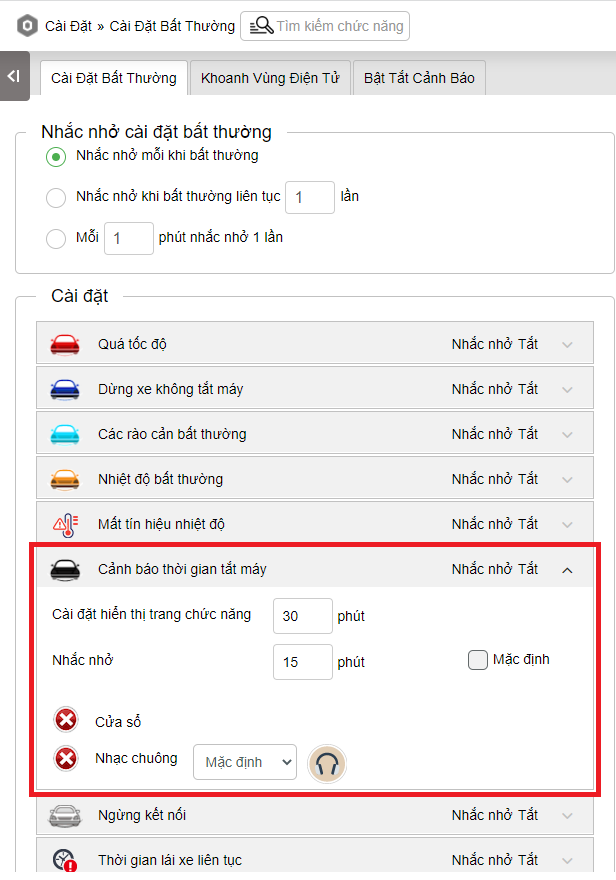
-
- Warning when the vehicle stops for more than the number of minutes set on the milestone as shown below. In case the stopping time is set to 0, when the vehicle stops at the milestone, there will be no warning

-
- Warning when the vehicle stops at points on the journey as shown below. If the stopping time is set to 0, there will be no warning when the vehicle stops at that point

-
- Warning priority: Prioritize warnings according to the configuration at the journey, then warnings at milestones and finally warnings according to the time set in the abnormal settings
- Log in to post comments
- Tiếng Việt
- 繁體中文
Journey Report
1. Purpose
- This is a background function, allowing reports to be sent to the email that the user has set up when creating the journey.
2. Implementation conditions
- The user is authorized to use option VN55.
3. Implementation instructions
- The system automatically compiles and sends reports according to the time and email that the user has set up when creating the journey (If the journey has the Receive report checkbox selected). The first report will be sent when the last vehicle leaves the starting point, with the actual start time of the journey being the scanning time when the last vehicle leaves the starting point;
- From the first report, every X hours that the user has set up, the system will automatically send a report according to the form:

- Log in to post comments
- Tiếng Việt
- 繁體中文