Idling report
1. Purpose
- Allows the user to check detailed time and location information for instances when the driver stops the vehicle without turning off the engine within a maximum period of 1 month..
2. Implementation conditions
- The user is granted permission for the Idling report function on the CRM system.
3. Implementation instructions
- Go to the Abnormal Report»Idling report.

 - The display function screen consists of 2 parts:
+ Fleet Queries section allows users to set up time parameters and vehicles to view the report;
+ Report details section displays the daily driving time of each driver

+ Fleet Queries section: the user selects the following information:
-
From: The user enters the first day to create the report;
-
To: The user selects the last day to create the report;
-
Select the icon
 to select the Team;
 -
In the vehicle list: Check the checkbox to select the vehicle to report;
-
Speed ... km/h: Search for vehicles with a speed <= ... km/h (Vehicles that are moving but have a speed <= ... km/h will still be displayed in the report).
-
Displacement exclusion ... m: Search for vehicles stopped without turning off the engine with a travel distance <= ... m (Vehicles that are moving but have a travel distance <= ... m will still be displayed in the report).
-
Cumulative ... minutes or more: Search for vehicles stopped without turning off the engine for a stop duration >= ... minutes.
-
Show undispatched vehicles: Include vehicles that are not operational in the report.
-
Click Search button to display the report in the Report Details section.
+ Report details section: Display detailed report information.
-
Plate number
-
Name
-
Stop count: Total number of times the vehicle stops without turning off the engine.
-
Total time: Total time the vehicle remains stopped without turning off the engine.
-
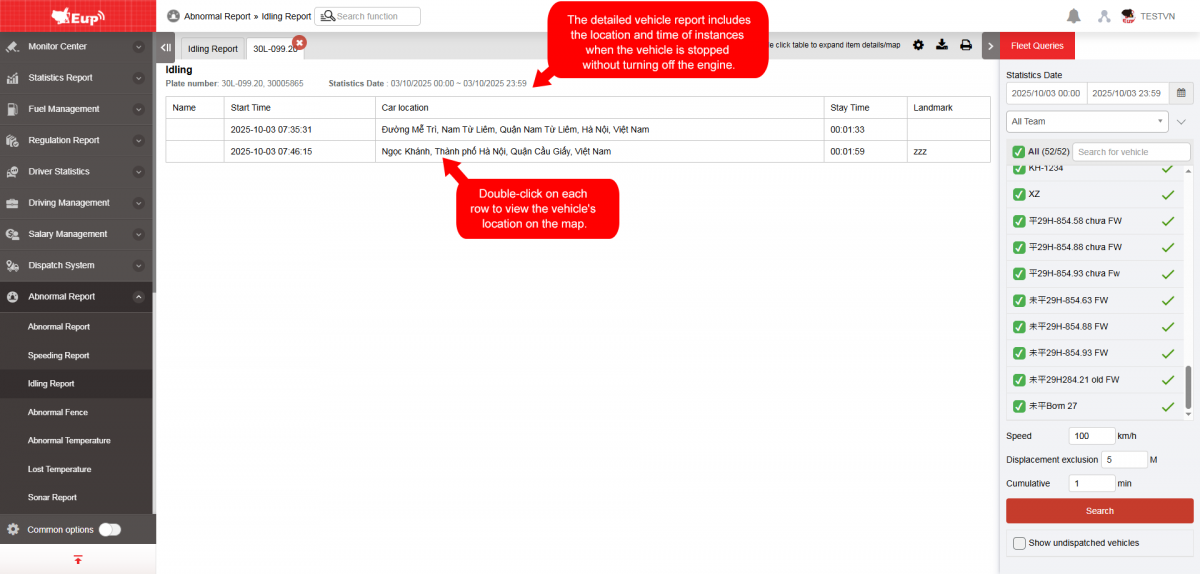
The user selects the row to review, double-clicks to display specific details including the address and time of each instance where the vehicle stopped without turning off the engine.
+ Select the icon  to print the report
+ Select the icon  to download the report as excel
+ Select the icon  to Custom Field, Plate number field settings, Print signature settings
- Log in to post comments
- Tiếng Việt
- 繁體中文