Health report
1. Purpose
- Allow users to generate statistics on the status of all drivers for a specific time period.
2. Implementation conditions
- The user is granted permission for the Summary Report function on the CRM system.
3. Implementation instructions
- Step 1: The user performs alcohol testing using the Edriver driver app. Refer to the usage instructions in Section 3. Alcohol Concentration Check in the Edriver App Usage Guide (https://eup-wiki.gps247.vn/node/215).
- Step 2: Go to the menu Driver Statistics»Health report

- The display function screen consists of 2 parts:
+ Fleet Queries section allows users to set up time parameters and vehicles to view the report;
+ Report details section display information search results.
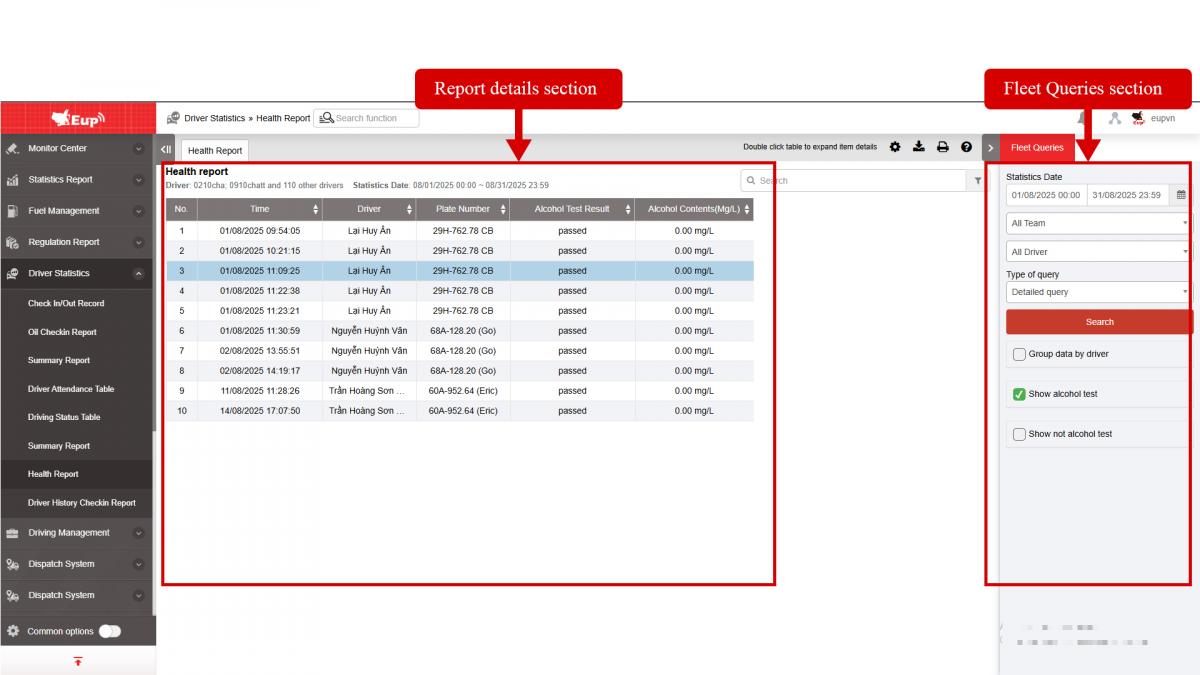
+ Fleet Queries section: the user selects the following information:
-
From: The user enters the first day to create the report;
-
To: The user selects the last day to create the report;
-
Select the icon
 to select the Team;
 -
Click Search button to display the report in the Report Details section.
-
Checkbox Group data by driver
- Checkbox Show alcohol test
- Checkbox Show not alcohol test
+ Report details section: Display all alcohol concentration test instances along with the corresponding driver information, including the following details:
- Time: Date and time the driver conducted the alcohol concentration test.
-
Driver: Name of the driver.
-
Plate number: License plate of the vehicle.
-
Alcohol Test Result: Displays the result of the driver's alcohol concentration test.
-
Alcohol contents(mg/L): Displays the percentage of alcohol concentration in the driver's breath when the test is conducted (measured in mg/L).
+ Select the icon  to print the report
+ Select the icon  to download the report as excel
+ Select the icon  to Custom Field, Plate number field settings, Print signature settings
+ Select the icon  to view the Standard Table for the Metrics
- Log in to post comments
- Tiếng Việt
- 繁體中文