Check in/out Record
1. Purpose
- Support users in generating driver attendance reports for a specified period to facilitate the management and monitoring of driver attendance for the enterprise.
2. Implementation conditions
- The user needs to be granted permission for option 4F
3. Implementation instructions
- The user performs attendance tracking on the driver app. Refer to the attendance tracking guide in section 2: Attendance Card in the Edriver app user manual (https://eup-wiki.gps247.vn/node/215).
- Navigate to the Driver Statistics»Check in/out Record
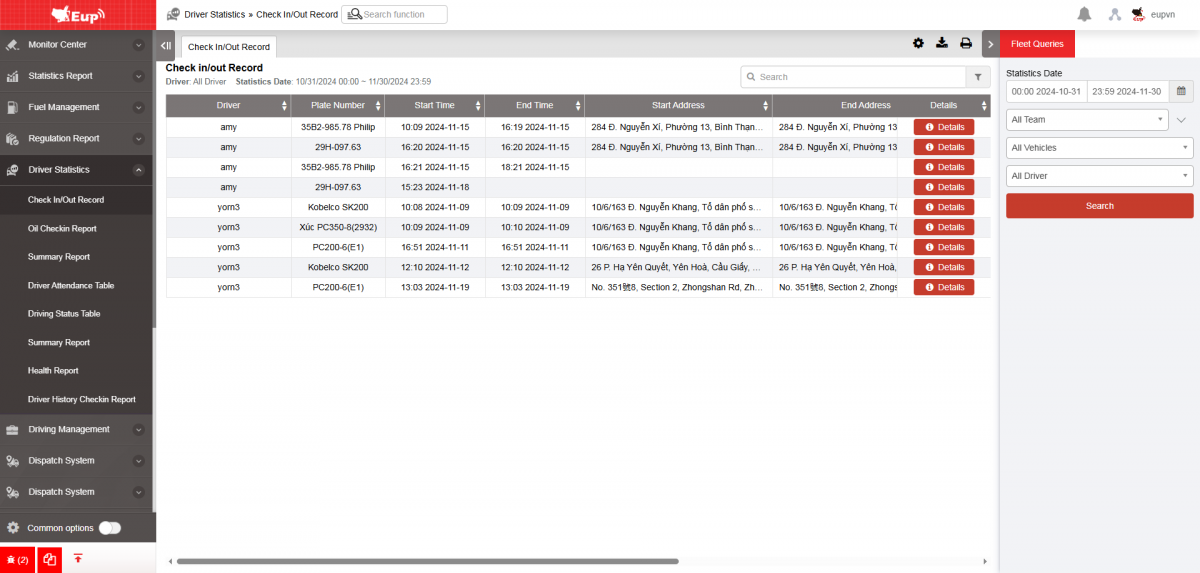
- Màn hình chức năng gồm 2 phần:
+ Fleet Queries section allows the user to input details such as the time period, fleet, and driver for generating the report;
+ Driver Attendance Report section
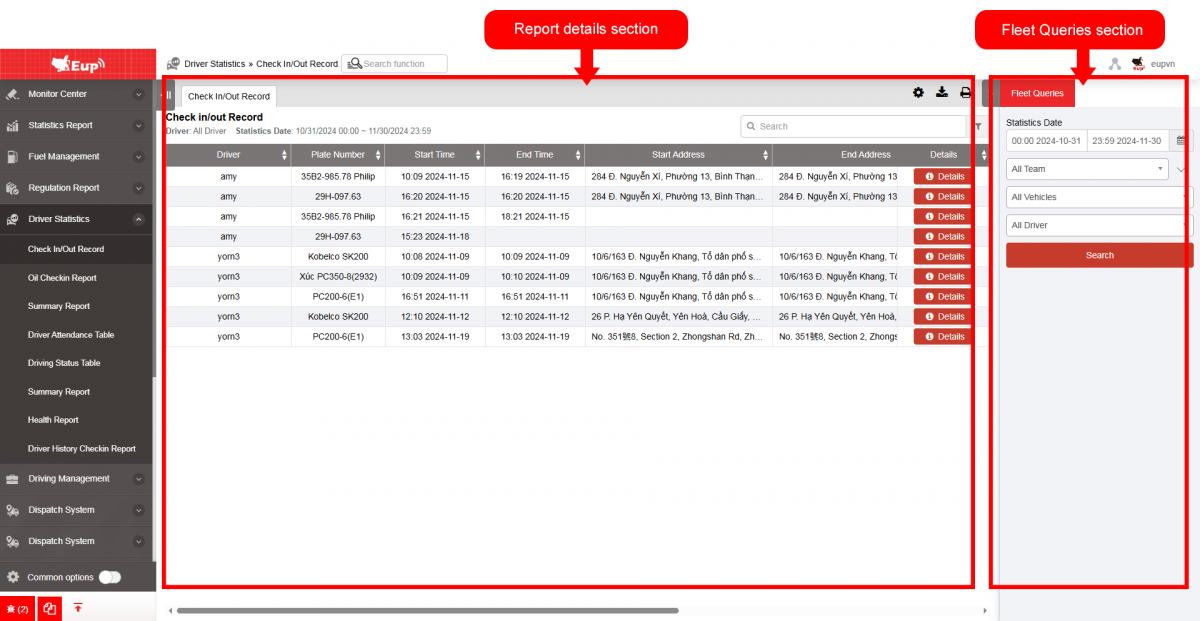
+ Fleet Queries section: the user selects the following information:
-
From: The user enters the first day to create the report;
-
To: The user selects the last day to create the report;
-
Select the icon
 to select the Team;
 -
In the vehicle list: Check the checkbox to select the vehicle to report;
-
Click Search button to display the report in the Report Details section.
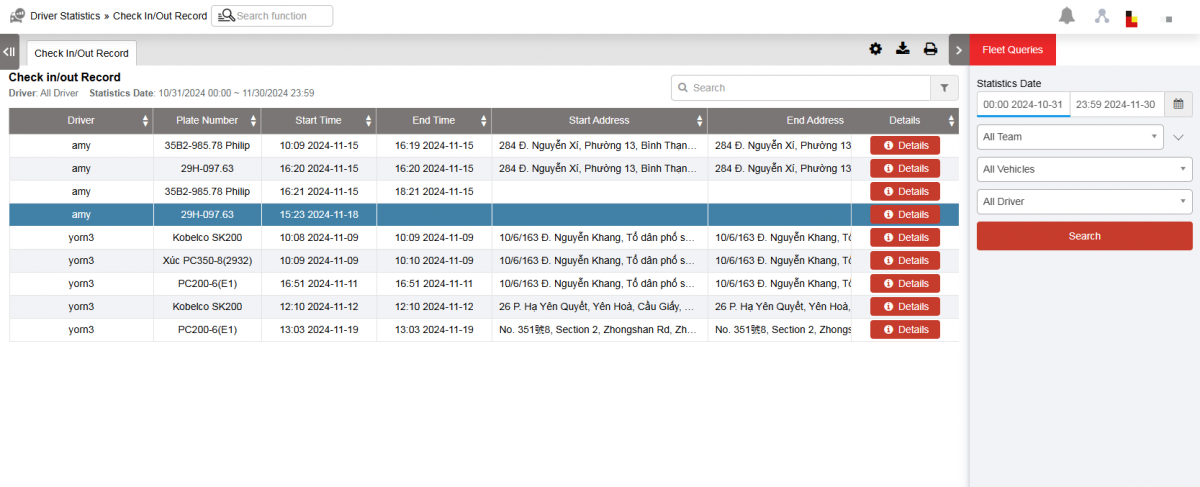
+ Check in/out Record Report section: displays the detailed results of the attendance report, including the following information:
-
Driver;
-
Plate number;
-
Start Time: The time the driver begins operating the vehicle;
-
End Time: The time the driver finishes operating the vehicle;
-
Starting Address: The location where the driver begins the trip;
-
Ending Address: The location where the driver ends the trip;
-
Actions: Allows the user to delete the driver's attendance record.
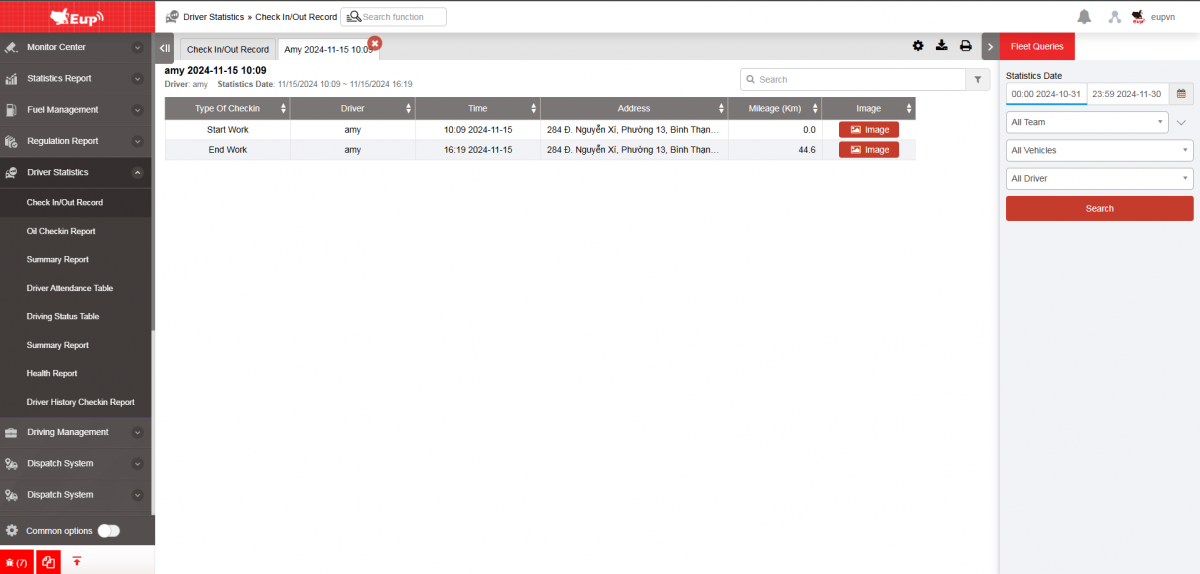
-
Start Image
-
End Image
-
Total mileage
-
Total of checkin
-
checkin Image
-
Details: Click on details to display detailed information table
+ Select the icon  to print the report
+ Select the icon  to download the report as excel
+ Select the icon  to Custom Field, Plate number field settings, Print signature settings
- Log in to post comments
- Tiếng Việt
- 繁體中文