Factory area surveillance
1. Purpose
- Function to support users to monitor the operation and status of vehicles at the factory and construction site (used for concrete mixer trucks).
2. Implementation conditions
- Users are authorized to Option 94 and 20 on the CRM system.
3. Implementation instructions
- Goto menu Monitor center/Factory area surveillance
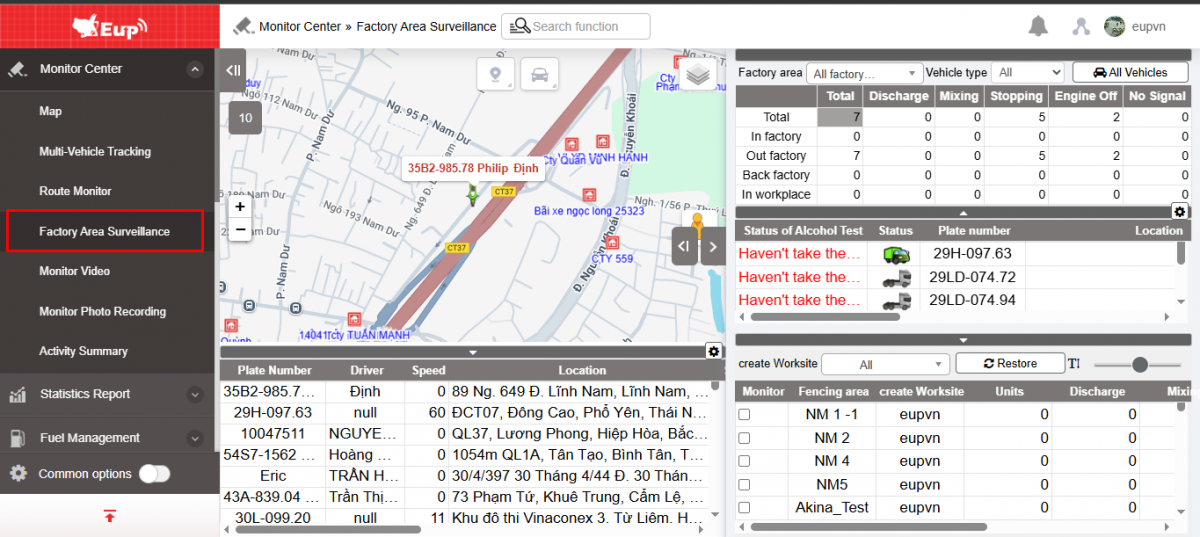
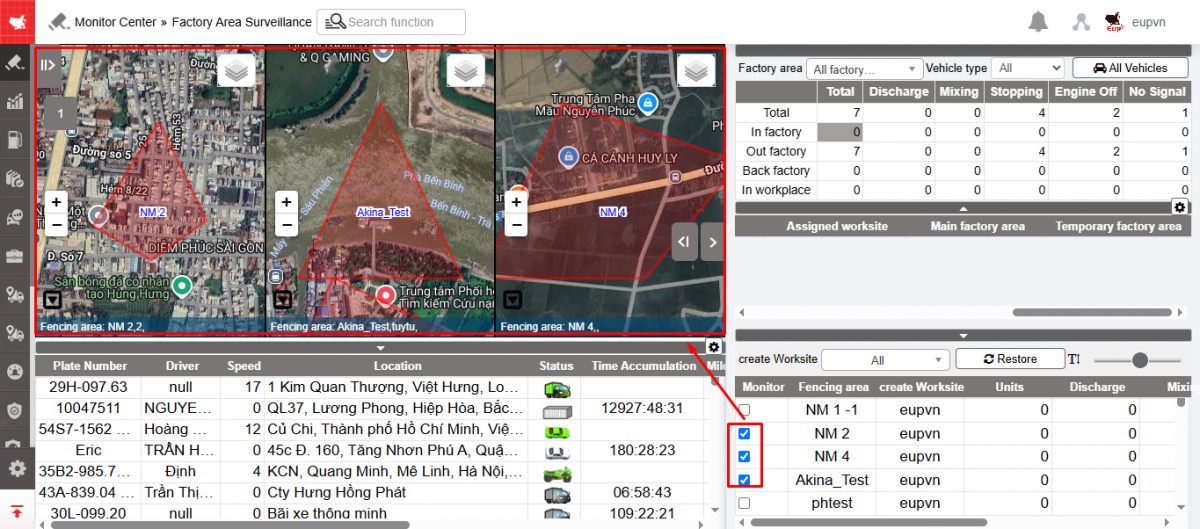
- The function display screen consists of 4 parts:
+ The Monitoring Map section and the current vehicle status update panel display the vehicle's monitoring map;
+ Quick Statistics section allows to view quick reports;
+ Summary and detailed table of vehicle operations in the factory and construction site;
+ The Site Supervision section allows users to select one or more sites (up to 6 sites to monitor).
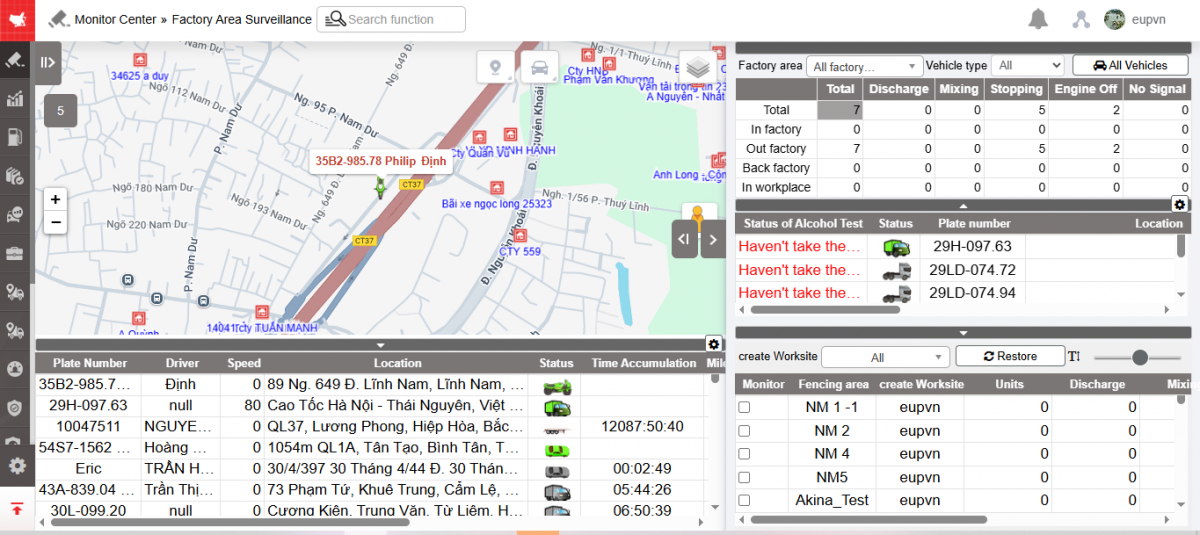
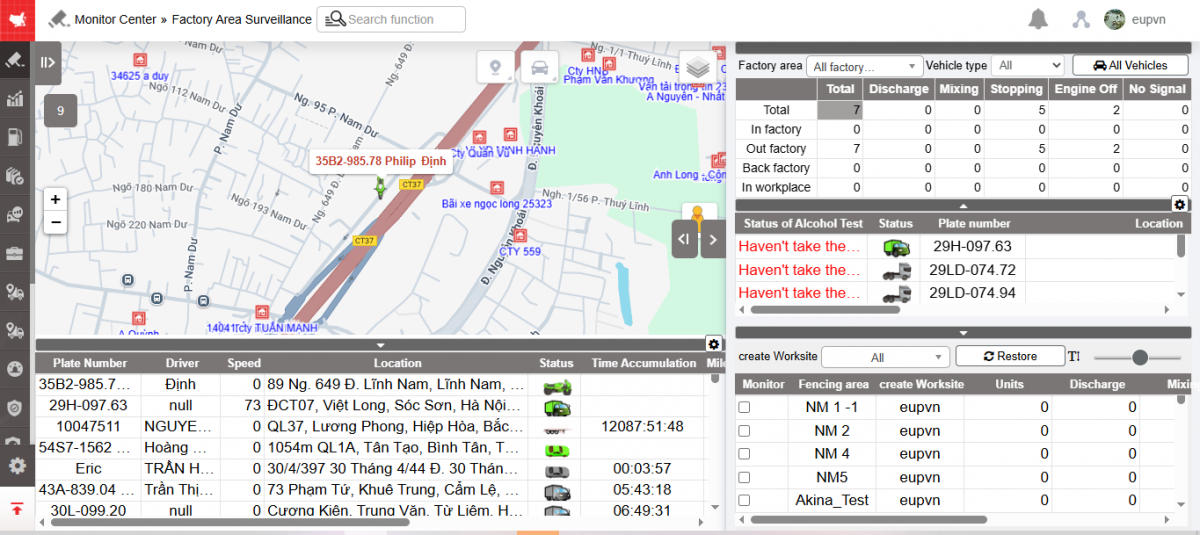
+ The Monitoring Map section and the current vehicle status update panel: The upper part displays the corresponding monitoring map of the vehicle, or the construction site selected for monitoring; the lower part is a table showing the vehicle's operating status and information such as speed, current location of the vehicle, and the workshop area the vehicle belongs to.
-
The information displayed in the current statistics table includes:
-
Plate number;
-
Drive;
-
Speed: Current vehicle speed;
-
Location: Current location of the vehicle;
-
Status: Displayed by color;
-
Time Accumulation: Total time the vehicle has been in its current state;
-
Mileage accumulation: Total Km the vehicle has traveled;
-
Main factory area: The workshop area that the user has set up for each vehicle in the Settings/Vehicle Information function .
-
Temporary factory area: When a vehicle is in the main workshop, but another workshop needs a vehicle, the vehicle can be transferred to that workshop. A workshop that is not directly affiliated but is transferred is called a temporary workshop.
-
Reporting time: Current vehicle signal update time;
-
-
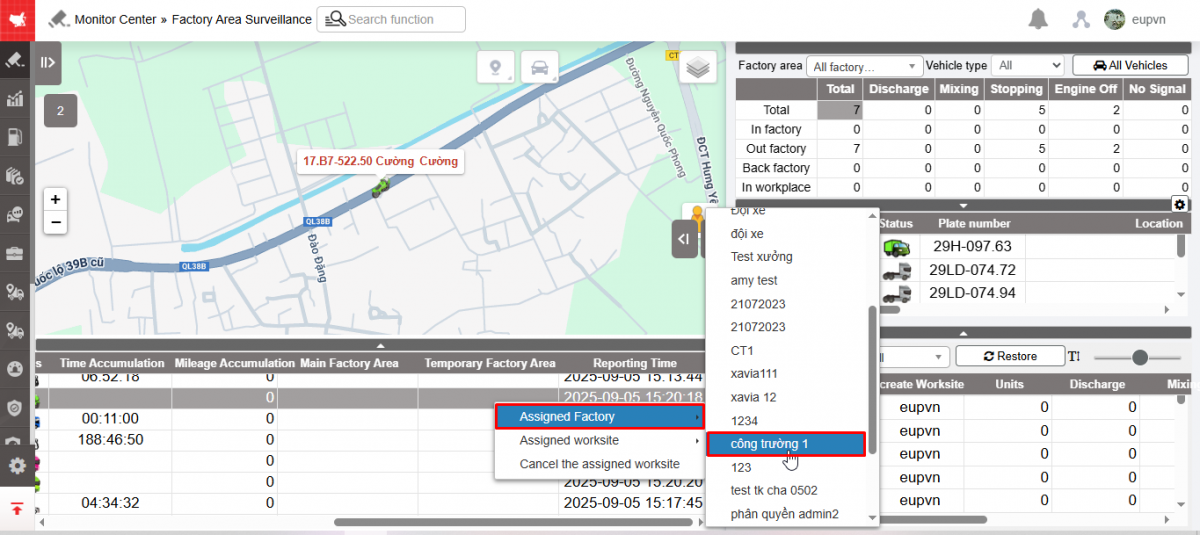
To transfer a vehicle to a temporary workshop, the user selects the row containing the vehicle to be transferred, right-clicks and selects Assigned factory;
-
To transfer the vehicle back to the main workshop, the user selects the line containing the vehicle to be transferred, right-clicks, selects Assigned factory, and selects the name of the vehicle's main workshop.
-
Note:
-
When choosing to transfer the vehicle's workshop, the vehicle number statistics will change according to the workshop transfer: The workshop transferring the vehicle will reduce the total number of vehicles in the workshop and the workshop receiving the vehicle will increase the total number of vehicles in the workshop. The status of leaving the workshop and returning to the workshop will be counted according to the current workshop where the vehicle is assigned;
-
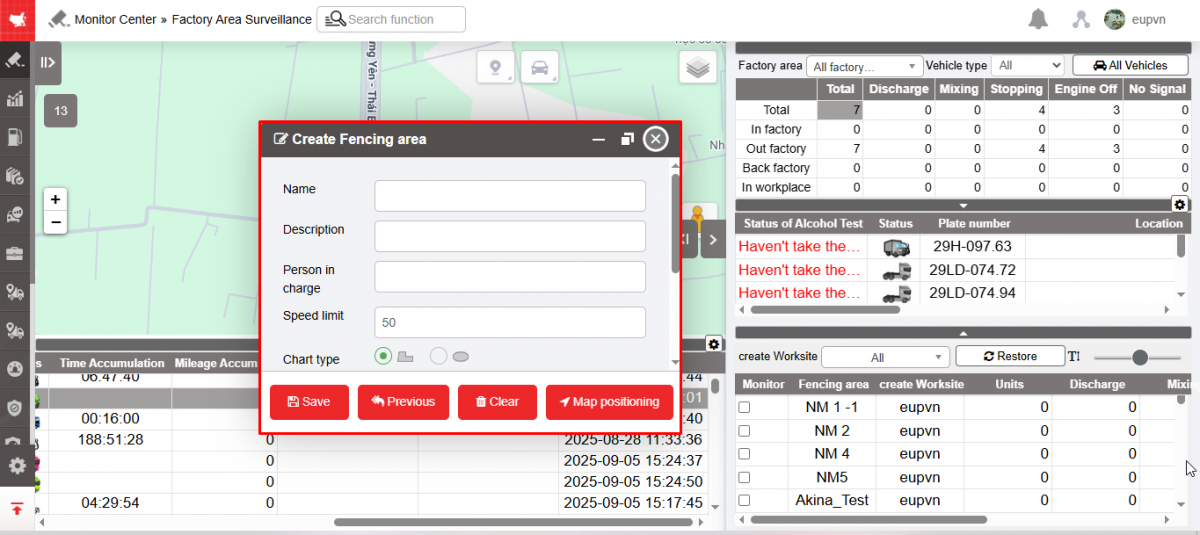
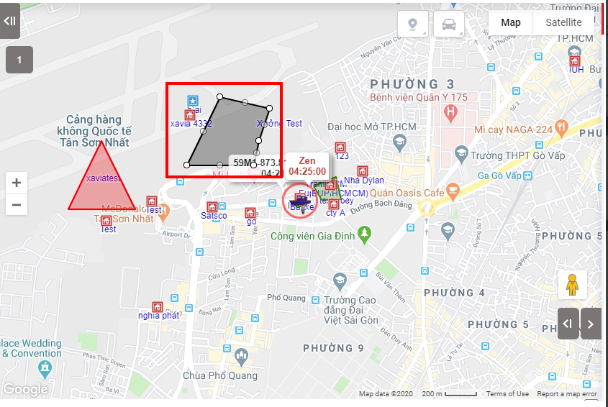
To create a factory or construction site, right-click on the map area and select Create fencing area. The function screen displays;
-
-
User can enter information of Limited Area = factory site then right click on the map to set the limited area then click Save.
+ Quick Statistics section : Click on the function button below to open the quick statistics section;

+ Section Summary and detailed table statistics of the vehiclle
-
Summary table : Allows users to quickly view the following information by workshop, or all workshops:
-
Total: Total number of vehicles in the workshop or all workshops depending on the user's search conditions according to the corresponding statuses such as: Vehicle running, Stopped, Unloading (concrete discharge), disconnected;
-
In factory: Statistics of vehicles in the workshop with corresponding vehicle status;
-
Out factory: Statistics of vehicles from factory to construction site with corresponding vehicle status;
-
Back factory: Statistics of vehicles returning from the construction site to the workshop with corresponding status;
-
In workplace: Statistics of vehicles on site with corresponding vehicle status.
-
-
Detail table : Displays detailed information corresponding to 1 row in the summary table section:
-
Status, Plate number, speed, location, speed: Current vehicle information
-
Stay time at factory: Displays cumulative time.
-
If the vehicle is in the Return to Workshop status, this box will show an estimate of how long it will take to get the vehicle back to the workshop;
-
If the vehicle is in the workshop status, this box will show how long the vehicle has been in the workshop.
-
-
Time back to factory: Displays the hour, minute, second format the vehicle was at the workshop for vehicles in the Return to Workshop status.
-
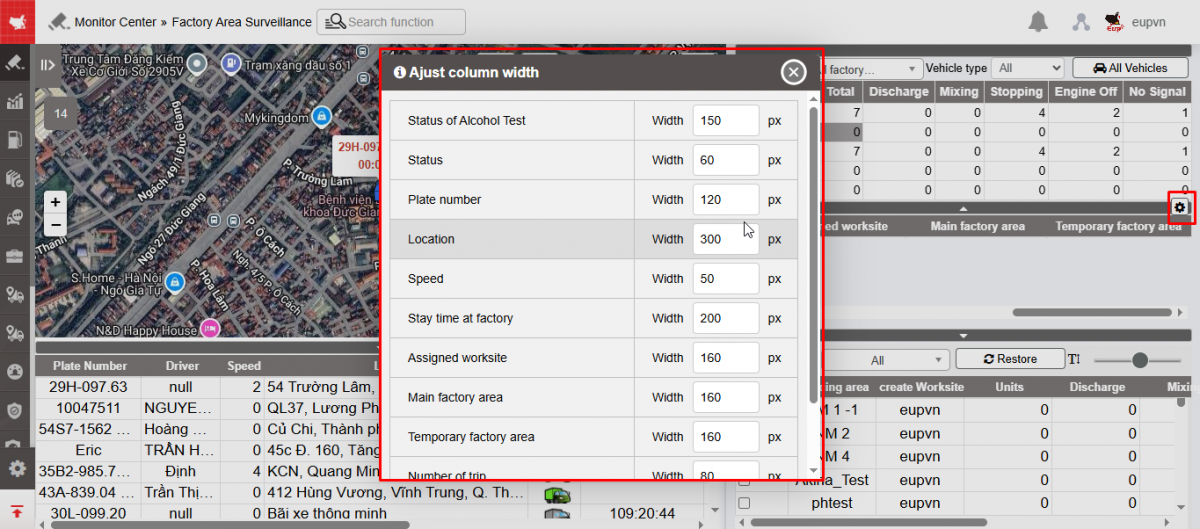
Adjust column width by clicking on the settings icon:
-
-
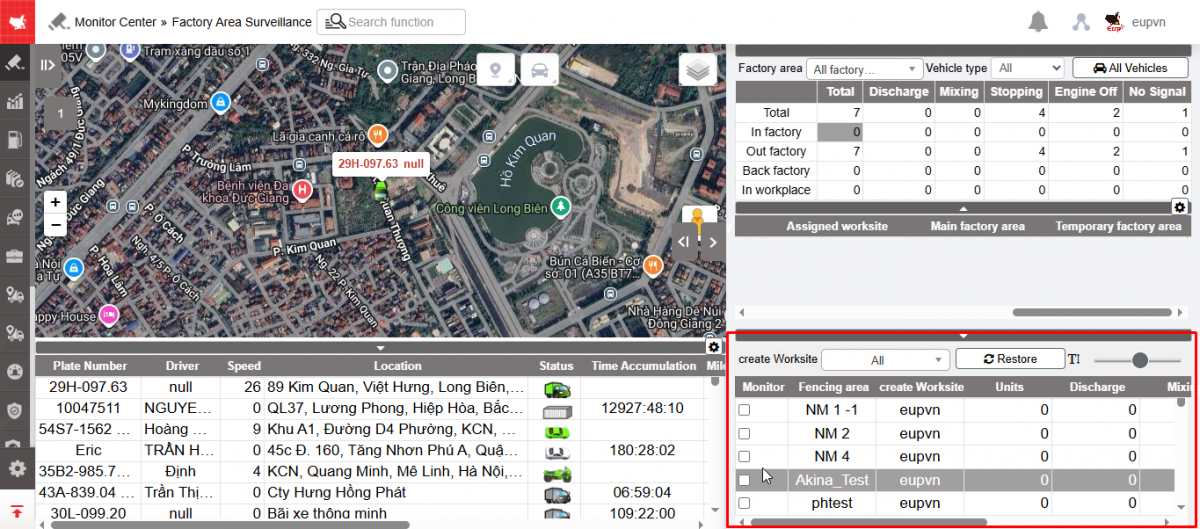
+ Site Supervision section : Allows users to select a site to monitor. The selected site will be displayed on the map. When users check information in other sections and then want to return to the selected site monitoring screen, select Restore.
-
Monitor: Checkox box allows to select construction sites to monitor (up to 6 construction sites)
-
Fencing area: Construction site name
-
Unit: Total number of vehicles in the construction site
-
Discharge (concrete discharge): Vehicles with concrete dumping status
-
Idling: Vehicles with the stop without turning off state
-
Other: Vehicles with other statuses Unloading (discharging concrete) and Stopping without turning off the engine
-
Click
 to quickly select: Factory area, Fencing area, Car to view
- Log in to post comments
- Tiếng Việt
- 繁體中文