Concrete Mixer Truck Working Report
1. Purpose
- Allows users to check and monitor the concrete mixing status of each vehicle or each vehicle team over time.
2. Implementation conditions
- Users are authorized to perform specific functions on the CRM system.
3. Implementation instructions
- Go to menu Statistics report /Concrete Mixer Truck Working Report
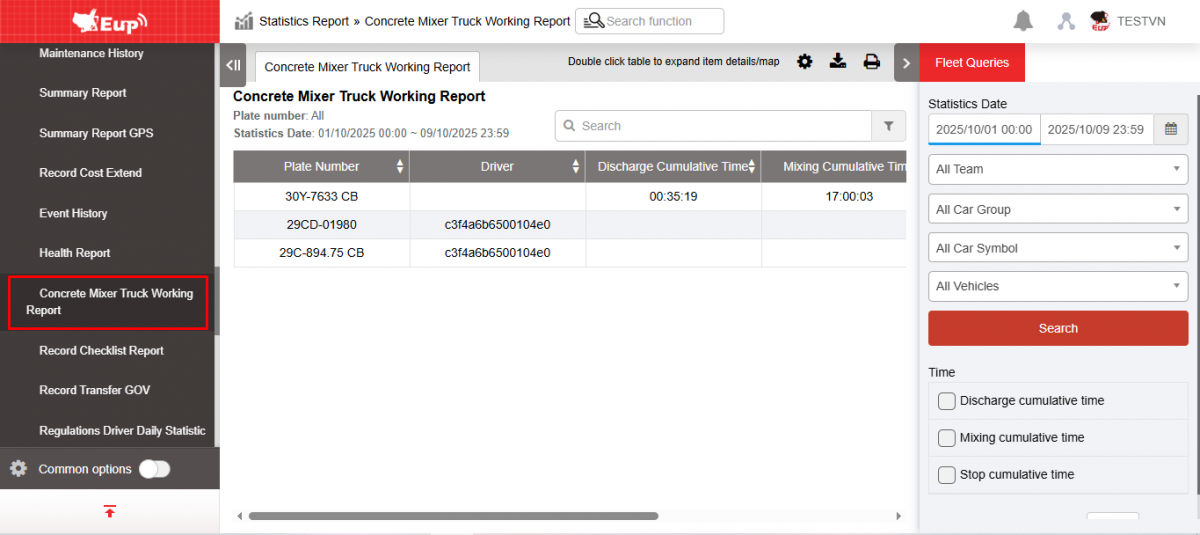
- The function display screen consists of 2 parts:
+ The Fleet Queries section allows users to search for information based on vehicle and time criteria;
+ The Concrete Mixer Truck Working Report section displays details of concrete discharging, mixing, stopping time and the number of abnormal concrete discharges of each vehicle.
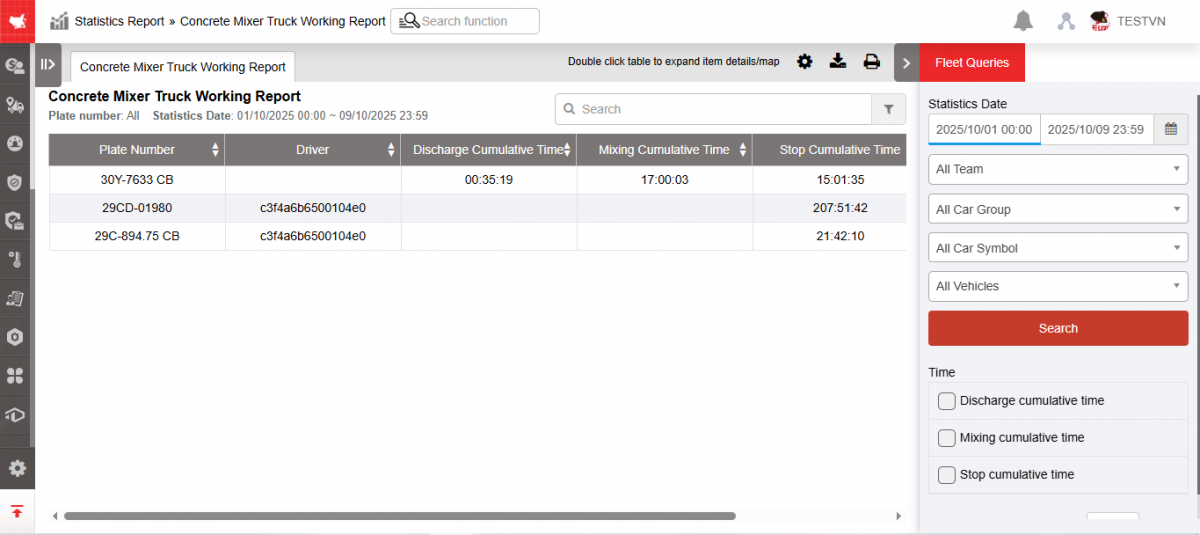
+ Fleet Queries section : User selects the following information
-
From : User enters the first date he wants to view the report
-
To : User enters the last date to view the report
-
Fleet : Allows selecting the corresponding vehicle fleet to look up, default is All vehicle fleet
-
All car group: Select the corresponding vehicle type group to look up, default All vehicle type groups (Vehicle type groups are displayed according to Settings/Vehicle type list)
-
All car symbol: Select the corresponding vehicle type to look up, default All vehicle types (Vehicle types are displayed according to the list in Settings/ Basic information/ Vehicle information/ Vehicle icon)
-
All Vehicles: Select the corresponding vehicle to look up, default to Entire fleet
-
Click Search to display report information in the Concrete Mixer Truck Working Report section
-
Time: Select the corresponding check box to report the filter: Discharge cumulative time, Mixing cumulative time, Stop cumulative time
-
Abnormal Discharge setting (Minutes): Set the concrete discharge time filter to be counted as abnormal
-
If no temporary station is selected, discharge outside the main station and any restricted area (construction site) is abnormal.
-
If a temporary station is selected, discharge outside the temporary station and any restricted area (construction site) is irregular.
-
+ The Concrete Mixer Truck Working Report section allows displaying the following information:
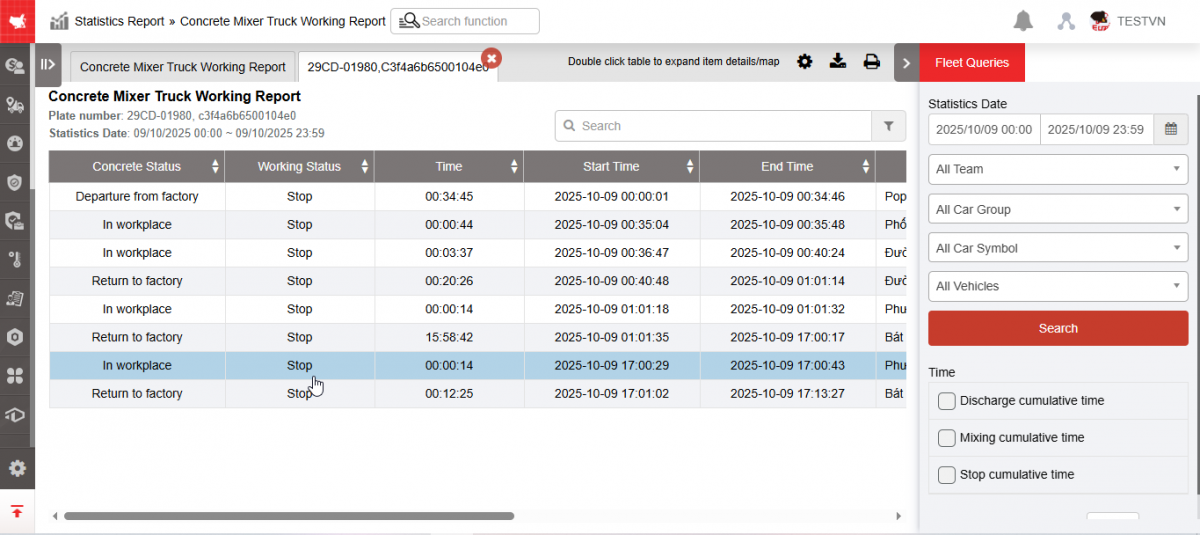
Summary report:
-
Plate number
-
Driver : The corresponding driver name is assigned to the BSX
-
Discharge cumulative time: Is the time the vehicle discharges and pours concrete
-
Mixing cumulative time: Is the time the vehicle takes to mix the concrete.
-
Stop cumulative time: Is the time the vehicle stops mixing concrete
-
Abnormal Discharge Count: Number of times the vehicle discharges concrete abnormally (discharges outside the workshop or factory) exceeding the number of minutes set in Car Information/ Abnormal discharge time (Minutes )
Click on the line you want to see details about, the system will display the Detailed Report screen:
-
Concrete Status : Status of concrete truck (In station, Out of factory, On site, Back to factory, No status)
-
Working status : Working status of concrete truck (Mixing, Preparing to mix, Discharge, Stop)
-
Time: Total time the vehicle is in working state and the corresponding concrete state (Equal to End time - Start time)
-
Start Time: The time the new working status starts
-
End Time : Time the working status ends
-
Adress: The location where the vehicle starts to change its working status.
-
Click on the line in the Detailed Report, the system displays the map corresponding to the vehicle.
+ Select the icon  to print the report
+ Select the icon  to download the report in excel format:
+ Select the icon  to set the display or hide or change the sort order of the report columns