Edriver application user guide
Instructions for using the EDriver app for drivers
Depending on the operating system on the mobile, the user selects the appropriate installation version
1. Login/Logout
Purpose:
- Allows drivers to access the application and perform utilities on the Edriver app
Conditions for implementation
- Drivers have created an account on the journey monitoring system and have downloaded the Edriver app to their mobile
Operations
- To create a driver account on the Edriver app, see the user guide at Driver Management/Authorization https://eup-wiki.gps247.vn/node/61
- Drivers open the app, the login screen appears

- Driver enters the following information:
-
 : Driver enters company name
 -
 : Driver enters assigned login name
 -
 : Driver enters assigned password
- Click Login to access the system.
- After successful login, the system menu displays:
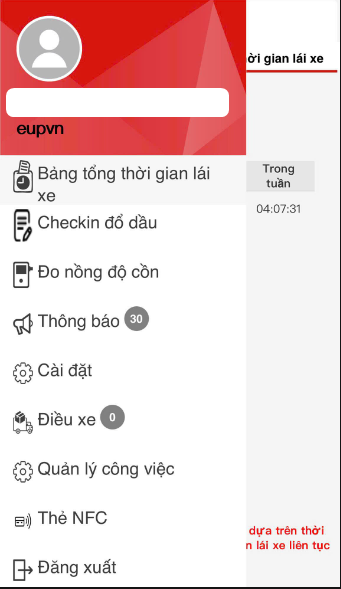
- Select log out if you want to exit the system.

2. Total driving time table
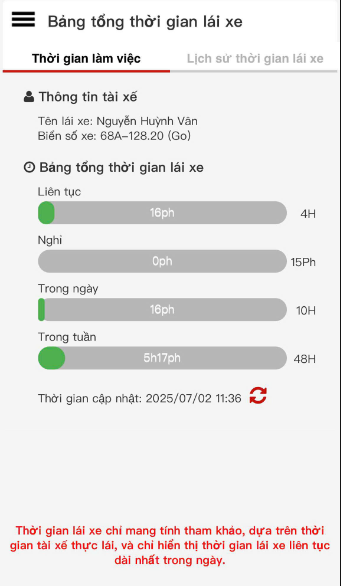
- Working time tab:
+ Driver information: Driver name, license plate number
+ Total driving time table: Continuous, Rest, During the day, During the week
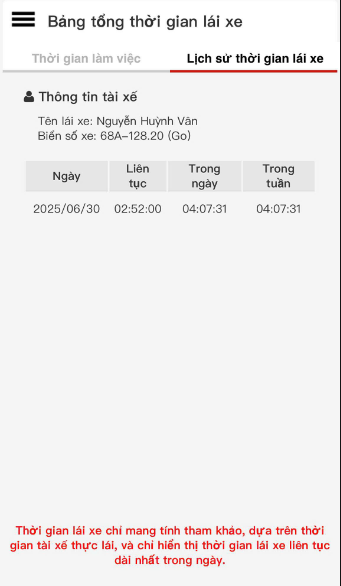
- Driving Time History Tab: Driver Name, License Plate Number, Date, Continuous Driving Time, Driving Time in a Day, Driving Time in a Week
3. Timekeeping Card
Purpose
- Allows drivers to clock in online from the app for each working day, working day with overdue timekeeping or view timekeeping history
Implementation conditions
- Drivers are authorized to clock in on the journey monitoring system
Operations
- Go to the Timekeeping Card menu
- The function screen consists of 3 parts: The Timekeeping section allows drivers to clock in during the day, the Forgot to clock in section allows drivers to clock in again in case of missing timekeeping, the Timekeeping History section allows drivers to review their own timekeeping history

- The Timekeeping section includes the following information
- Select vehicle: The driver selects the vehicle he has driven to perform the timekeeping
- Start working: The driver selects the start time to perform the timekeeping, the system will update according to the current time
- End working: When stopping driving the vehicle or switching to another vehicle, the driver selects the end of work to end the timekeeping, the time is updated according to the current time
- After the timekeeping, the system displays the timekeeping in the driver's Timekeeping History section
- Forgot to timekeeping section: The driver selects to timekeeping again in case of forgetting to timekeeping, including the following information:

- Driver name: The system displays the default name of the driver currently logged in
- Select vehicle: The driver selects the vehicle to be clocked in
- Timekeeping status: If the driver is working on the day of clocking in, select Active, if off work, select Inactive
- Timekeeping date: The driver selects the day he forgot to clock in and re-clocks
- Press Save to save the result just performed
- The clocking result is saved in the driver's Timekeeping History section
- Timekeeping History Section: This section records all the times the driver has clocked in.

4. Alcohol Concentration Test
Purpose
- Allows drivers to perform alcohol concentration tests by connecting to an alcohol concentration measuring device via Bluetooth, or viewing alcohol concentration measurement history
Implementation conditions
- Drivers are authorized to perform Alcohol Concentration Measurement function on the journey monitoring system
Operation
- Go to the Alcohol Concentration Measurement menu
- The function screen consists of 2 parts: The Test section allows drivers to perform alcohol concentration tests, the History section allows drivers to review their alcohol concentration test history

- Test Section: Includes the following information
- Driver: The system displays the default name of the driver currently logged in
- License plate: Allows the driver to select authorized vehicles
- To measure alcohol concentration, the driver presses the power button to open the alcohol concentration measuring device, then the device will automatically connect to the application via Bluetooth. After the device connects to the application, the driver needs to blow into the device to measure alcohol concentration. If the driver blows correctly, the device will automatically transmit alcohol concentration measurement data to the edriver app and at the same time, the app will automatically send the driver's alcohol concentration measurement data to the journey monitoring system so that the manager can look up the driver's alcohol concentration
- Note: If the driver is authorized to measure alcohol concentration before checking in, the app will require the driver to measure alcohol concentration before checking in
5. Contact Book
Purpose
- Allows drivers to see the contact phone numbers of other drivers when they need assistance
Conditions
- Drivers are authorized to access the Information Book on the journey monitoring system
Operation
- Go to the Contact Book menu
- The function screen displays the contact phone number list of all drivers in the team, and also supports drivers to quickly find phone numbers in the area 

6. Notification
Purpose
- Allows drivers to receive and read messages from the manager sent from the journey monitoring system to the driver's app
Implementation conditions
- Drivers are authorized to Notification on the journey monitoring system
Operation
- Go to the Notification menu
- The display function screen consists of 2 parts: The Inbox Warning section is the part that displays the number of new messages that the driver has not read, and the Notification Display section includes the title, notification content, date and time, the driver clicks on the notification he wants to view to open and read the detailed content of the notification

7. Settings
Purpose
- Allows drivers to install utilities to serve the working process such as changing passwords, warnings when abnormalities occur, and reminders for attendance
Conditions for implementation
- Drivers have installed the Edriver app and have successfully logged in on the app
Operations
- Go to the Settings menu
- The function screen displays 3 parts: The Change Password section allows drivers to change their passwords, the Remember attendance section allows drivers to schedule reminders for attendance, the Setting Abnormal Notification section allows warnings when abnormalities occur.

- Password Change Section: Helps drivers change their password as desired to ensure the security of their account, including the following information:

- Old Password: Driver enters the password currently in use
- New Password: Driver enters the password he wants to use immediately after changing
- Confirm Password: Driver re-enters the information entered in the New Password field
- Press Save to complete the password change
- Timekeeping Reminder Section: Allows drivers to set timekeeping reminders to limit drivers from forgetting to clock in. Function detail screen:

- Drivers tick the icon to select the item to be reminded to clock in
- After selecting the item, drivers select the specific time to be reminded to clock in by selecting the icon .
- Press Save to save the clock in reminder
8. Vehicle dispatch
Purpose
- Allows drivers to receive vehicle dispatch orders and update delivery order status
Implementation conditions
- Drivers are granted an account on the CTMS system
Operations
- When a delivery order is assigned to a driver, the driver will receive a notification about the delivery order sent to the phone that the driver has logged into the Edriver VN app
- Go to the Vehicle dispatch menu
- The function screen displays 2 parts: The Incomplete section is the section that lists all orders that the driver is being delivered but has not finished; the Completed section is the section that lists all orders that the driver has completed.
- In case the order has multiple points, the App displays them as small orders with the same Order Code and starting point as below:

- Incomplete Section: Allows drivers to search a list of incomplete orders by time, and sort them by priority.
- The status of the order will be displayed according to the status that the user has set in the dispatch_setting section. The driver departs or arrives at the starting point, arrives at the ending point or reports any abnormalities, the driver just needs to press the buttons corresponding to the actual delivery status of his/her order.
- The driver can change the order of his/her delivery orders by pressing the Edit button at the top of the page and dragging and dropping each delivery order to arrange in the desired order then select Done
- The driver selects the icon
 to quickly view the delivery map
 -
Or you can quickly contact the delivery person or recipient by selecting the icon

- When encountering an abnormality, you can select the Abnormality button to report to the system, send photos and abnormal content
- The system has added the Travel Photo function, allowing drivers to take photos of the journey and send them to the system when needed
- Drivers can select the icon
 to use the navigation support feature on the app

- Completed Section: Allows drivers to search a list of completed orders by time, and sort them by priority.

- Drivers can change the order of their delivery orders by clicking the Edit button at the top of the page and drag and drop each delivery order to arrange in the desired order, then select Done
- Drivers select the icon to quickly view the delivery map
-
Or can quickly contact the delivery person or recipient by selecting the icon
- When the Driver completes the delivery at a point, the completion status will be updated. The App will ask the Driver to take a photo of the invoice, related documents and send it to the system (This feature can be installed in the Dispach_setting section)
- In case the order has multiple delivery points, the Order is considered Completed when the delivery status at all points is updated as Completed.
- Log in to post comments
- Tiếng Việt
- 繁體中文